Shared Settings
Shared Settings is a configuration system in Enreach Outbound that lets you define settings once and have them automatically apply everywhere they're needed — with the flexibility to override individual values at any level, without affecting anything else.
With Shared Settings you benefit from:
- Less duplication — configure once, inherit everywhere
- Faster campaign setup — only campaign-specific values need to be entered
- Safer changes — update a value at Corporate level and all campaigns pick it up immediately
- Developer independence — administrators can change configuration without touching SmartHub scripts
- Structured and validated — parameters have types, constraints, and descriptions, reducing misconfiguration
- Flexible control — fine-grained activation control at every level of the hierarchy
How settings flow through your organisation
At the top, your organisation sets the default rules. Those rules automatically apply everywhere — unless something lower down decides to do things differently. You never need to repeat yourself: if a setting is the same across your whole organisation, set it once and forget about it. Only specify a value at a lower level when that level needs something different.
The four levels
Settings can be defined at four levels, from broadest to most specific. Lower levels automatically inherit values from higher ones.
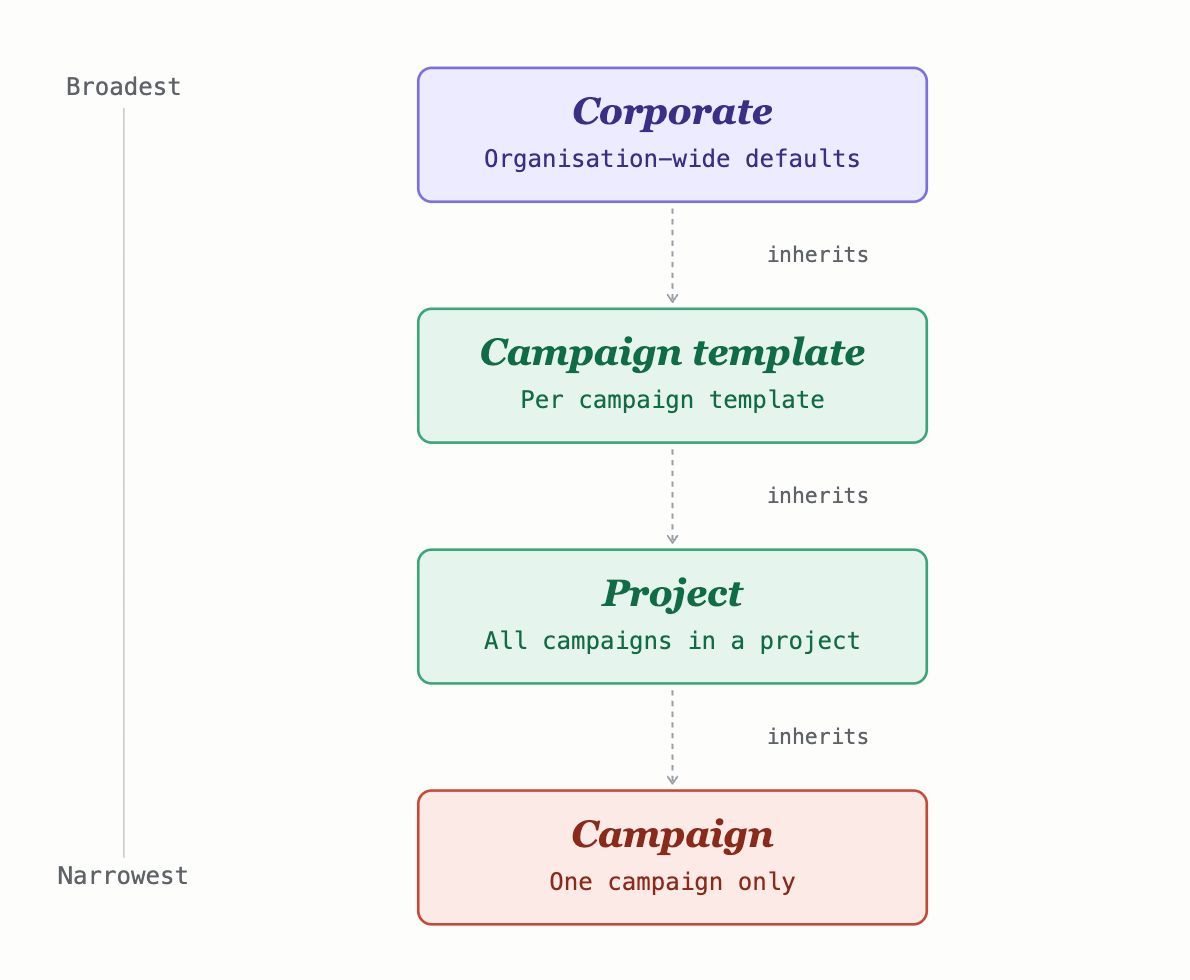
The four levels of the Shared Settings hierarchy, from broadest (Corporate) to most specific (Campaign).
Corporate | The company standard Organisation-wide defaults. Set something here and it applies to every project and campaign automatically. This is where settings that should be the same everywhere belong — shared infrastructure, company-wide policies, default API keys. |
Campaign template | Per campaign template Overrides that apply to all campaigns using a specific campaign template. Useful when a certain type of campaign consistently needs different settings from the corporate default. |
Project | All campaigns in a project Overrides for everything within a specific project. All campaigns inside that project pick these up automatically, without needing to be configured individually. |
Campaign | One campaign only The most specific level. Overrides that apply to a single campaign, without affecting anything else. Use this sparingly — if multiple campaigns need the same override, consider setting it at Project level instead. |
How inheritance works
When a campaign runs, the system builds its final set of settings by starting at the top and working its way down:
- Start with the Corporate defaults
- Apply any Lead Definition overrides on top
- Apply any Project overrides on top of that
- Apply any Campaign overrides last
The last value set for any given setting wins. If no level overrides it, the Corporate default is used.
For complex settings like objects and dictionaries, inheritance works at the property level — not just the whole value. A campaign can override a single nested property (e.g. smtp.host) while inheriting everything else (smtp.port, smtp.useSsl) from above.
Example — SMTP email configuration
An organisation sets its email server details at Corporate level. Most campaigns inherit all three settings. One campaign uses a different server, so it overrides just smtp.host and inherits the rest.
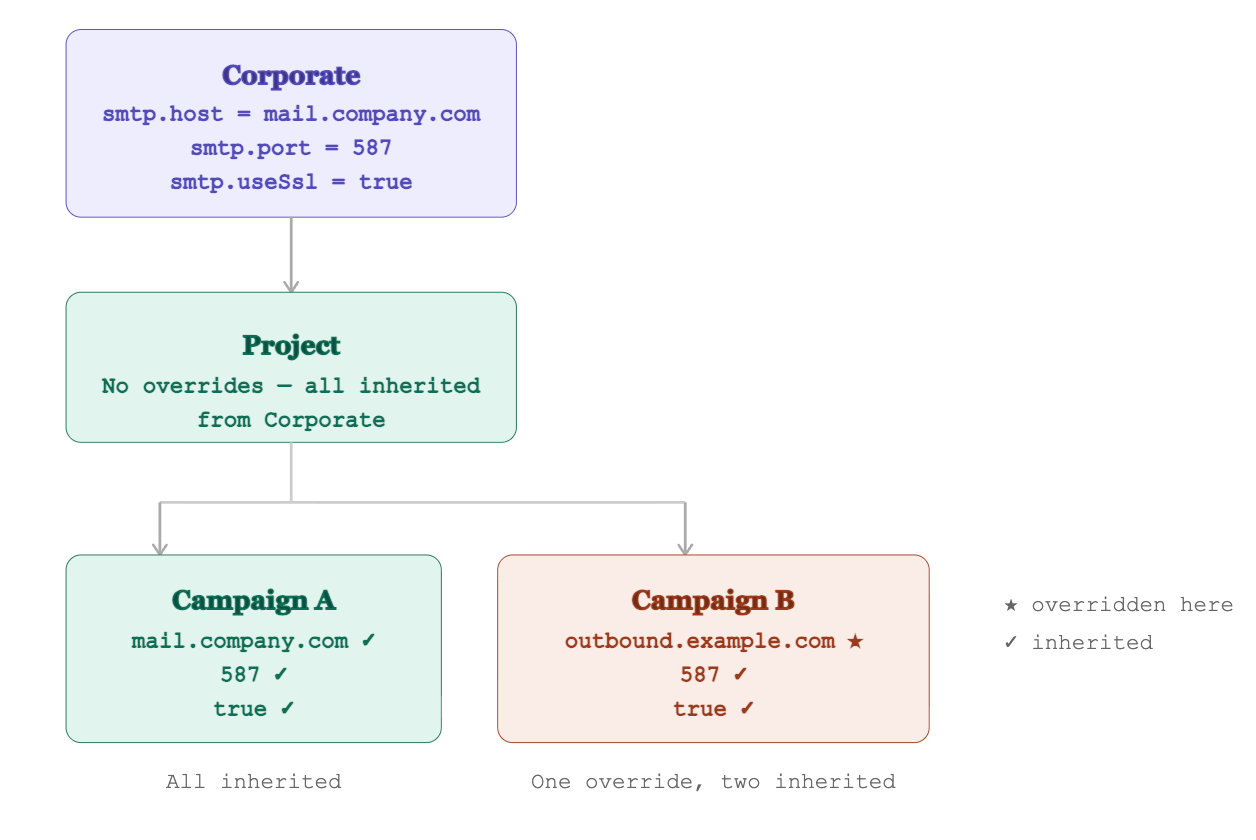
SMTP settings set once at Corporate level. Campaign A inherits everything unchanged. Campaign B overrides only smtp.host and inherits the rest.
Controlling availability
Each Shared Setting set can be switched on or off at any level using two flags. Together, they give you fine-grained control over exactly which parts of your organization use a given Shared Setting.
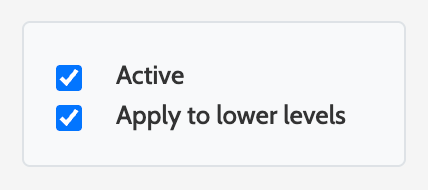
Active
Enables or disables the Shared Setting at the current level. When inactive, the Shared Setting is hidden from editing and not used at runtime. A Shared Setting set must be active at every level in the chain for it to take effect at the campaign level.
Apply to lower levels
Propagates the active state downward. If enabled, all lower levels that haven’t explicitly set their own value will inherit the active state from this level. If disabled, lower levels won’t inherit it — they’ll need to opt in themselves.
For a specific campaign to use a Shared Setting at runtime, every level in that campaign's chain must be active — either explicitly, or inherited from above. If any level in the chain is inactive, that campaign won't use the Shared Setting, though other campaigns with a fully active chain will be unaffected.
How Active is resolved
The two checkboxes above (Active and Apply to lower levels) interact in a few specific ways. This section walks through the rules so you can predict exactly what a campaign will see at runtime.
Each level decides for itself
When you save Active at any level, that value is the truth for that level. Nothing above can overwrite it. Once Project has its own saved Active state, it is no longer following Corporate's default — it's following its own.
Apply to lower levels is only a default
Apply to lower levels does not force anything onto descendants that have already been configured. It only sets the default for levels below that haven't saved their own value yet. The moment a lower level saves its own Active state, that saved value takes over and the inherited default stops applying there.
What happens when a level has nothing saved
If a level has never been configured, the system looks upward to find the nearest ancestor whose Apply to lower levels is on, and uses that ancestor's Active state. If no level above has Apply to lower levels turned on, the Shared Setting is treated as inactive.
Intermediate levels can switch off a whole branch
At Corporate, Campaign Template, or Project, saving Active = off turns the Shared Setting off for every campaign in that subtree, regardless of what individual campaigns have saved. Intermediate levels have authority to deactivate everything below them. Use this when you need a hard off-switch on a branch.
Campaign level is the final word
At Campaign level, whatever you save is final for that one campaign — on or off. It overrides any Apply to lower levels default from above. If a campaign has nothing saved, it falls back to the nearest ancestor's Apply to lower levels.
The shortcut
Set Active = on with Apply to lower levels = on at Corporate and you're done. Every campaign in the organisation will use the Shared Setting automatically. You only need to touch a lower level when you want it to differ from the default — to deactivate a branch, or to opt a single campaign in or out.
Common patterns
Configuration | Result |
|---|---|
Corporate Active = on Apply to lower levels = on | Active everywhere. Every project and campaign uses the Shared Setting automatically. |
Corporate Active = on Apply to lower levels = off | Only Corporate itself is active. Campaigns stay inactive unless an intermediate level or the campaign itself explicitly opts in. |
Corporate Active = on Apply to lower levels = off Project A Active = on Apply to lower levels = on | Only campaigns within Project A use the Shared Setting. Other projects' campaigns stay inactive. |
Corporate Active = on Apply to lower levels = on Project A Active = on Apply to lower levels = off | All campaigns are active except those in Project A. Project A becomes a per-branch opt-out: Project A's own campaigns no longer inherit, while every other project still inherits from Corporate. |
Corporate Active = on Apply to lower levels = on Project A Active = off | Every campaign in Project A is deactivated, regardless of what individual campaigns have saved. Other projects are unaffected and remain active. Use this as a hard off-switch for a single branch. |
Corporate Active = on Apply to lower levels = on Campaign A1 Active = off | Every campaign is active except Campaign A1, which has explicitly opted out for itself. |
Corporate Active = on Apply to lower levels = on Campaign A1 Active = on (saved) | No change in behaviour — Campaign A1 was already active by inheritance. Saving Active = on at the campaign just makes it explicit and stops it tracking the inherited default. |
What can be configured
Shared Settings support a wide range of value types to cover most configuration needs:
Type | Use for |
|---|---|
Text | Short text, long text, email addresses, URLs |
Number | Integers and decimals, with optional min/max constraints |
Boolean | Yes/no toggles |
Selection | Dropdowns with fixed options (Enum) or named options with underlying values (PickList) |
Reference | Links to other campaigns, SMS templates, email templates, or lead fields |
Object | A group of related parameters configured together (e.g. SMTP settings) |
Dictionary | A dynamic list of key/value pairs, useful for variable-length configurations like survey questions or label mappings |
Working with Shared Settings
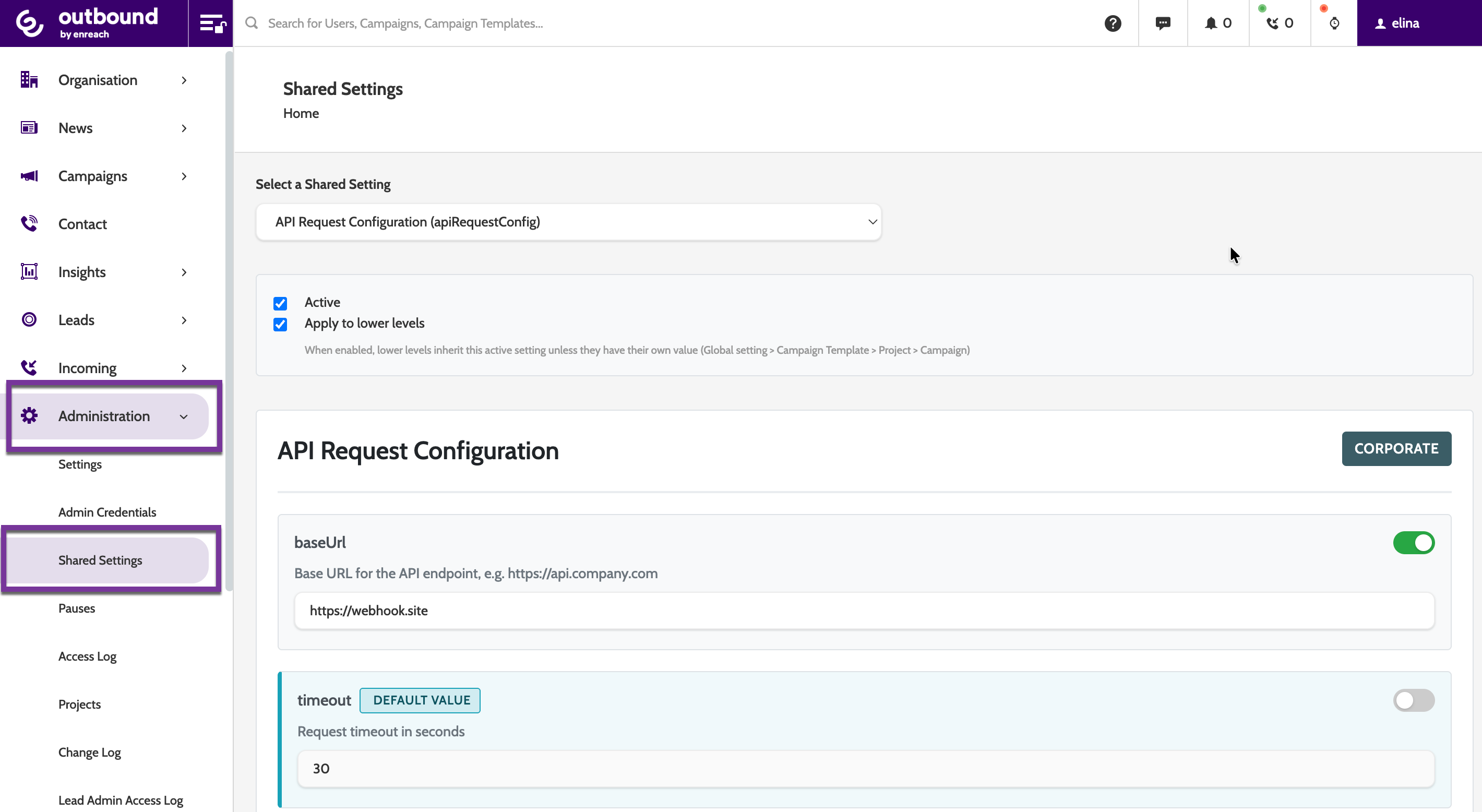
If your organisation has access, Shared Settings can be found under the Administration menu tab.
Administration > Shared Settings is your central control hub for shared settings.
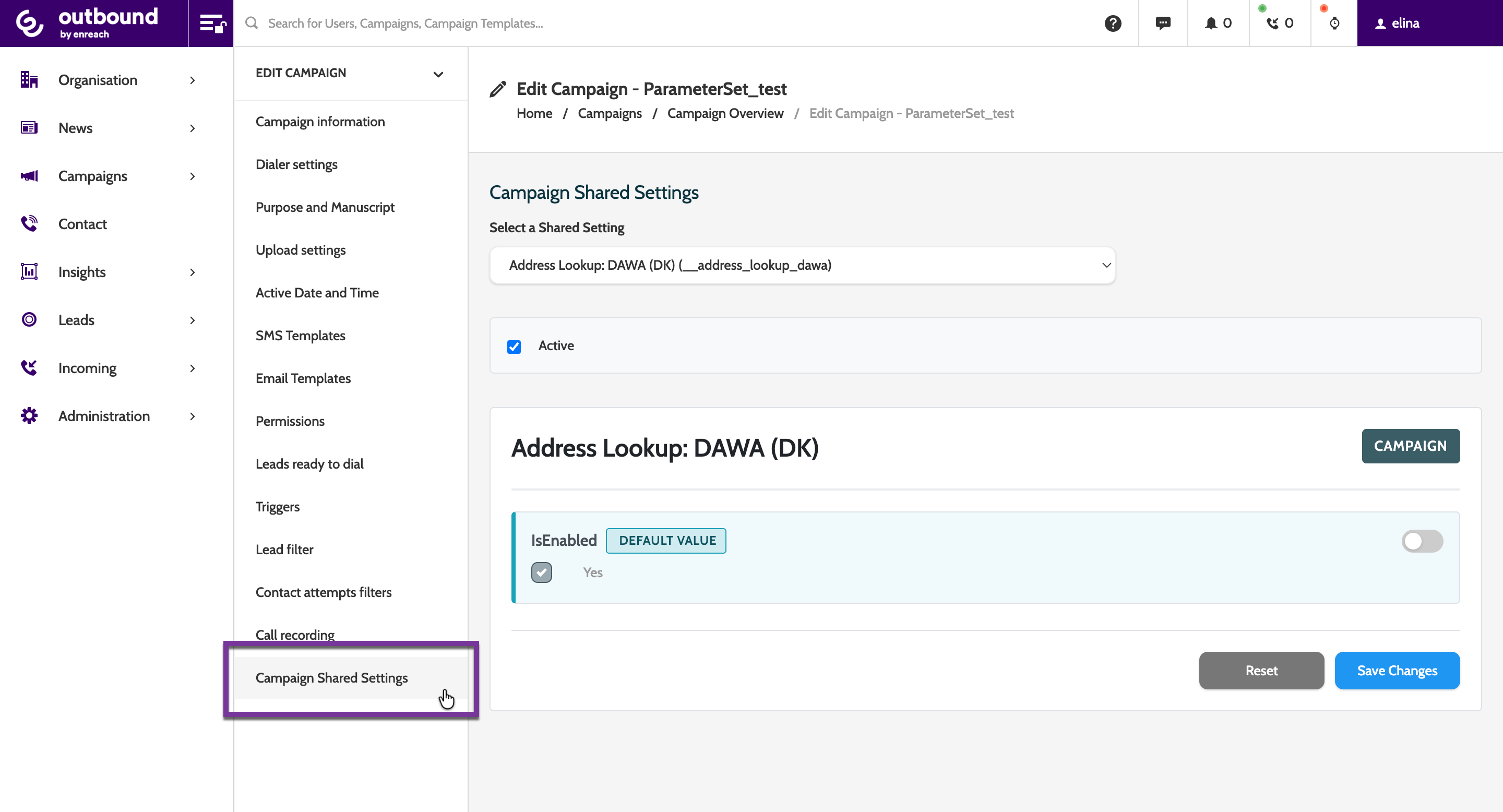
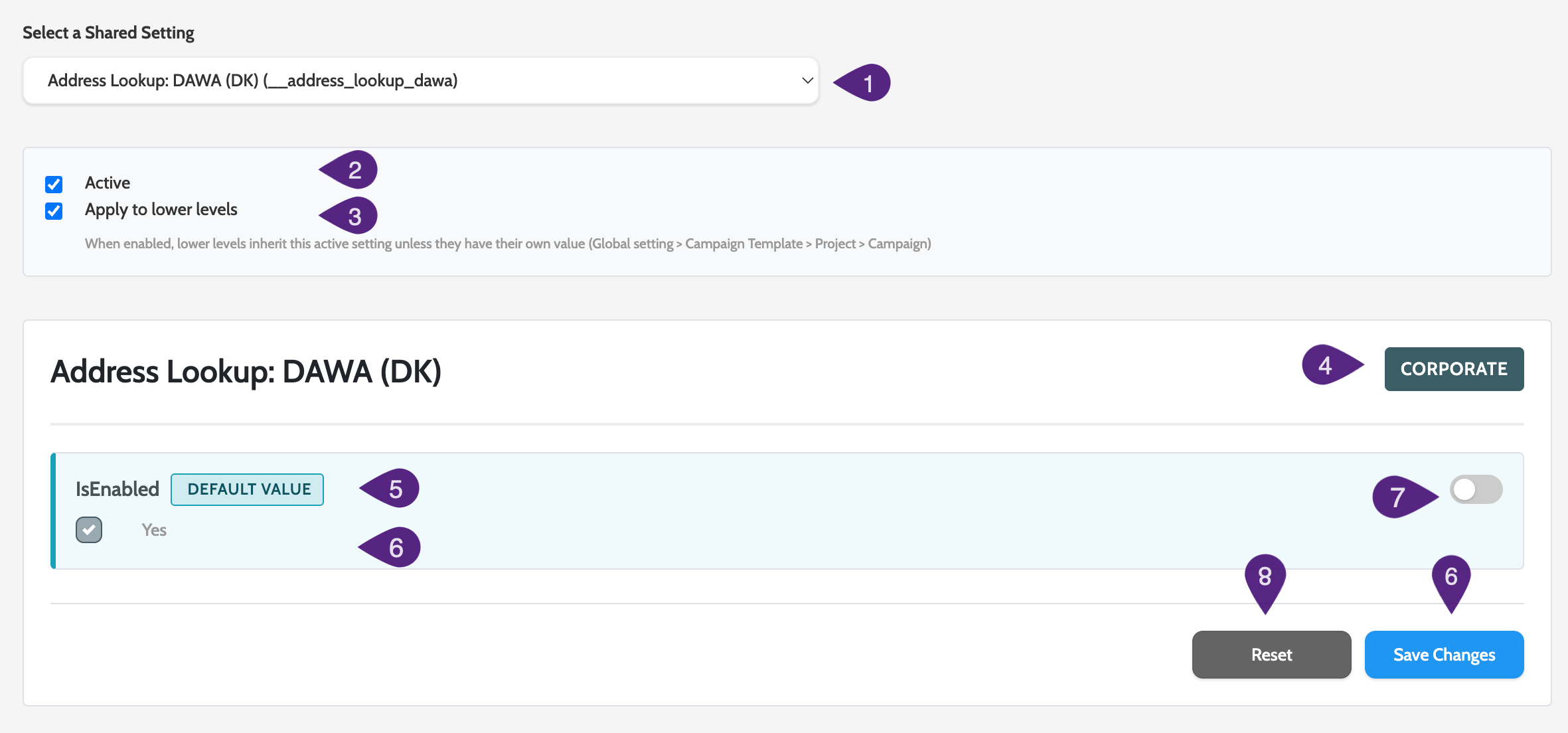
- Select a Shared Setting - a dropdown to choose which Shared Setting you are configuring. Here you will see a list of standard (provided by Enreach Outbound) and custom (ordered through custom development) Shared Settings
- Active - check this box to enable the Shared Setting at this level (in the image below, the box is unchecked, meaning the Address Lookup Shared Setting is not active at this (Corporate) level
- Apply to lower levels - check this box and the Active box to ensure the Shared Settings apply to lower levels in the hierarchy (Campaign Template, Project, and Campaign)
- Level label - shows the level the shared setting is applied to. This could be Corporate, Campaign Template, Project, or Campaign
- Value badge - if the value badge says DEFAULT VALUE, then it indicates the value shown is the default, enabled at the highest level of the hierarchy, and not one that has been adjusted per level. In the image below, you can see that IsEnabled is the default, meaning the Address Lookup Shared Setting is enabled by default across the hierarchy
- Value - the image below shows a checkbox, but it could be a text value, API call, JSON body, email address. When the override toggle is enabled, the value is editable
- Override toggle - when on, the value is editable. When off, the default value, if set, will be inherited
- Reset - click to reset any changes made to the Shared Setting in the current session
- Save Changes - saves your progess.
Where to configure Shared Settings
Corporate level
Go to Administration > Shared Settings
Campaign Template level
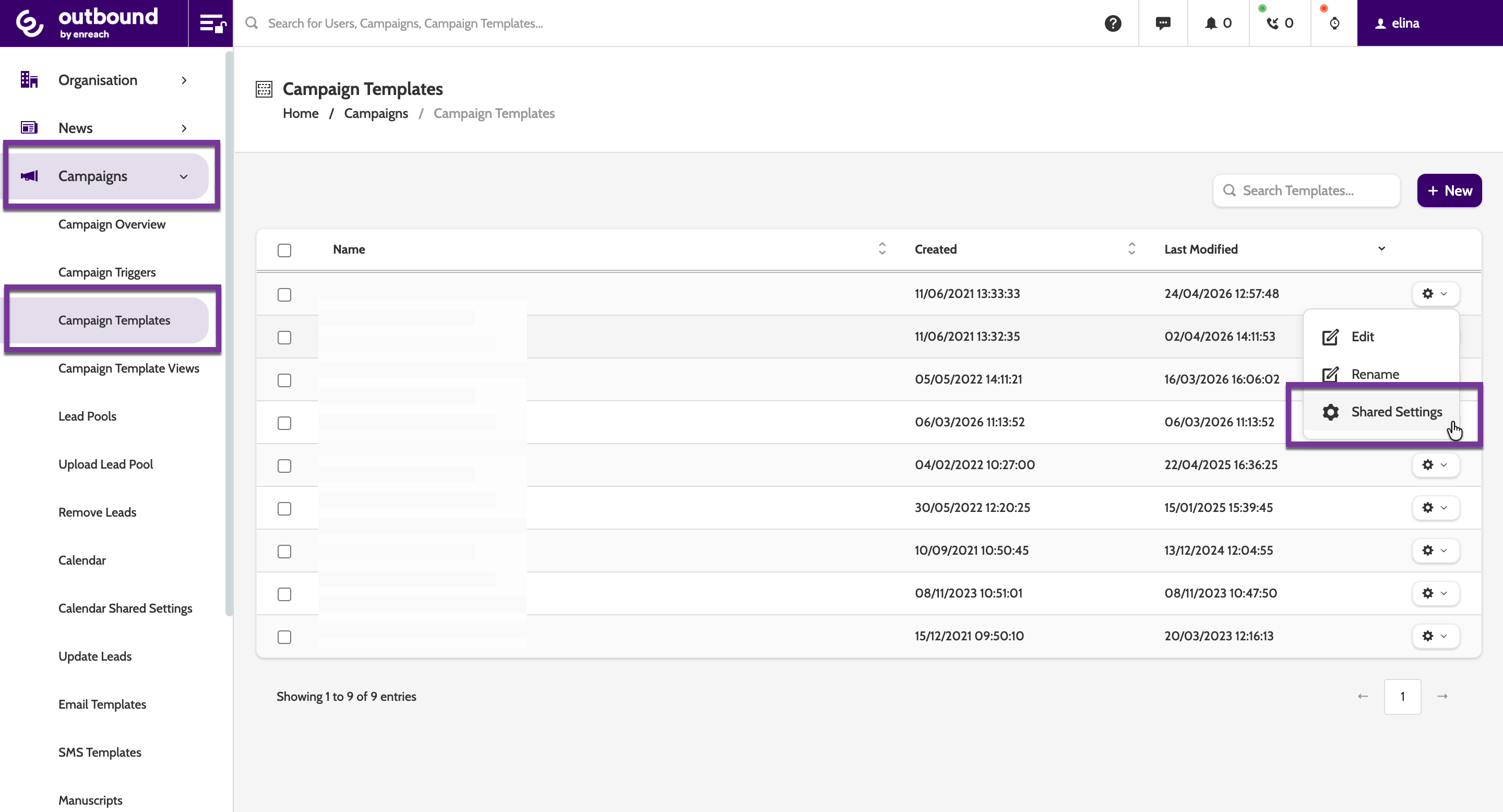
Go to Campaigns > Campaign Template.
Open the options for the template you want to work with, and click Shared Settings.
Project level
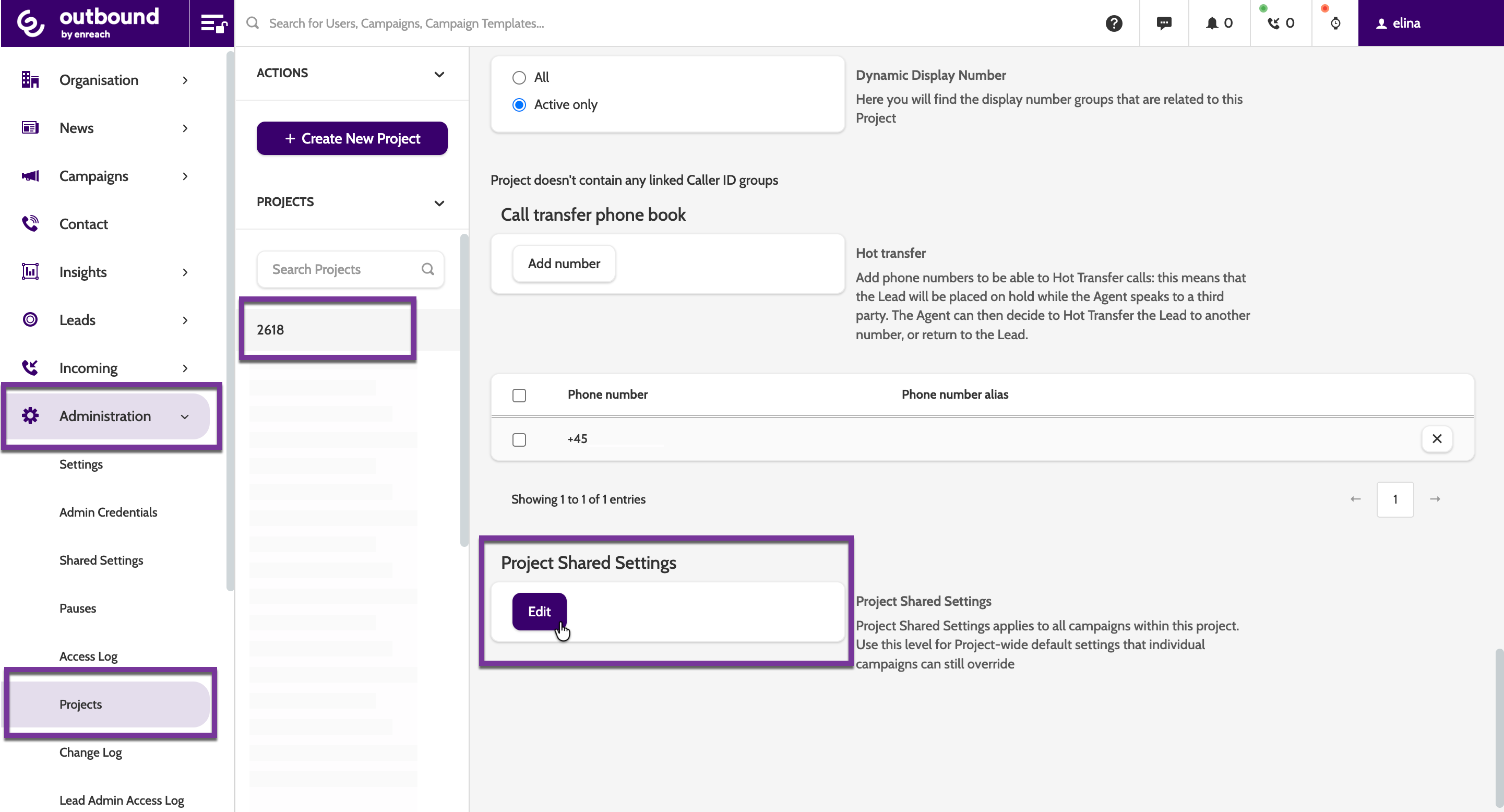
Go to Administration > Projects.
Select the Project you want to work with, and scroll down to find Project Shared Settings.
Campaign level
Go to Campaigns > Campaign Overview.
Select the Campaign you want to work with, then click the Edit button.
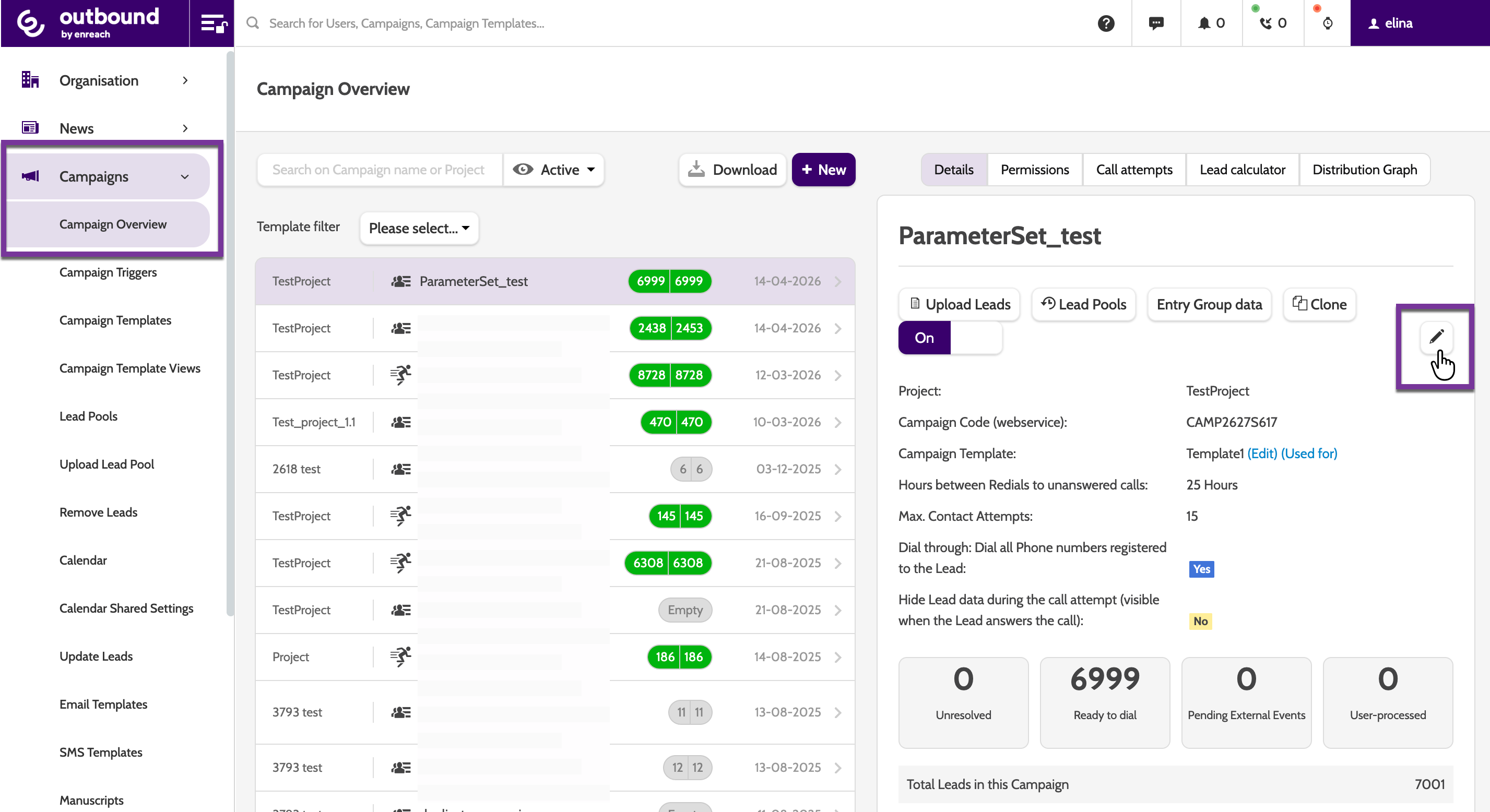
In the Edit Campaign menu, select Campaign Shared Settings.