Administration: Dynamic Display Number
If you are an admin user, you can group Caller IDs into groups to be used in rotation in campaigns.
Before you start creating your dynamic display number groups, you must have already uploaded numbers to Caller IDs.
Create a new group
Click New Caller IDs group to create a new group.
General settings
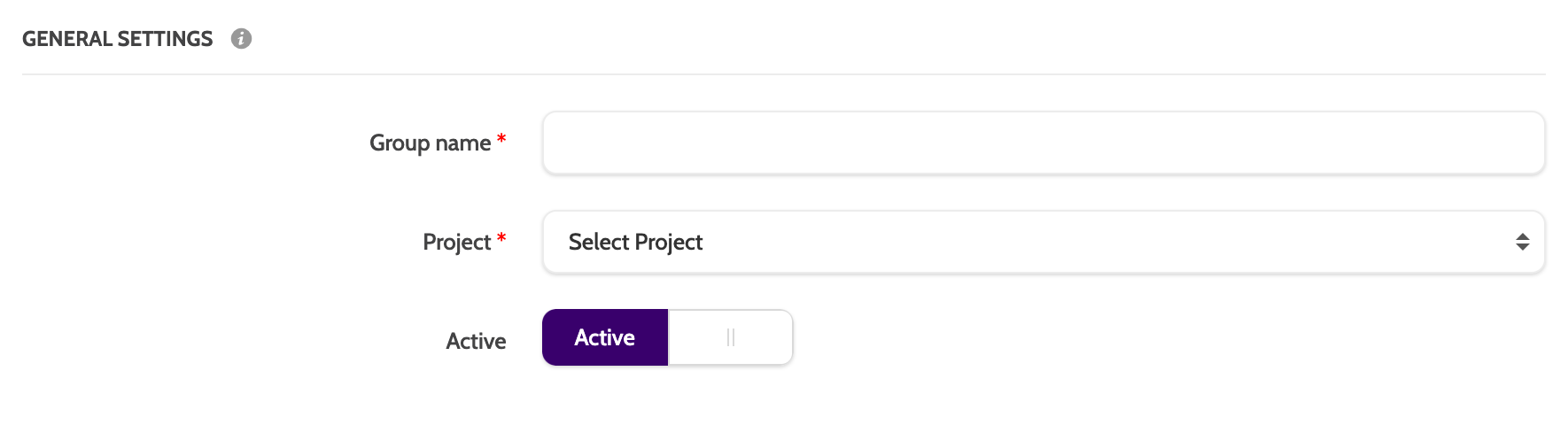
Under General settings, enter a Group name, and select a project from the drop-down menu the group will belong to.
Please note that Caller ID Groups can only belong to one project.
Rotation rules
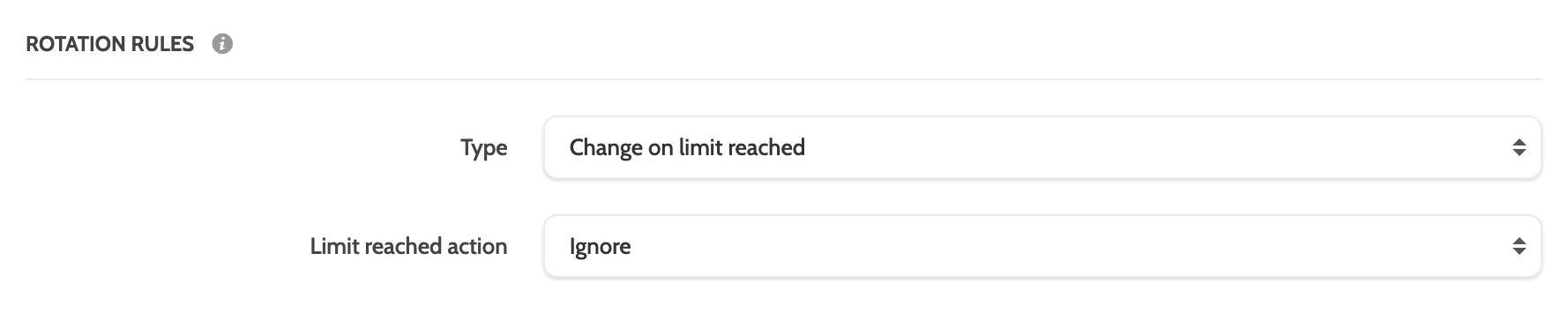
Rotation rules lets you decide how the numbers are to be rotated:
Under Type, select Random for the numbers to be rotated randomly. No limit will be reached, and the numbers will continue to be reused in this Caller ID Group.
Selecting Change on Limit Reached will allow you to automatically change the number on the limit you set below under Usage Limits.
If you have chosen Change on Limit Reached, expand the Limit Reached Action menu to select an action:
- Ignore will reset the rotation statistics and begin again.
- Hidden Number will display a hidden caller ID to the lead.
Usage limits
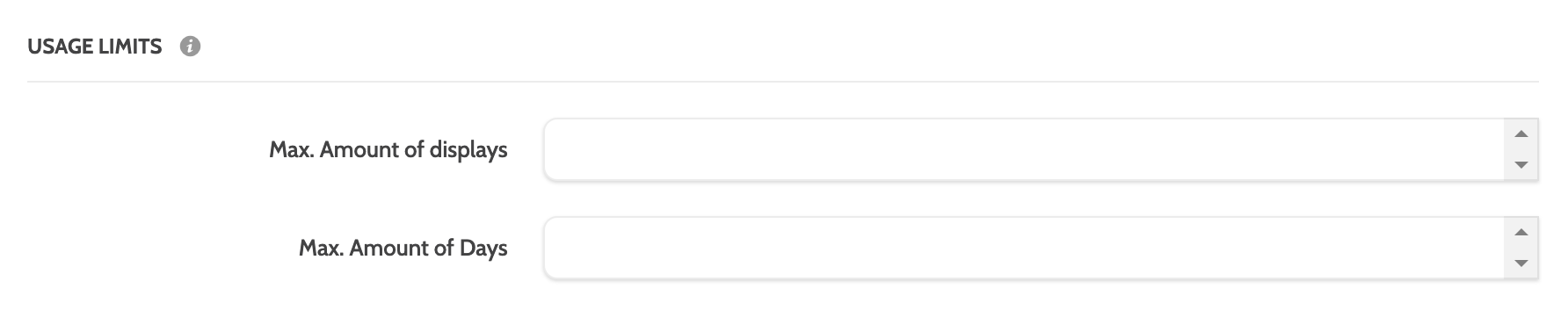
Usage Limits lets you configure the duration and frequency that the Caller ID Group will be in use.
Usage Limits is only applicable if you choose Type > Change on Limit Reached.
In Max amount of displays, set the maximum number of times a phone number will be displayed for before changing.
Enter the Max amount of days the number will be in rotation for before changing.
Phone number reuse settings
Decide whether to reuse caller IDs for Private and VIP Redials.
When this is toggled to Yes, the same caller ID will be used even if the Max amount of displays, configured above, has been exceeded.
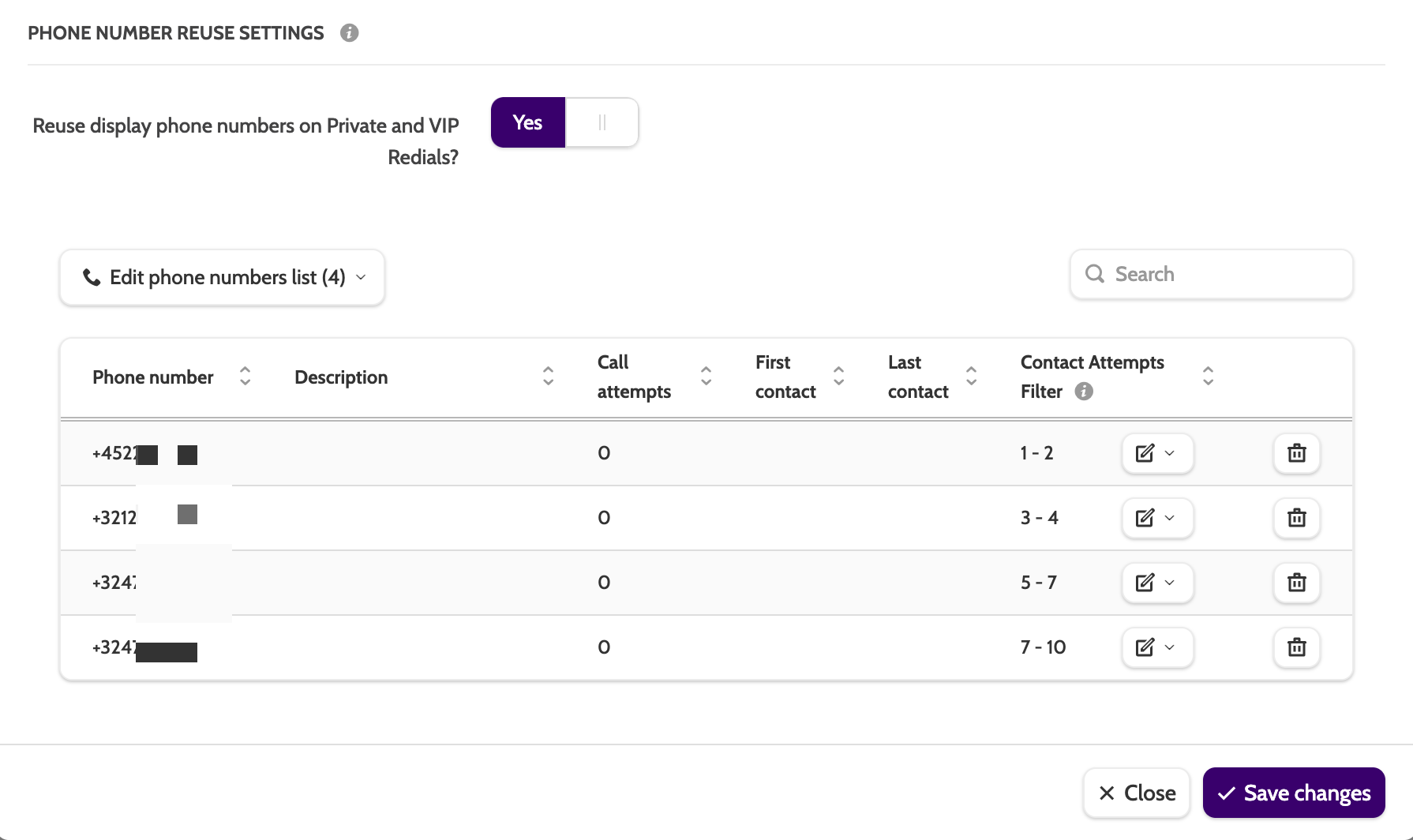
Next click Add phone numbers to begin adding numbers to the Caller ID Group.
Only numbers added in Caller IDs can be added to Caller ID Groups here.
If you haven't already added phone numbers, head to Caller IDs to learn how.
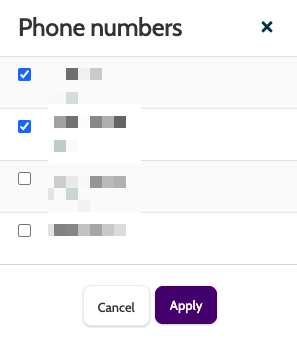
In the pop-up window, check the boxes of the phone numbers to add to the Caller ID Group.
Contact Attempts Filter
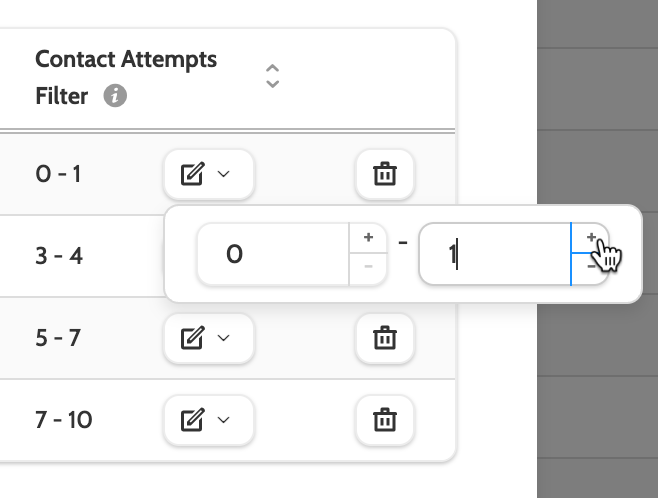
Contact Attempts Filter is an optional setting to determine which number in the group should be used to call a lead based on the number of contact attempts.
What is a contact attempt?
It is important to note the difference between contact attempts and call attempts.
Contact Attempts counts the number of times a lead is contacted from the contact page by an agent. It does not matter how many different numbers are called; what matters is the day the contact was attempted. For example, if an agent tries to call a lead three times on a Monday without success and then twice on Tuesday before getting an answer, it would count as two contact attempts.
Call Attempts refers to each call made to a phone number associated with a lead. For instance, if an agent calls two different numbers for the same lead, each call is counted separately. So, if number 1 is called once and number 2 is called three times, there would be a total of four call attempts.
For example, if a phone number has a contact attempts filter set between 0 and 1, then a lead with 1 contact attempt will see this caller ID when they are contacted.
Contact Attempts Filter is optional - when left blank, numbers in the Caller ID group will be rotated randomly.
What do we recommend?
If using the filters, then we recommend making sure the range of contact attempts is covered in small increments, so leads won't see the same caller ID too many times. See the image below, which accounts for 10 contact attempts in the Caller ID group.
When you have configured all the settings click Save.