
Quickstart: Working with leads
Before you start
- You will need feature permissions for Lead Admin and Lead Pools.
- Know which team or user should own the leads being uploaded.
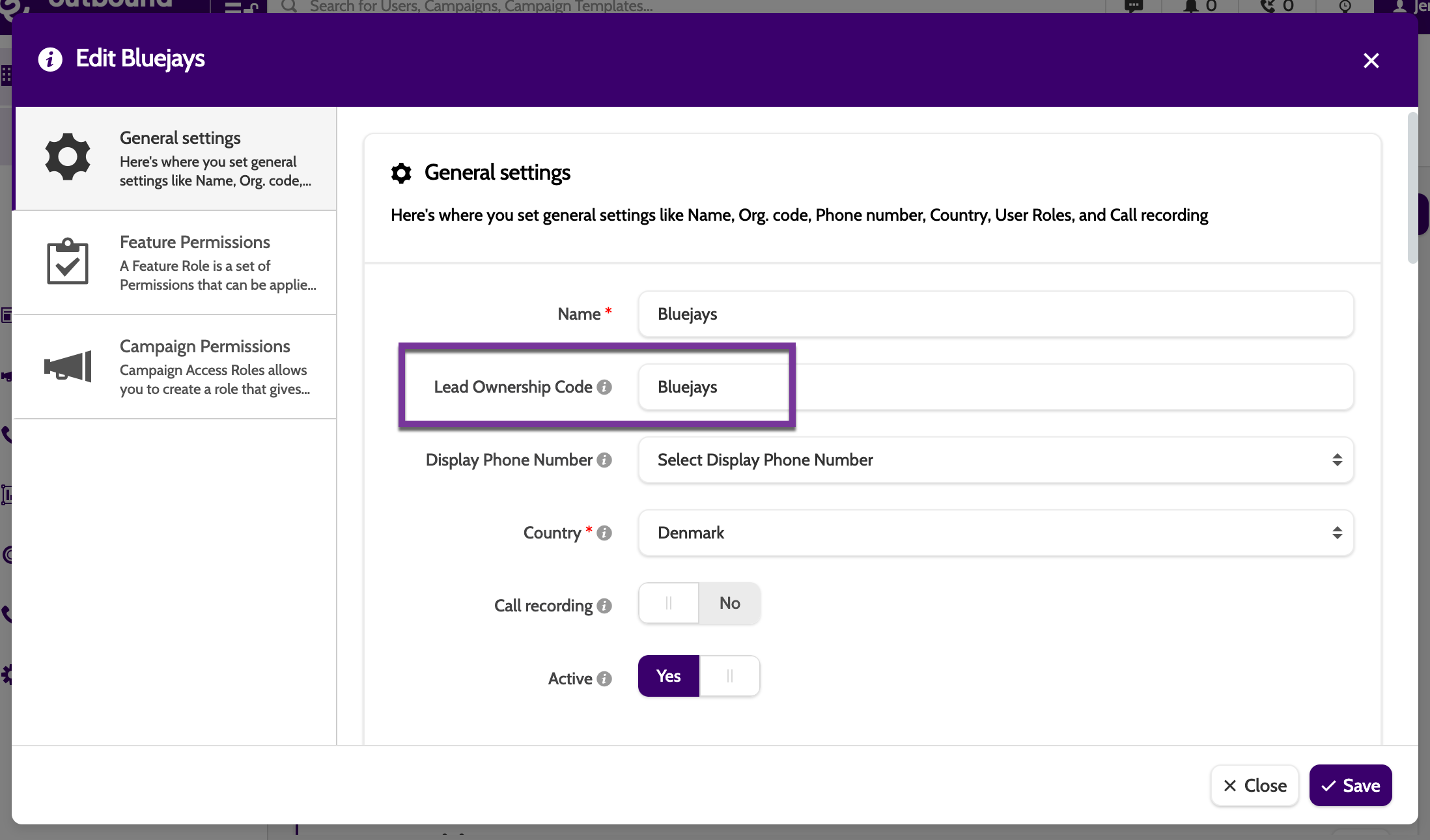
- Ensure ownership codes are set in Manage Organisation > Edit Team/User if using API/FTP uploads.
- Prepare your CSV file if uploading leads manually (.csv, max 35MB).
Step-by-step
1. Understand Lead Ownership
Each lead has an owner, and only users with ownership (through their team or individual user) can call that lead.
Ownership is assigned when:
- Leads are uploaded into a campaign
- Leads are uploaded via API/FTP using a Lead Ownership Code
- Leads are added through a Lead Pool upload
- A lead is created manually (assigned to the top-level team by default)
Agents can call leads if:
- They own the lead personally, or
- Their team owns the lead
- Their team is above the owner team in the hierarchy
Agents cannot:
- Call leads owned by teams below them
- View reports for leads outside their access rights without Extended Insights permission
- Access deactivated leads unless they are admins or team leaders
Changing a lead to Private or VIP Redial makes the editing agent the new owner.
2. Upload Leads & Assign Ownership
To upload leads manually via CSV:
- Prepare CSV (35MB max) containing all lead data.
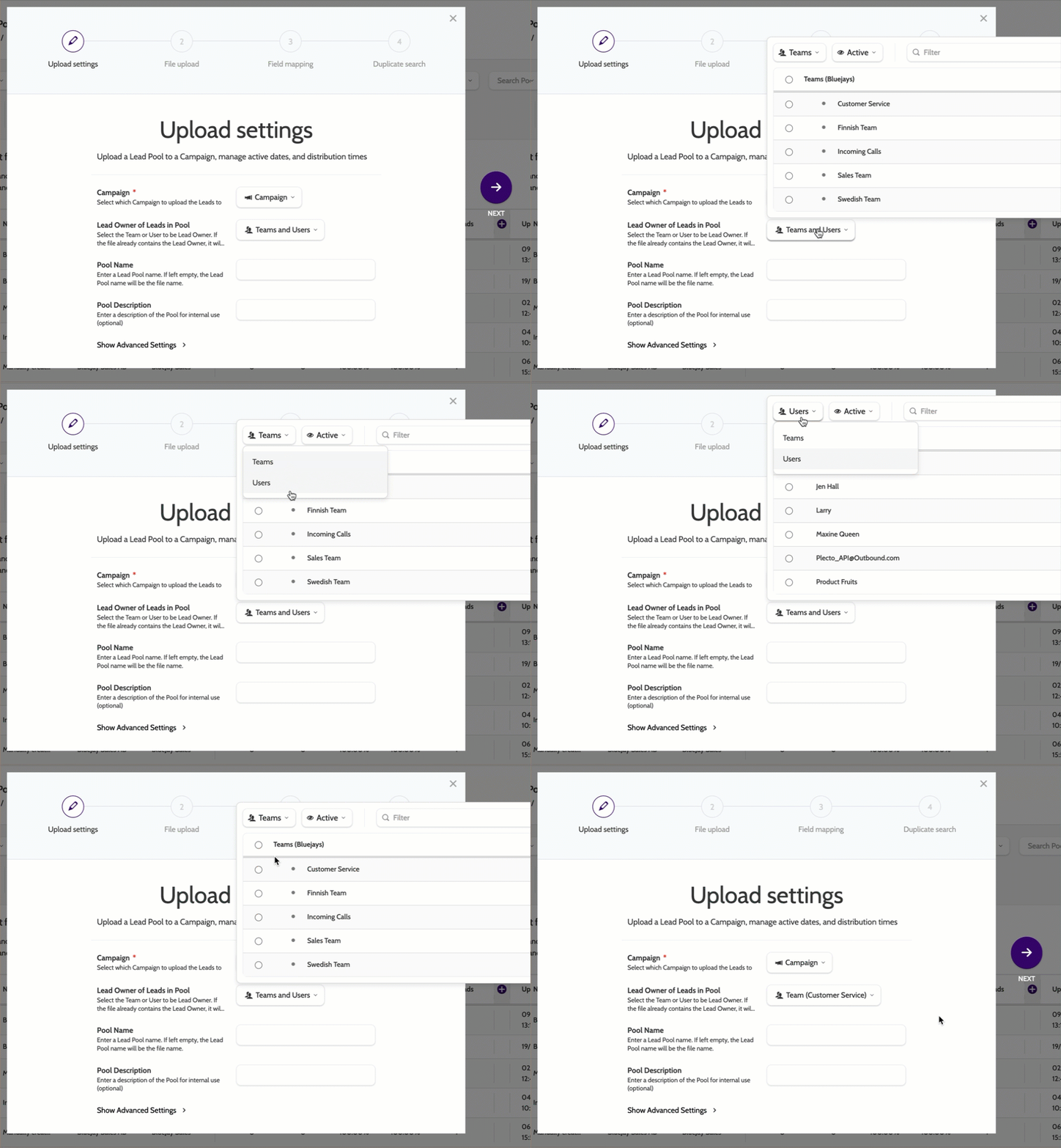
- Go to Campaigns > Upload Lead Pool.
- Select which Campaign to add the leads to
- Select the team or user that will be the lead owner
- Click Upload and choose your file.
- Map your data fields:
- Match CSV columns to system fields
- Unmapped fields are ignored
- Click Import.
3. View Leads
Once Leads are uploaded, individual leads can be viewed in Lead Admin, and Lead Pools.
In Lead Pools
- Go to Campaigns > Lead Pools and check your new pool shows “Active” with the expected totals
- Check the Lead Pool content by clicking Details > Download Full Log
- Add KPIs to get granular data on your Lead Pool.
In Lead Admin
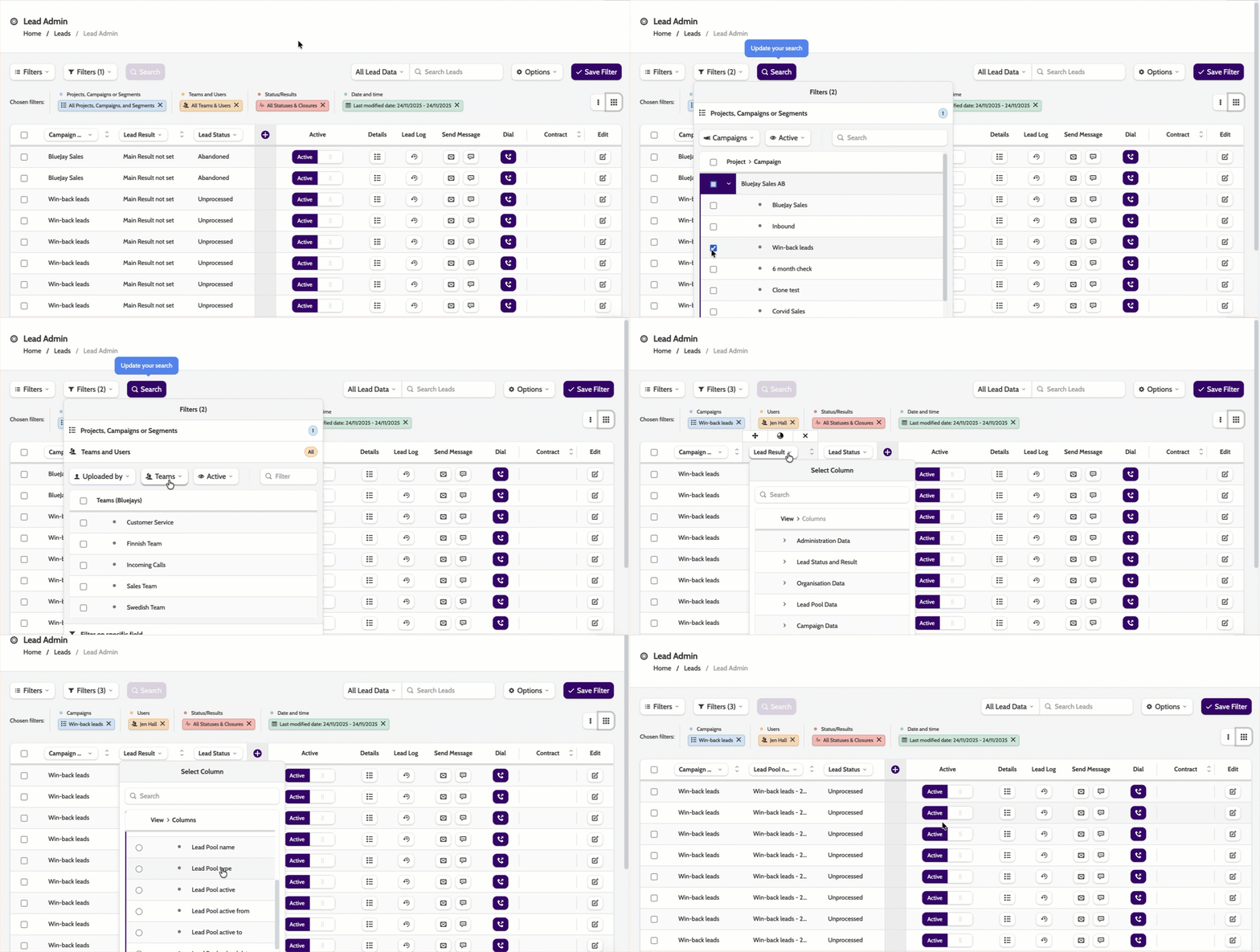
- Go to Leads > Lead Admin
- In Filters > Teams and Users, set “Uploaded By” to your user
- Add a Campaign filter; then in View Columns, enable “Lead Pool Data” so you can see Pool Name and sort/filter by it
- Sort by newest: Sort by Uploaded date/time descending to bring your latest upload to the top. Save as a custom view if useful.
4. Change Lead Ownership
To transfer ownership:
- Go to Lead Admin
- Select one or multiple leads
- Click Change Owner
- Choose the new team or user
Note!
👉Hierarchy rules: After reassignment, agents can call leads only if ownership is on themselves or teams above them. Not on teams/users below them.
👉Viewing limits: Seeing leads/reports after a change depends on your org position and whether you have Extended Data Permissions.
👉Special cases: Making a lead Private or VIP Redials makes the editor the owner (you can choose to retain ownership during Change Owner).
👉Audit trail: The original “User Processed By” stays, so that user may still see the lead in admin/reports even if ownership moves above them.
👉Other constraints: Deactivated leads aren’t visible to agents without extended data rights; locked leads may need unlocking before reassignment.
5. Understand Lead Statuses
There are 36 Lead statuses, visible in Lead Admin; they drive dialing, visibility, and reporting.
- Open Statuses (examples): Unprocessed, Automatic Redial, Manual Redial (Common/Private/VIP), Follow‑up Redial, Pending Validation, Unresolved.
- Closed Results (examples): Success, Not Interested, Unqualified, Invalid, Invalid Phone Number, Max. Call Attempts, Abandoned, Expired, Removed, Anonymised, In Do Not Call List, In Global Do Not Call List.
6. Segment Leads for Better Targeting
Use Custom Segmentation Filters to achieve:
- Sharper targeting: Group leads by agent access, specific lead pools, or shared fields (e.g., city, open status) to match your objective
- Higher agent efficiency: Agents can select a segment at dial start and will only be connected to leads in that segment—less noise, more focus
- Better outcomes: Working from smaller, relevant slices of large pools boosts reach rates and conversion potential
- Re‑use and control: Copy segments to iterate quickly; note each lead can belong to only one segment at a time.
Check it’s working
- Agents can call only leads they have permission to access.
- Uploaded leads appear correctly in Lead Admin and Lead Pools.
- Reports are accessible only to users with the correct rights (Read about Extended Data Permissions here).
Troubleshooting essentials
- Agent can’t call a lead? Check ownership and team hierarchy
- Lead not visible? User may lack Extended Data Permissions
- Ownership incorrect? Update via Lead Admin > Change Owner
- Data not uploading? Check file size (35MB) and mapping in CSV import
- Deactivated leads missing? Only admins and team leaders can access them.