Call transfers
There are several different ways you can transfer calls in Enreach Outbound:
- Cold transfer
- You transfer the call directly to another internal or external number.
- The customer hears ringing and then lands with the next agent/department.
- Hot transfer
- You put the customer on hold, call a third party (colleague, team, external number), talk to them first, then connect all three.
- Useful when you need to brief the next person or confirm they’re available.
- In Enreach Outbound, phone book entries can be set up specifically for external hot and cold transfer numbers.
Prerequisites
Feature permissions
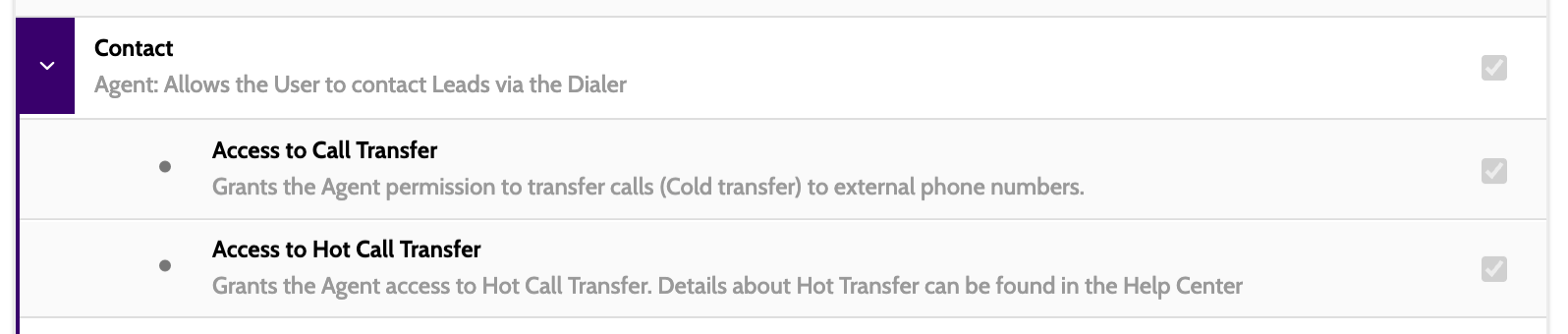
For an agent to be able to transfer a call on the contact page, the following feature permissions must be granted, either:
- to the agent
- to the team the agent belongs to.
- Contact: Access to call transfer
- Contact: Access to hot call transfer
For external transfers
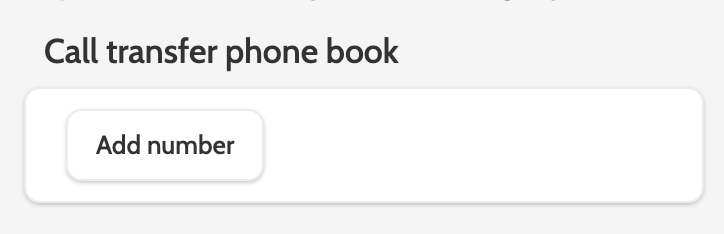
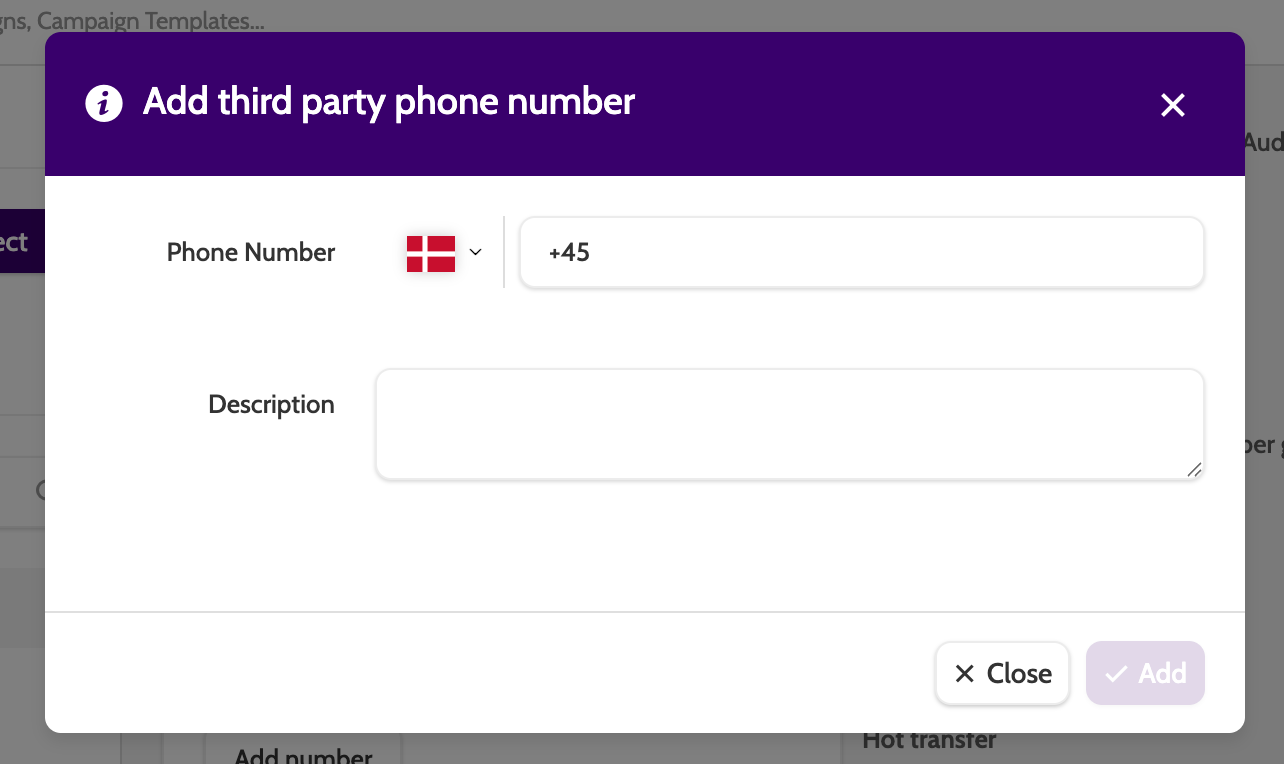
Phone numbers can be added in the Phone Book, found in Administration > Projects.
Click Add number, and enter the number in the pop-up. The number will be displayed in the call transfer phone book on the contact page.
For internal hot transfer
Internal hot transfer is enabled per campaign, in Edit Campaign > Dialer Settings.
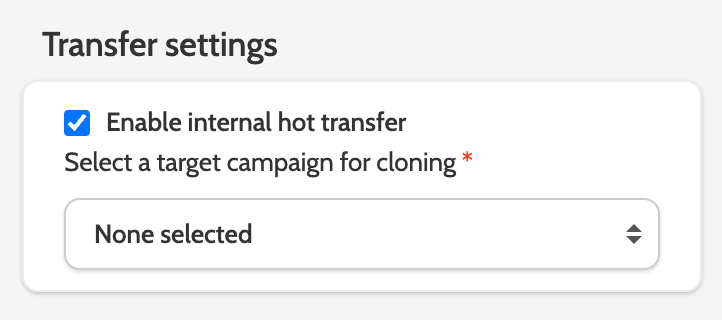
Check the Enable internal hot transfer box to activate.
Cloned leads
Leads that are transferred internally and hot will always be cloned.
By default, leads are cloned to the source campaign, so the original and the clone will belong to the same campaign.
This allows the different agents involved in the call to accurately record call outcomes and statuses. As two agents can't work on the same lead at the same time, cloning the transferred lead also allows the work to continue uninterrupted.
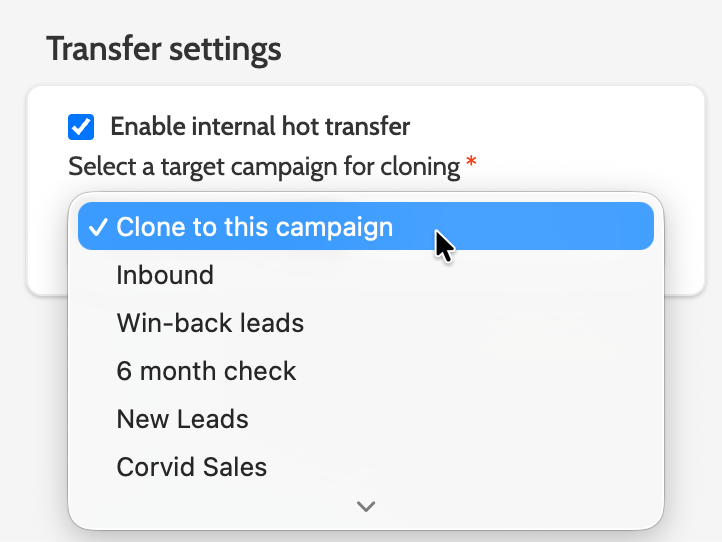
In Campaign settings > Dialer settings > Transfer settings it's possible to select a different target campaign for cloning.
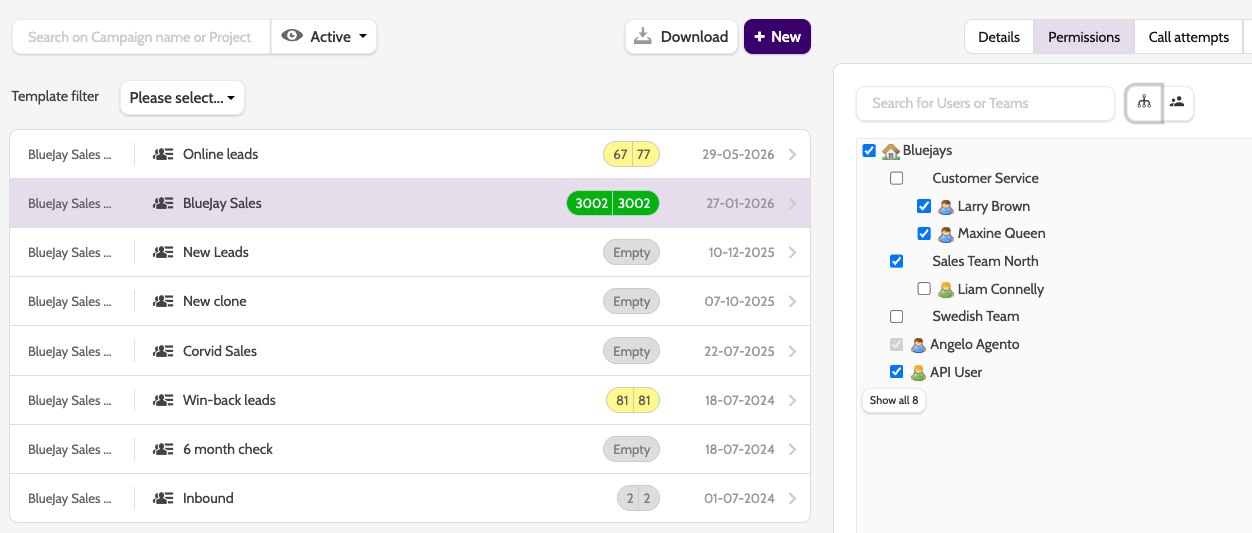
Campaign access can be granted in three places:
1. On a single campaign: go to Campaign Overview > Permissions tab (or Edit Campaign > Permissions) and tick the teams or users that should have access, then Save
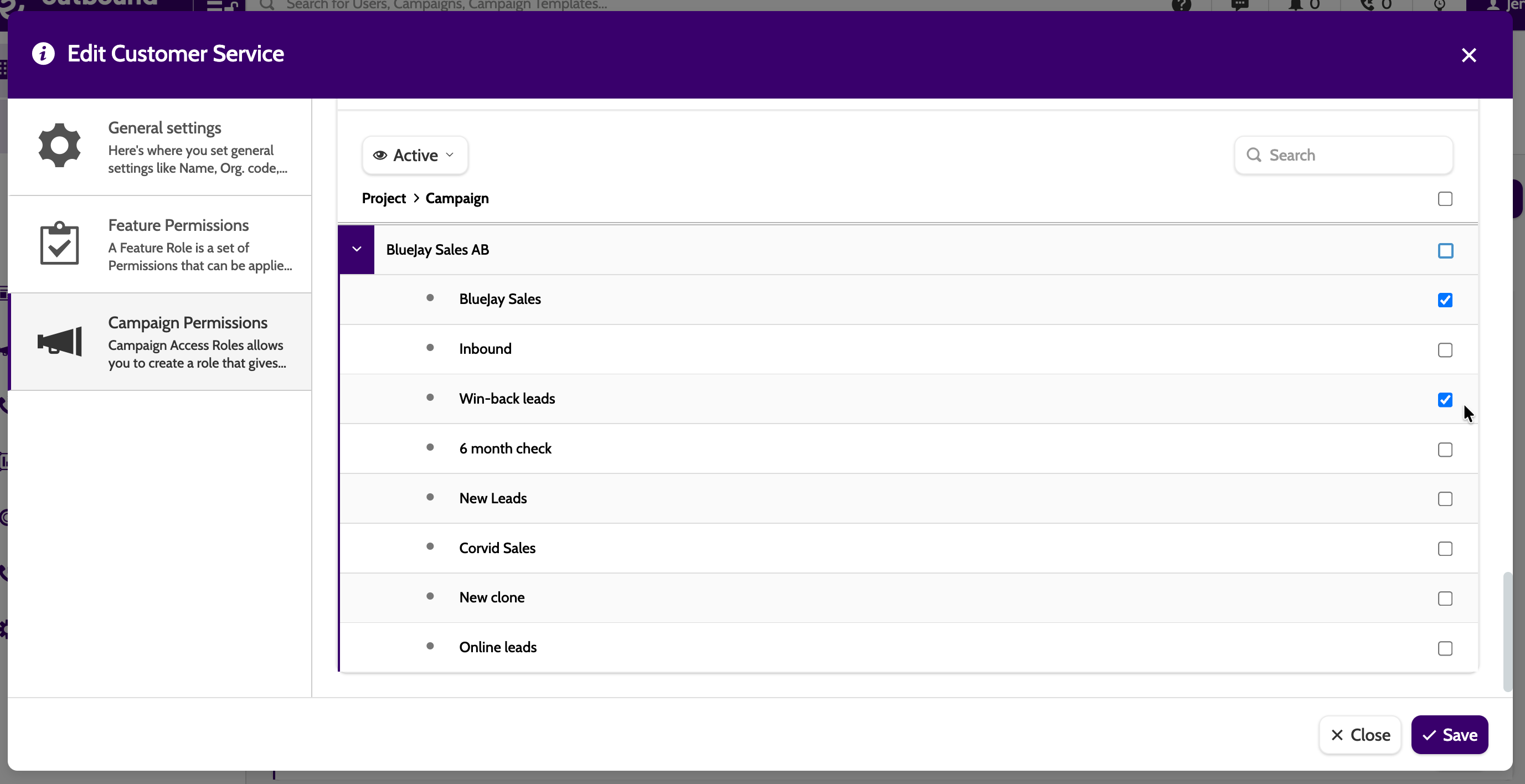
2. In Organisation Management: use Campaign Permissions to give teams/users access to specific campaigns (or whole projects)
3. In Organisation > User Roles > Campaign Access Roles: create roles that define which campaigns a role can see, then assign those roles to users/teams.
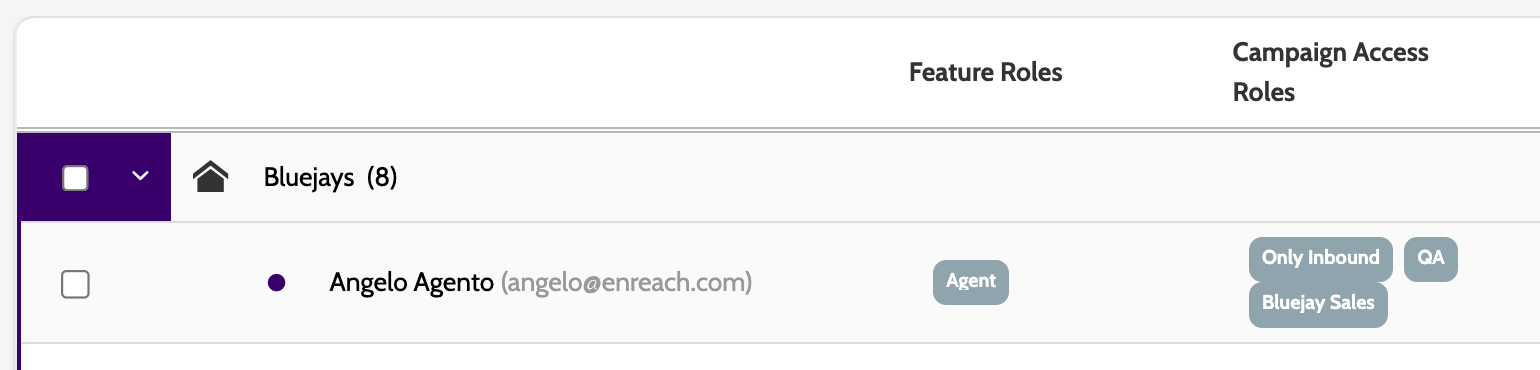
Who can receive transferred calls?
- Active agents with access to the right campaign will show in the call transfer phone book with a green circle next to their name.
- Third party numbers added to Projects > Phone Book
- External numbers not configured anywhere can be called by selecting Dial number
- Teams - calls can be transferred to team through internal hot transfer. The call will be offered to the first available agent in the team until it is answered.
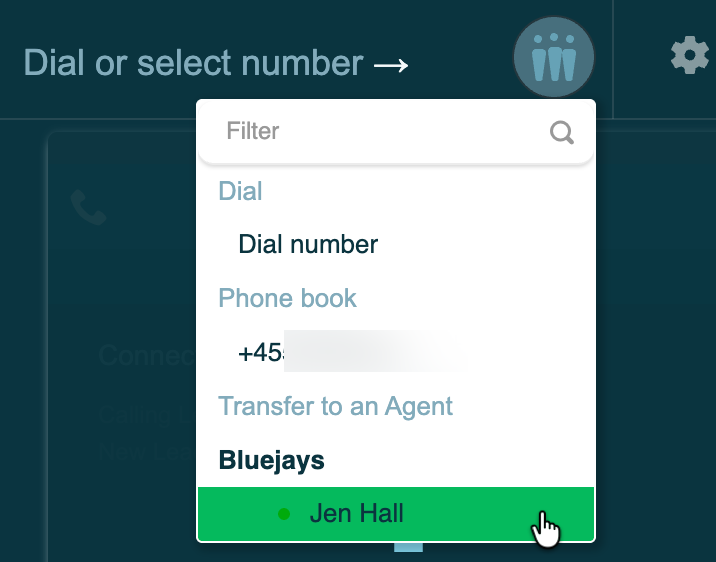
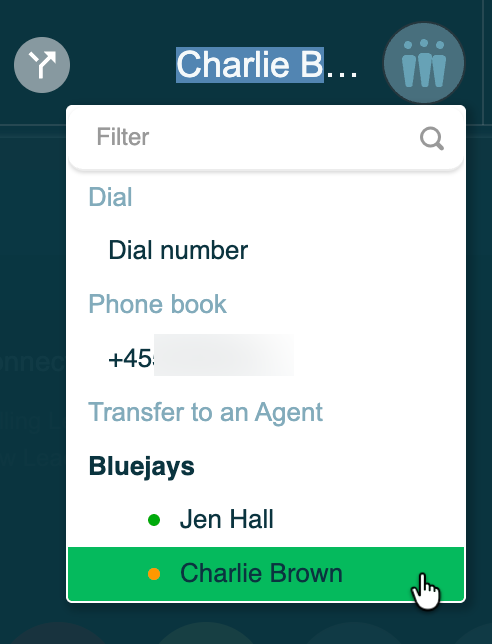
Passive agents:
Passive agents will be shown in the phone book with an orange circle next to their name.
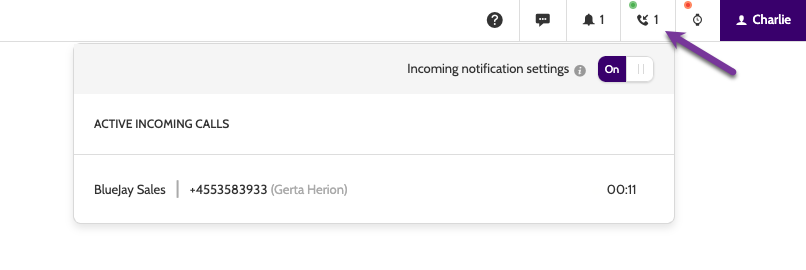
If the passive agent has Incoming notifications enabled, they will receive an incoming call notification in the top bar. They can then open the contact page and connect to the call.
How to transfer calls
Step-by-step
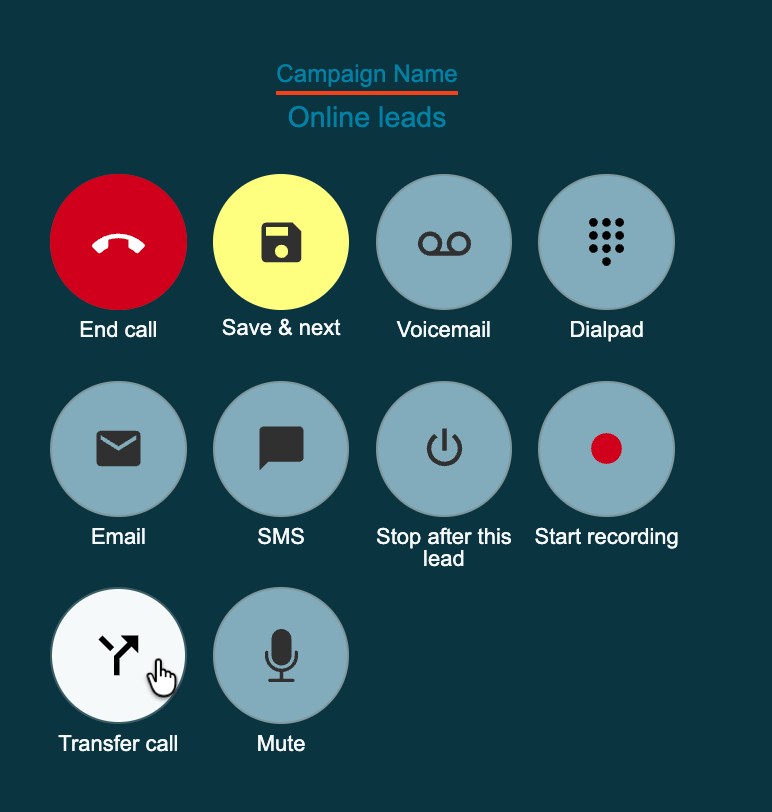
- Select Transfer call on the contact page
2. Click the phone book icon to the right to expand the optionsto begin the transfer
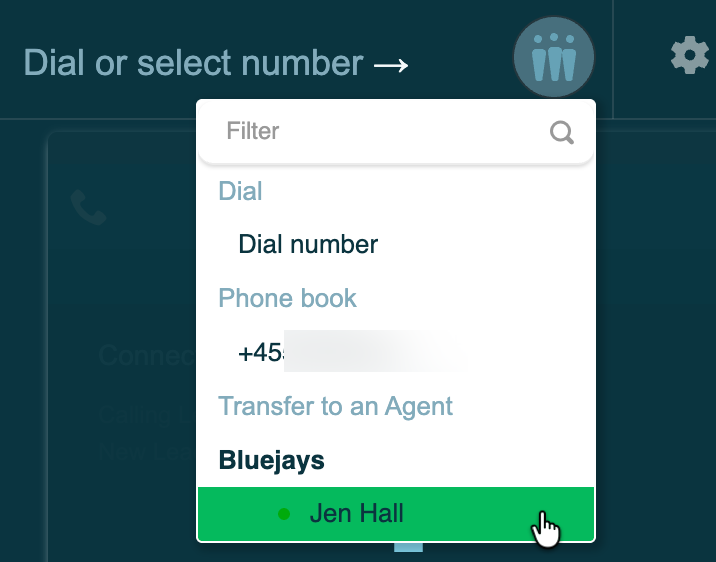
3. Select who will recieve the call:

- Dial: enter the number of a third party
- Phone book: select a number for external transfer. These numbers are configured in Administration > Phone Book
- Transfer to an agent: choose an agent to transfer to. They will receive an incoming call notification, and the call will be labelled as Internal
- Transfer to a team: select a team, and the call will be transferred to the first available agent.
4. Choose to transfer the call hot or cold - described below.
Hot transfer
To transfer the lead hot, click the green phone icon:

The lead will be placed on hold while the agent speaks to the third party.
The contact page will look like this:

Here's what these icons mean:
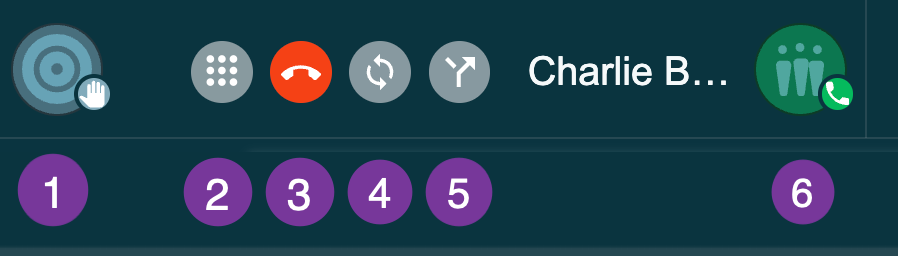
- When the target icon is grey, it means the agent is speaking to the lead, not the third party
- The dialpad - click it to dial another number, or if you need to enter a number in an IVR
- The red phone icon: this disconnects the third party and hangs up the connection. The agent is retuned to the lead
- The grey arrows: switches the connection with the lead and the third party. The agent can go back and forth, while keeping the connection open with the third party
- The grey forward icon: transfer the lead hot to the third party. The agent's connection to the lead will disconnect, and the agent can wrap-up and continue calling
- The phone book: when the phone book is green, the agent is speaking to the third party, and the lead is on hold.
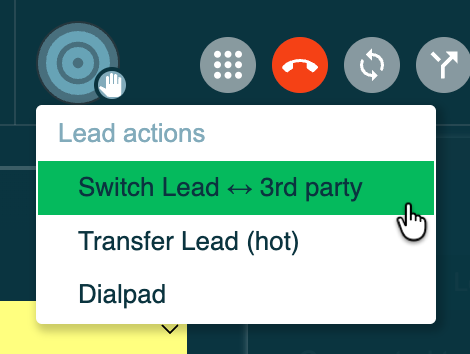
These options are also available by clicking the grey target icon.
Cold transfer
To transfer the lead cold, click the grey arrow icon:

The lead will be transferred immediately, and the agent can wrap-up and continue calling.
Internal call transfers appear as an incoming call on the contact page, and will have the Internal lead status.

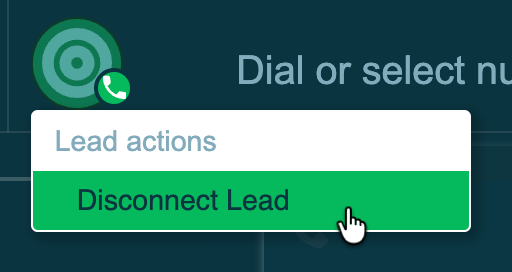
Beware! Clicking Disconnect Lead will disconnect the lead completely!
Working with cloned leads
Lead Admin
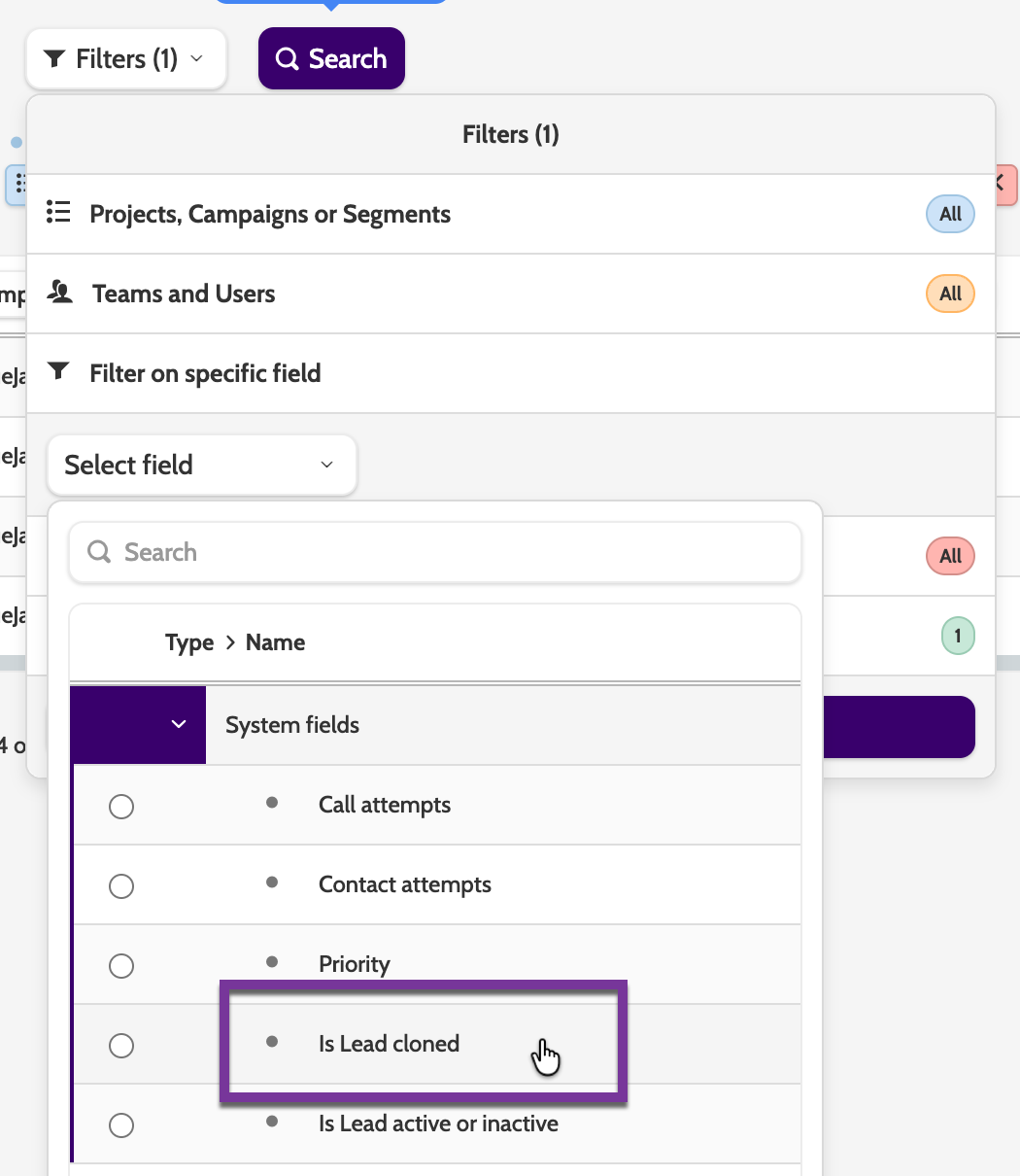
Lead views can be filtered in Lead Admin by selecting the 'Is lead cloned' system field.
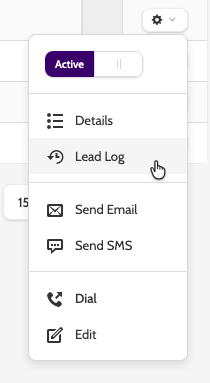
Click Lead Log for more lead details:
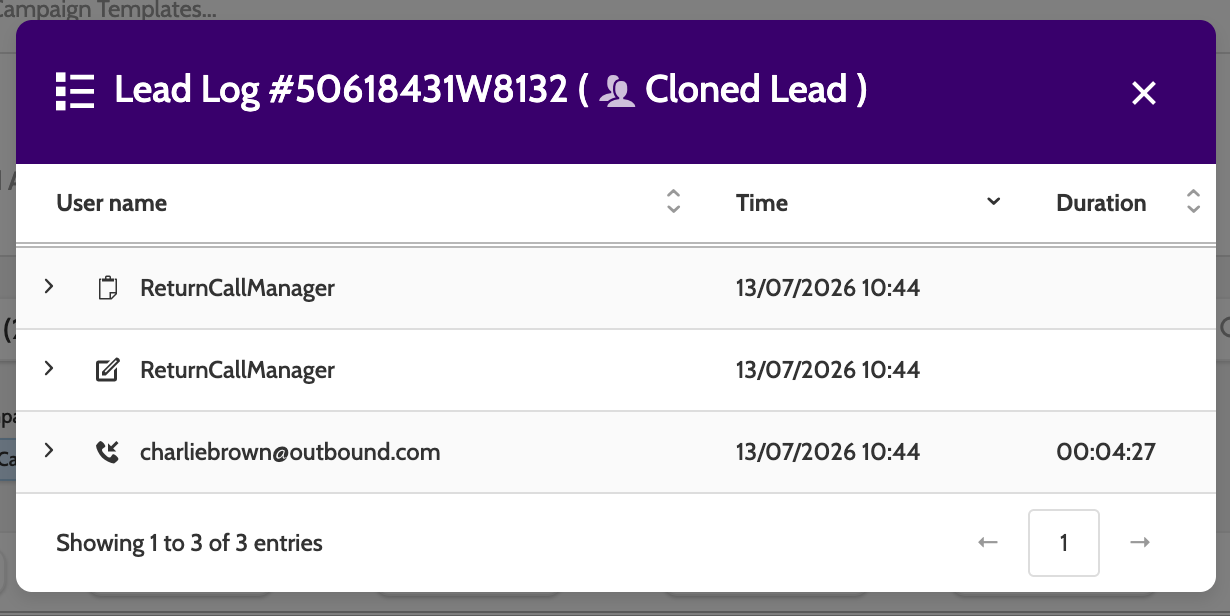
The lead log will show it's a cloned lead at the top of the window.
All of the actions associated with that lead will be displayed.
Let's look at what they mean:
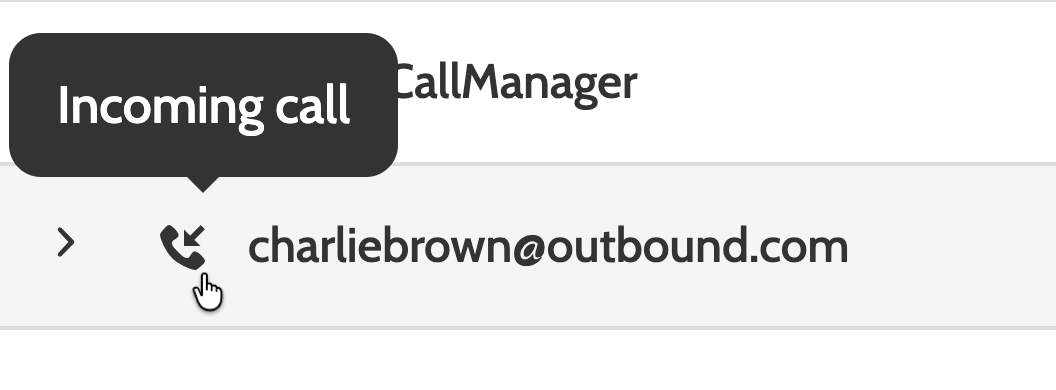
By the Incoming call icon, you can see that the user charliebrown@outbound.com received the transferred call.
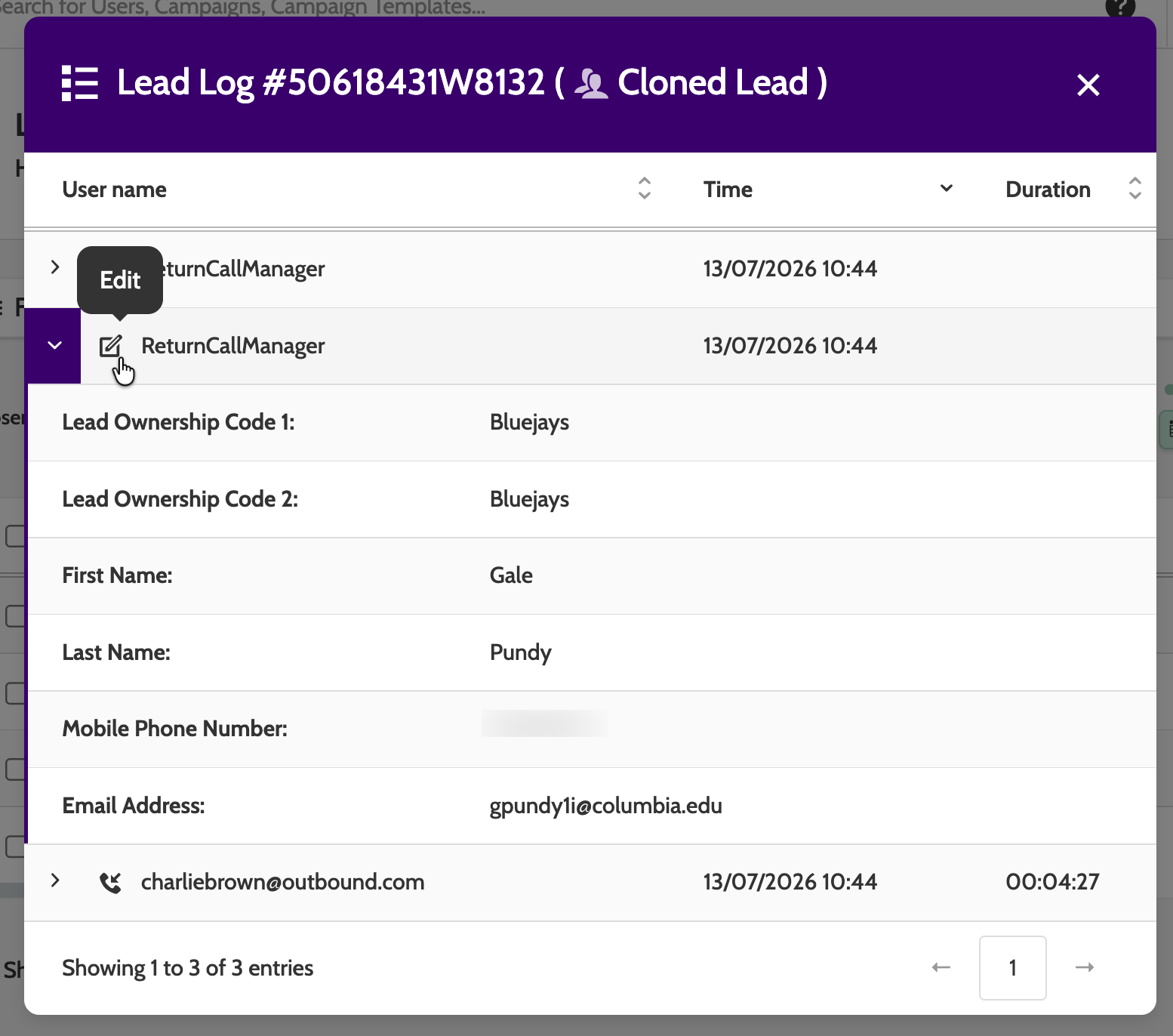
By the Edit icon, you can see that the ReturnCallManager user edited the lead:
- Lead Ownership Code 1 is the original lead's ownership code
- Lead Ownership Code 2 is the cloned lead's ownership code
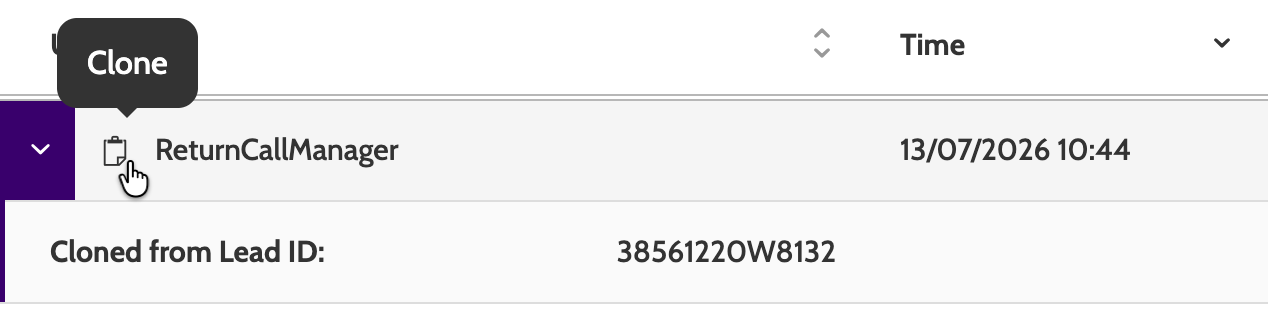
By the Clone icon, you can see that the ReturnCallManager user cloned the lead.
Expand the entry to view the Lead ID of the original lead.
What is ReturnCallManager?
ReturnCallManager is a system-generated user that appears in the lead log when Enreach Outbound automatically performs an action on a lead, for example, cloning a lead during a call transfer. You'll see it listed alongside regular agent actions, but it represents the platform itself, not a person.
Reports
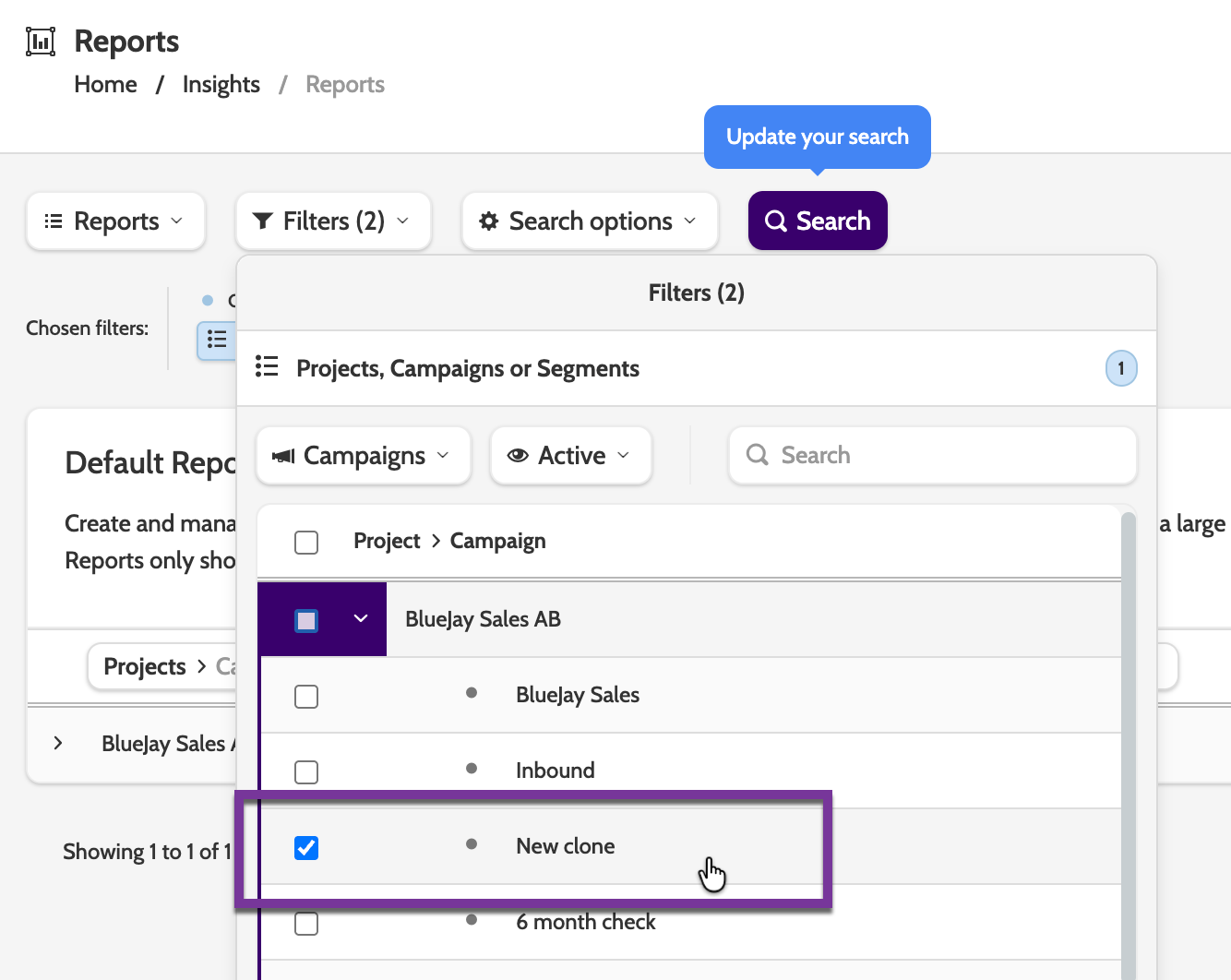
If you have chosen a specific target campaign for cloned leads in Edit Campaign > Dialer Settings:
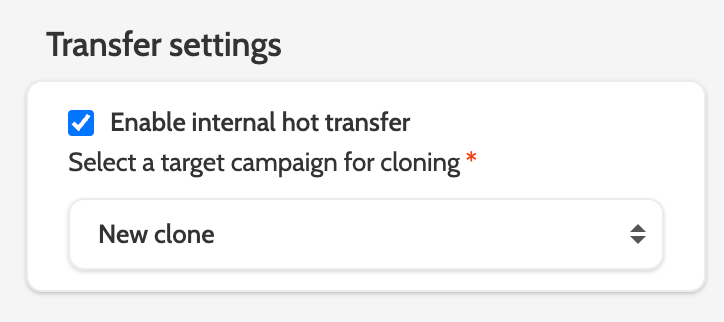
then you can select that campaign in Reports > Filters.