
Contact: Campaign Selection
Before agents can start calling from the contact page, they will see Campaign Selection.
Here you can view all available campaigns and segments to call, view campaign lead data, and choose which method to call leads with.
Campaigns
In campaign selection, you can view all of your organisation's available campaigns.
To begin calling a campaign, click it to move it to Selected Campaign(s). Click again to move it back to Available Campaigns.
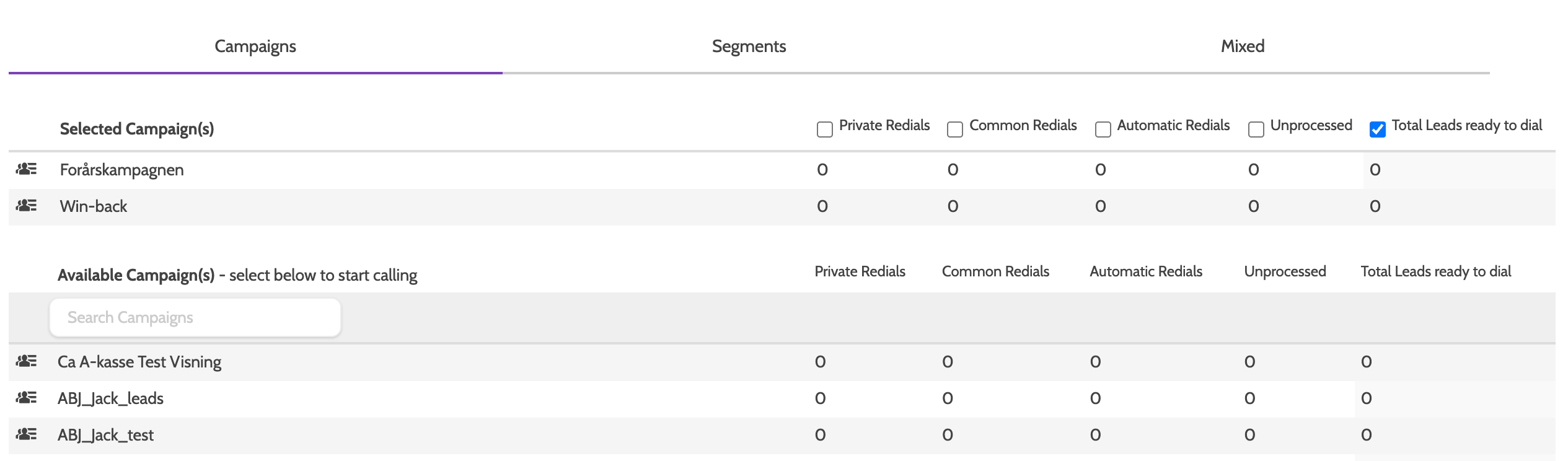
To the right you can view the number of Private Redials, Common Redials, Unprocessed Leads (not contacted), and Total Leads ready to dial in each campaign.
Click a check box to decide which leads to from the campaign to call.

Segments
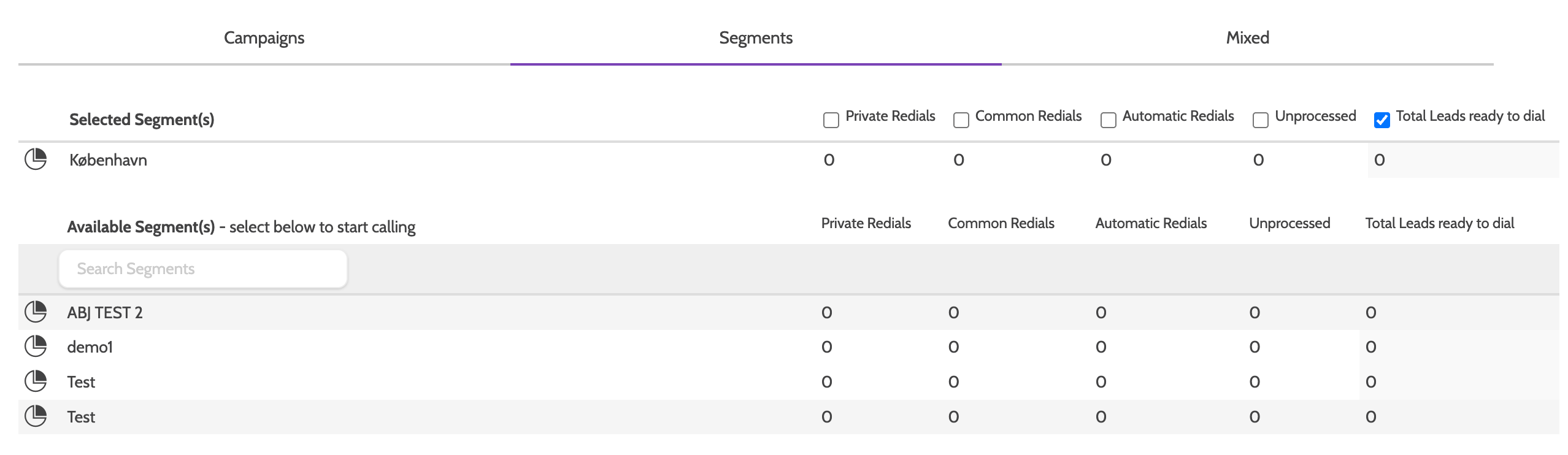
If you have already created segments, you can filter leads to call by segments.
Click a segment from Available segment(s) to begin calling.
Mixed
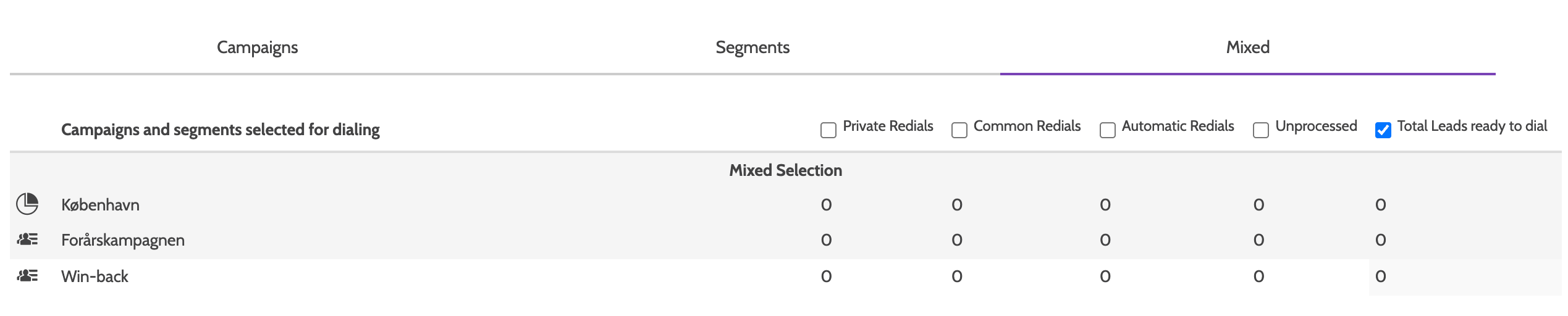
Select the Mixed tab to call from a mixed list of campaigns and segments.
To call from a mix, first select the campaigns to dial from, then the segments: the mix will be available for dialing after switching to the Mixed tab.
If you've selected Total leads ready to dial, lead selection will follow standard dialer priority rules. Please note that you can't dial campaigns with predictive dialer enabled when using mixed.
Lead Filter
Lead Filter allows you to filter leads with data from their data fields.
So, if you want to filter the leads on location, enter the town as a filter, and all leads with the corresponding Town master data field will appear.
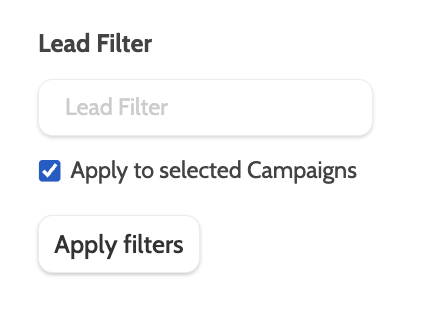
Alternatively, lead filters can be applied by Administrators to certain users in the Edit Campaign page.
Phone number
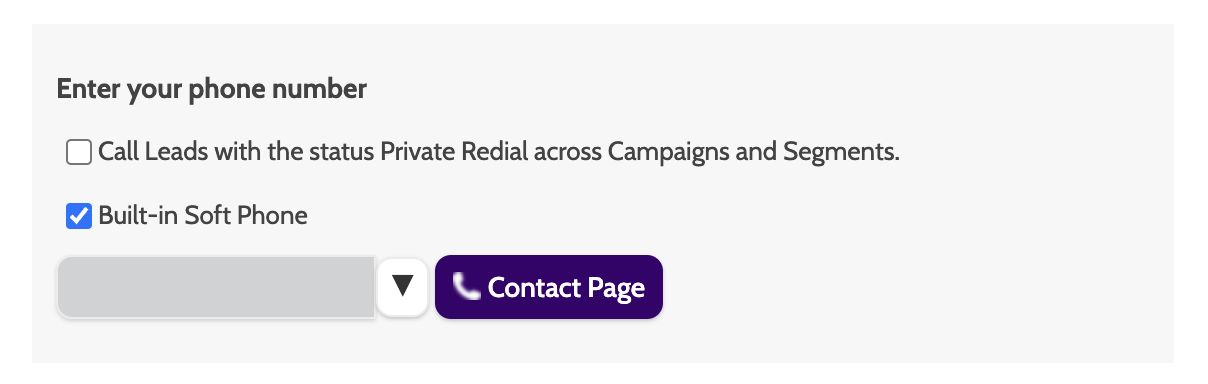
Under Contacts, you can decide whether to use the Built-in Soft Phone, or a land line.
If you want to also call your scheduled Private Redials check the Call Leads box.
Please note that the Private Redials can belong to any campaign, and not just the one selected. Campaign information will appear on the Dialer.
Built-in Soft Phone
Click Built-in Soft Phone to use Outbound's built-in phone line.
To use the Built-in Soft Phone, you will need:
- A headset connected to your computer - you will be asked to grant Outbound access to your microphone
- An operative system and web browser that supports WebRTC.
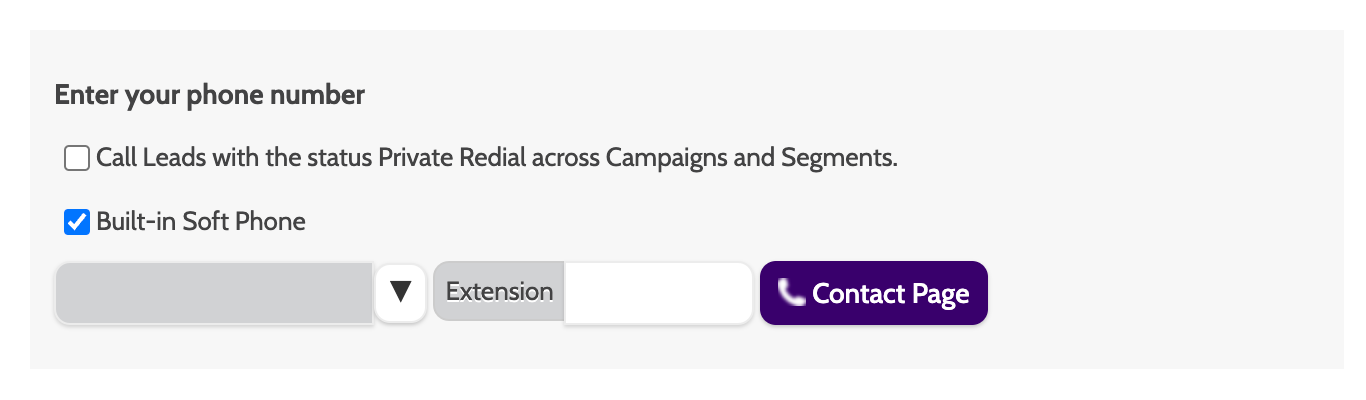
To use your own number to call leads from, enter it into the available text box, including an extension number if applicable.
Previously entered numbers will be visible in the drop-down menu.
When using the agent line, Outbound will place a call to the number entered. Answer the call to establish a connection, and the Outbound servers will dial leads.
