Flows: Webtracking reports
With webtracking reports you can create and view reports for all your webtracking activities, and check their performance.
Webtracking reports can be found under the Reporting menu.
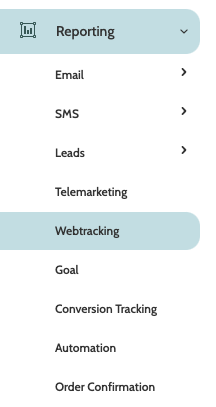
In the navigation page, begin building your report with the filters:
- Filter: Webtrack: select which webtracking you want to generate a report for
- Filter: Browser: select which internet browsers should be included in the report
- Filter: Device: filter the report by which device was used to view the webpage
- Filter: Location: if you have chosen to include the visitor's location in the webtracking, you can select it here
- Filter: Category: if you have chosen to include a category in the webtracking, you can select it here
- Filter. Type: if you have chosen to include a type in the webtracking, you can select it here
- Filter: Tag: If you have chosen to include a tag in the webtracking, you can select it here
- Filter: Trafficsource: if you have chosen to include a trafficsource in the webtracking activity, you can select it here
- Date: use the date picker to choose a custom or preconfigured date range for your report.

Click Apply to view the report.

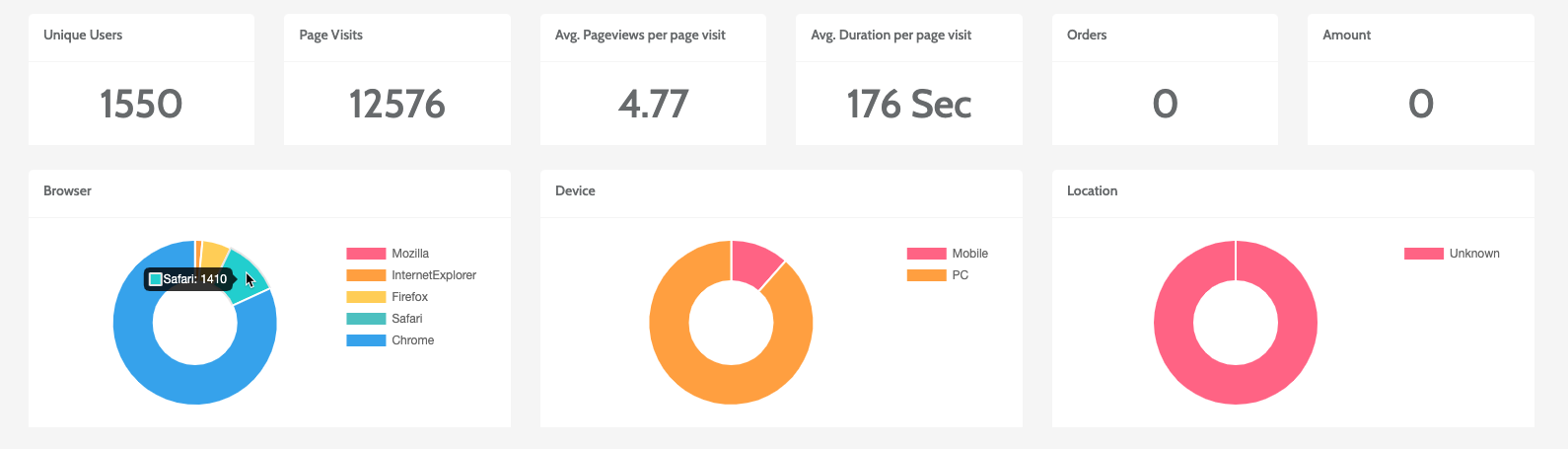
In the first part you will see webtracking data for the chosen period of time, including the number of Unique users, Page visits, and Orders if you have an eCommerce website.
Below you can view donut graphs of your various filters. Hover you cursor over a section to see the data for that category.
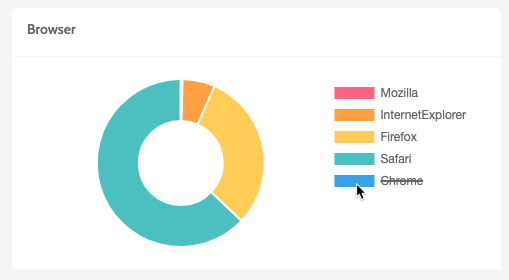
Categories are arranged from the smallest to the largest number. Click on a category name to remove it from the donut graph.
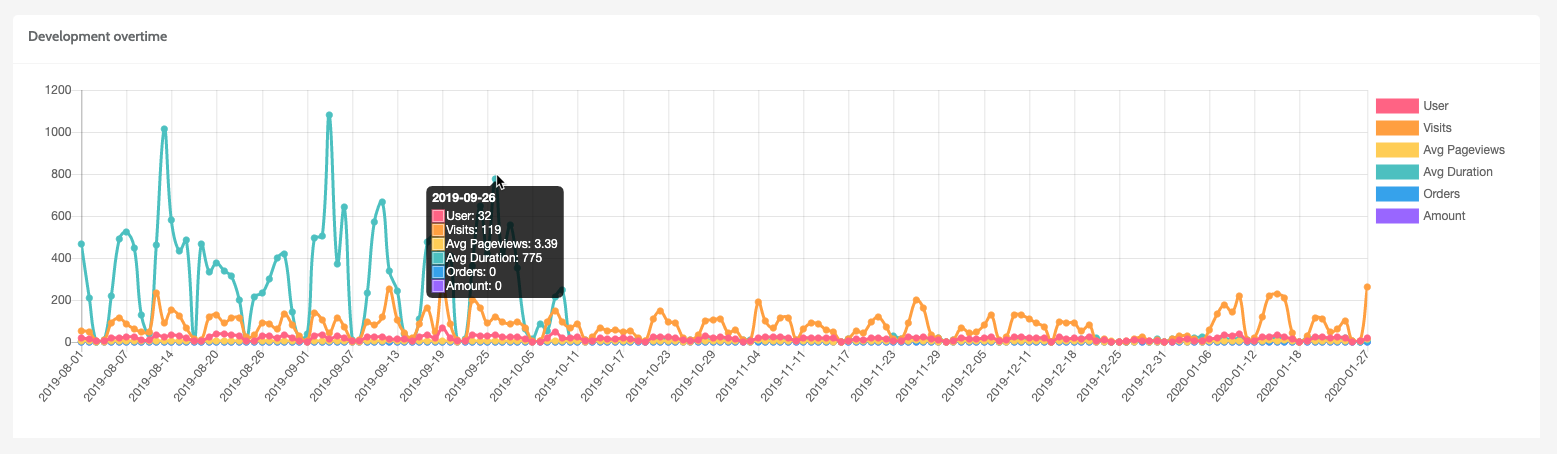
Below is the Development over time graph, showing how the data collected by your webtracking has changed over the chosen period of time.
Hover your cursor over a marker to see the webtracking development for that period of time.
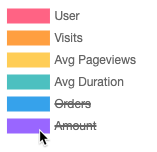
Click on a category name to remove it from the graph.
In Page visited in period, you can view a detailed breakdown of how much activity each individual page in your website has received. 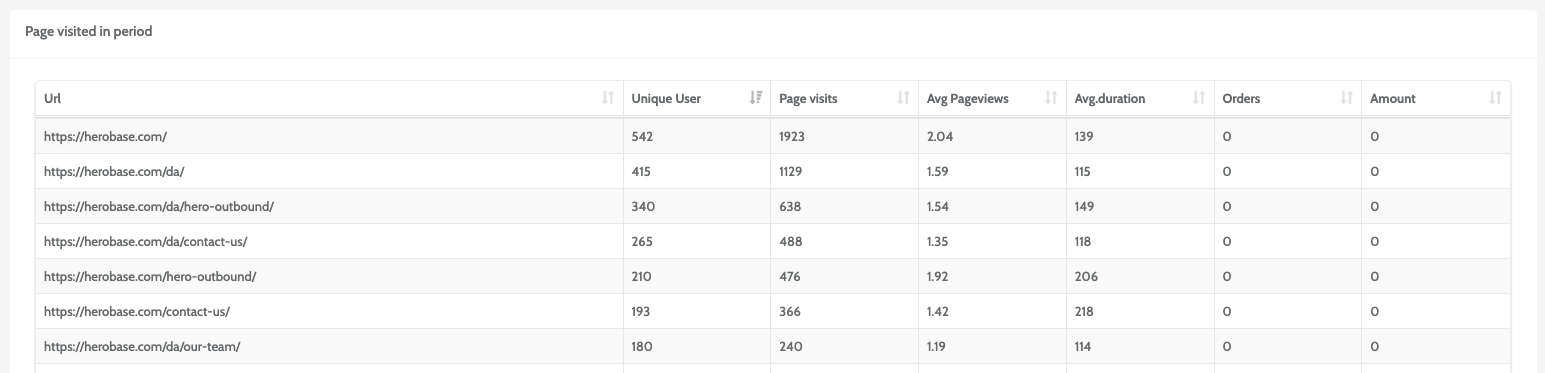
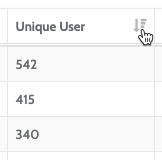
Click a column header to rearrange the URLs in numerical order.