Agent Training 101
Welcome to Enreach Outbound!
In this guide, we will go through the necessary steps to get started as an agent in Enreach Outbound.
Head to the Glossary if any terms are unclear, or ask Kit, your Outbound navigator.
Before you begin
Using the credentials given to you by your account administrator, log in to Enreach Outbound.
If you have forgotten your password, contact your administrator, or click Forgot your Password? to reset.
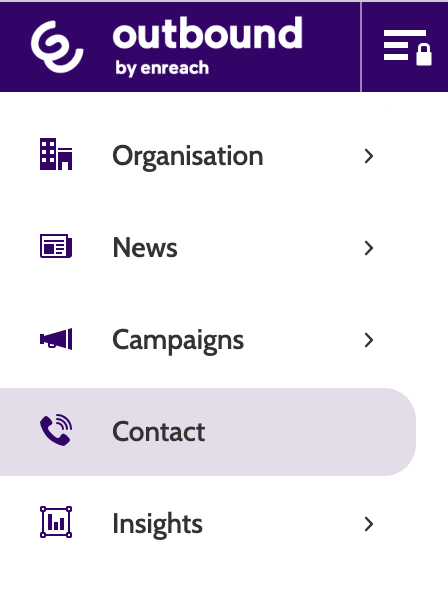
In the left side menu, click Contact.
Campaign selection
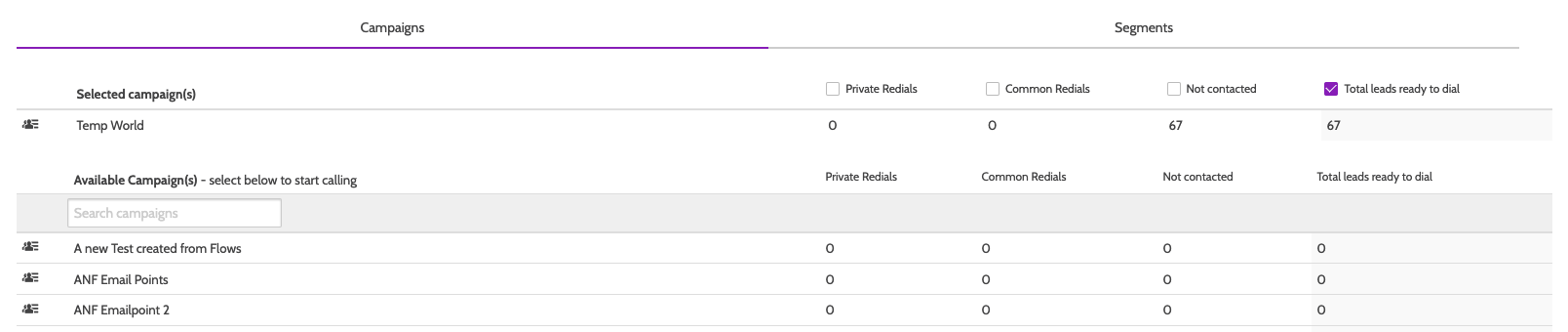
In the contact page of Enreach Outbound, you can view all of the Campaigns you have access to as an agent.
- Selected Campaigns are where the campaigns you have selected to currently work on will appear.
- Available Campaigns are where all the campaigns available to you will appear.
Here, you can either choose to work with campaigns or segments. Toggle between the two, and please note that a purple line will appear underneath the option you are working with. If you see a purple line under segments, just toggle back to campaigns!
To begin working on a campaign, locate the campaign and click it to move it to Selected Campaigns. To move it back simply click it again.
Call type
Once you've selected the campaign(s) you'll be working on, it's time to select which Segment Call Type to use. This is optional, as Total Leads Ready to Dial is the default setting.
- Private Redials will display leads that have been set to be contacted as Private Redial, connecting a specific agent to a lead at a chosen time
- Common Redials will display leads that are set to be redialed and connected to any available agent
- Not Contacted will display all leads that are yet to be contacted by an agent
- Total Leads Ready to Dial is the default setting, and will display all leads that are ready to be called in order of priority.

Lead filter
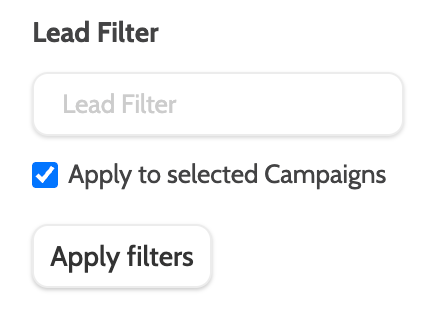
If you want to filter leads, use the Lead Filter at the top of the screen to search for leads with a keyword.
For example, to search for leads that have London anywhere in their Lead Data, type London in the Lead Filter search box, and click Apply filters.
Separate multiple filters with a comma. Select Apply to selected Campaigns to only search for leads in Selected Campaigns, and to only call leads with this Lead Filter.
Private redials
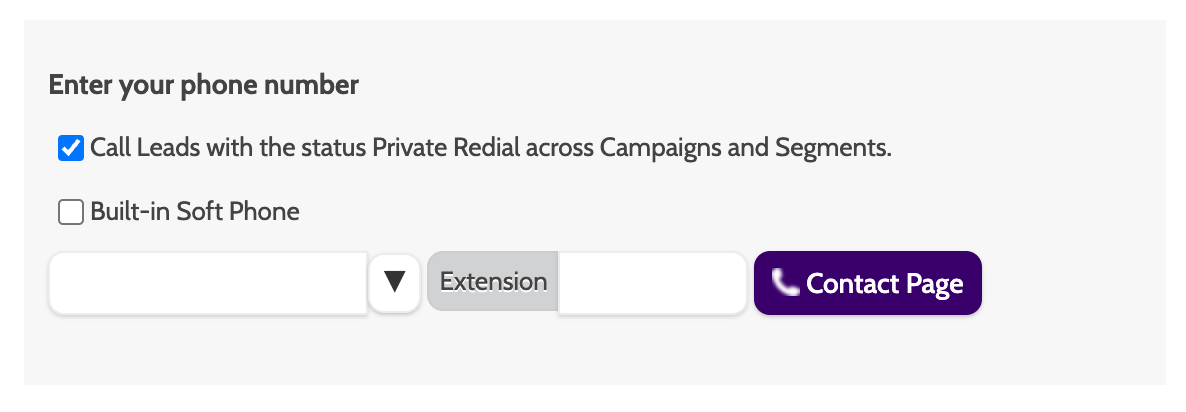
Select Call leads with the status "Private redial" across campaigns to connect with leads that you have designated as Private Redial.
This option will be useful for experienced agent who want to call specific leads at a certain time, so leave it unchecked for now.
Leads with Private Redial status will be called regardless of which campaign you are currently working on.
Built-in soft phone and landline
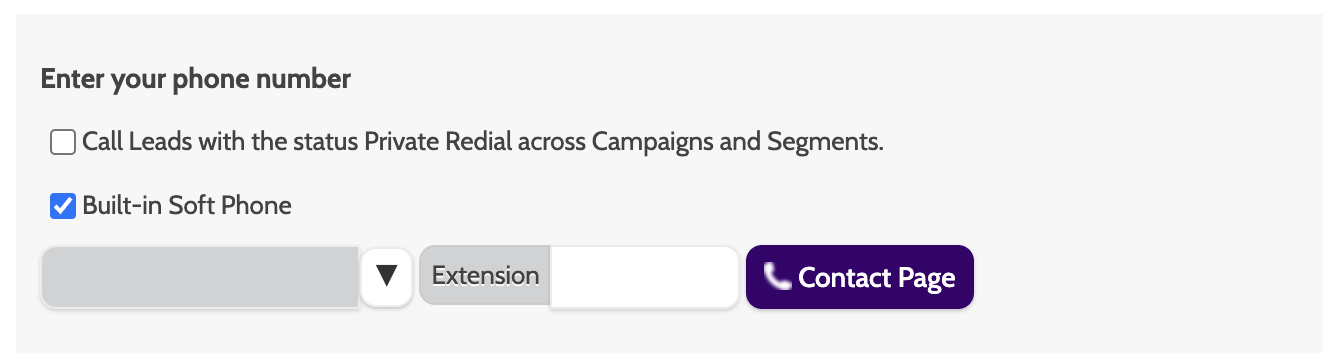
Built-in soft phone is an agent phone line built directly into Enreach Outbound. All you need to get going is a compatible browser and a headset!
Select Built-in soft phone to use this option to call your leads.
The first time you use the Built-in soft phone you will be prompted by your browser to grant it access to your computer's microphone and speakers. If you are using an incompatible browser, you'll receive a warning message to switch to another one. Chrome and FireFox should be used for optimal use of the Built-in soft phone. If you need to troubleshoot your connection, head here.
Landline
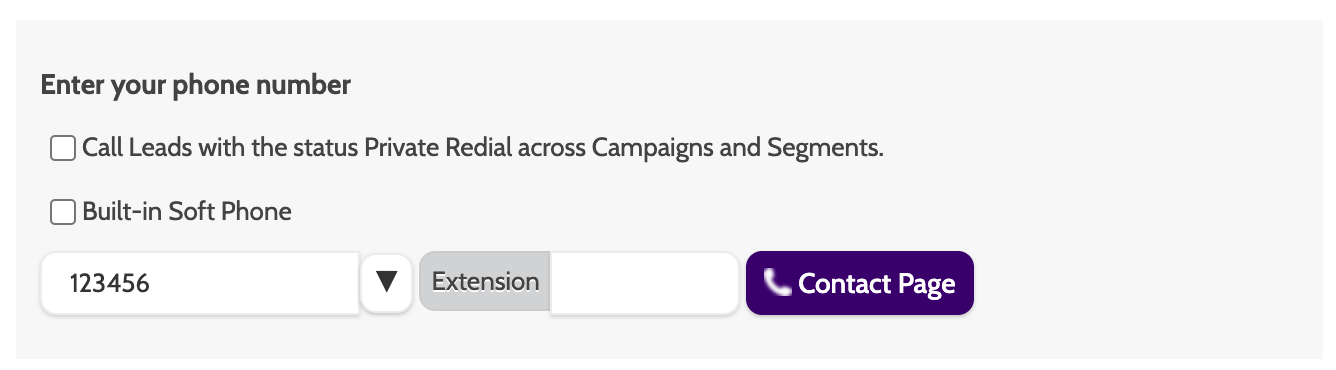
If you would prefer to use your landline to contact leads, enter your number in the Landline field.
If you have an extension number, enter it in the Extension field.
When connecting, you will receive a call from Enreach Outbound that will automatically connect you to an agent line. The line will be silent until you are connected to a leads, so don't worry!
To start calling, click Contact page to head begin.
Now you're ready to start making calls!

Contact page
The Contact page is where you can view all the data for the leads you will call, book appointments, schedule redials, and successfully process your leads.
Lead data
Click the Dial button when you are ready to start calling leads.
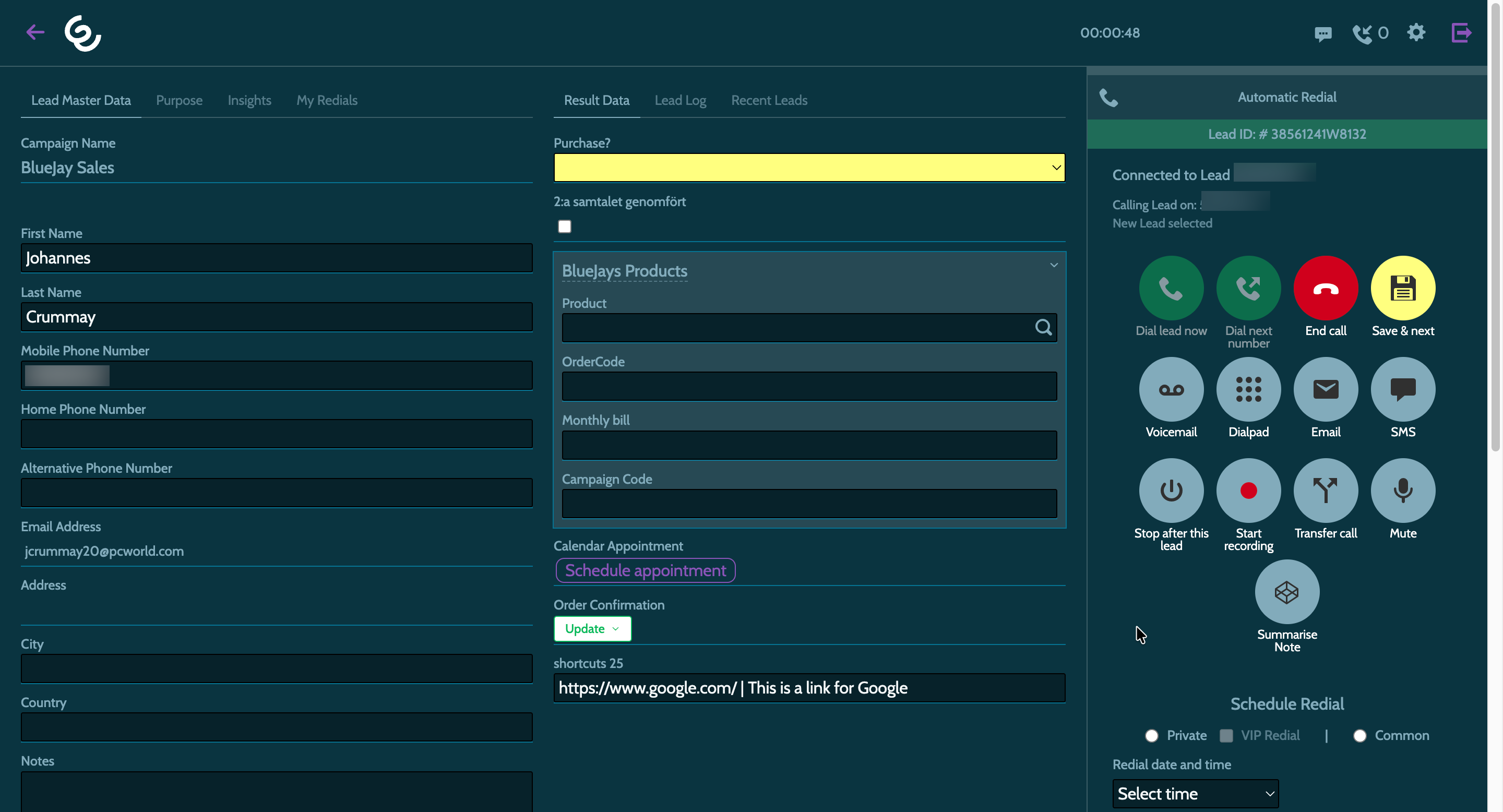
All of the Lead Data will show in the left side of the screen. This will be configured as Master Lead Data, and typically contain the campaign name, leads name, email address, and address. Here you will also see your own insights and an overview of all your redials across the campaigns you have access to.
Results
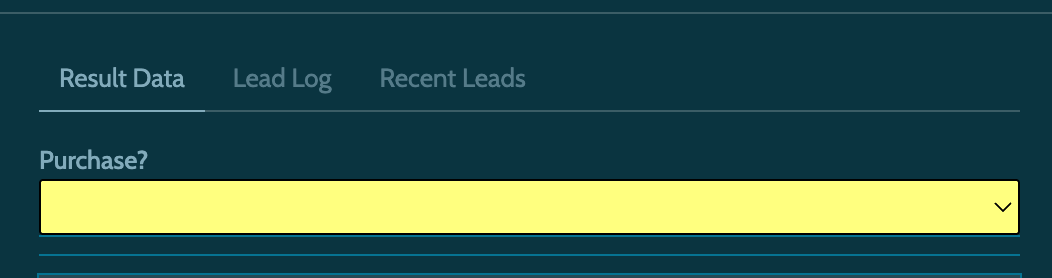
In the middle of the page you will see result data. This is where you will enter the results of the calls to your leads.
Result data will look different from campaign to campaign, as the outcomes you can select will be tailored to specific campaigns as result data fields when editing a campaign template.
However, the main outcome in result data will always be configured as a dropdown menu where you can choose from a number of different outcomes.
Dial panel
To the right is the dial panel. This is where you control the calls to your leads.
Here you can start and end calls, send emails and SMS, and schedule redials.
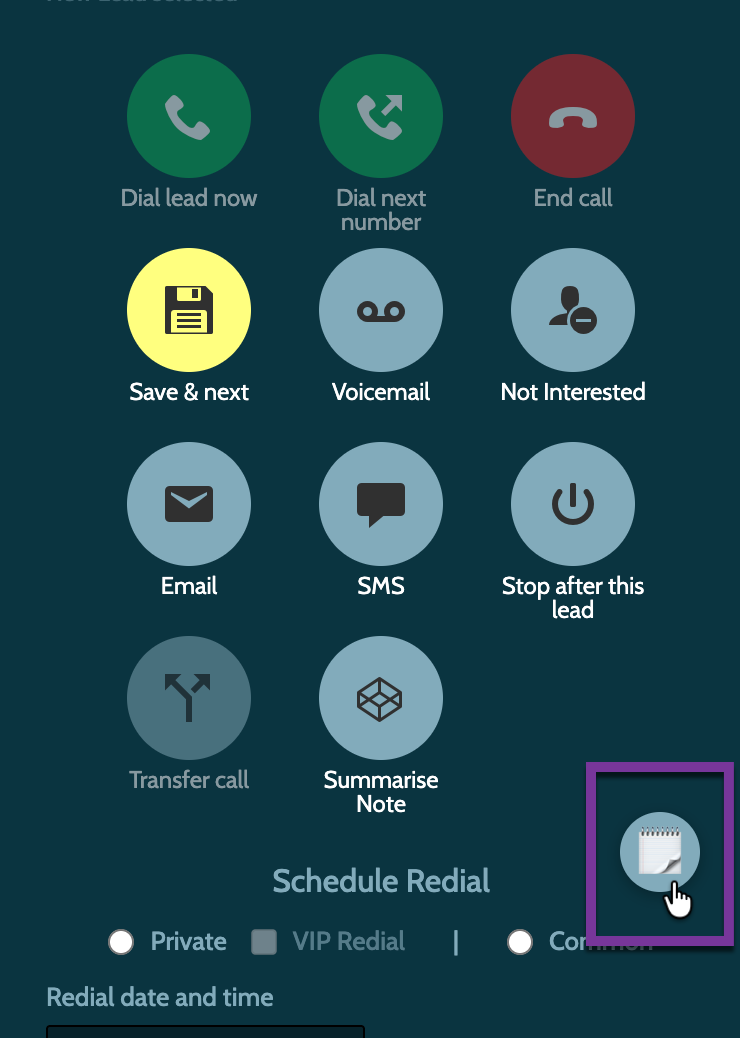
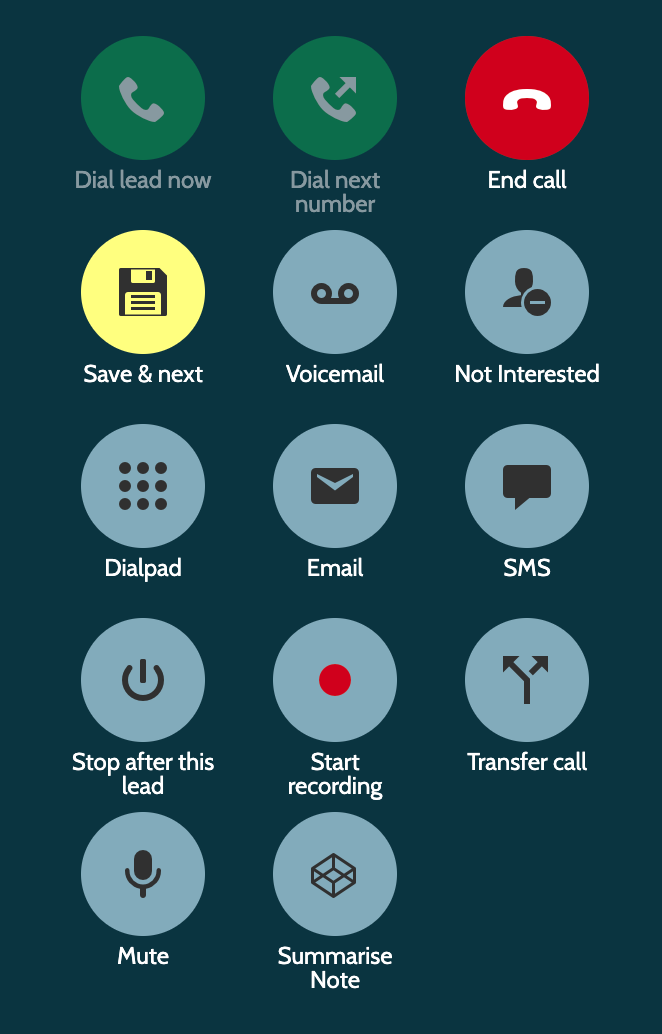
When the contact page is active and calling leads it will look something like this:
Let's take a look at the most important features:
- Dial Lead Now will initiate a call
- Dial Next Number will dial the next number registered, if the lead has more than one number present
- End Call will end the call
- Save & Next will save any changes you've made, like a redial or call outcome, and will move on to the next lead
- Voicemail will register that the call went to the voicemail
- Not Interested will register that the lead was not interested
- DialPad will display the numerical dial pad
- Email will allow you to send an email to your lead, If there isn't an email address in the Lead Master Data, the agent can ask the lead to provide it
- SMS will allow you to send an SMS to your leads
- Stop after this Lead will ensure that you won't be connected to another lead. Your agent line will disconnect when the current call is complete
- Transfer Call will allow you to transfer the call to another agent or number.
Schedule redial
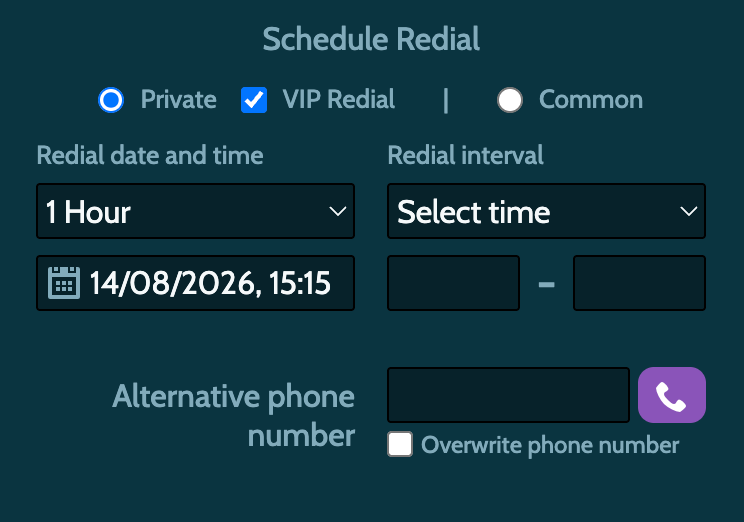
Under schedule redial you can schedule when to call your leads again.
- VIP Redials will ensure that the agent who created the redial will be connected to the leads at a specific time, regardless of whether the agent is working within the campaign, or if the campaign is active. VIP Redials should be used sparingly and with caution.
- Private Redials are connected to the agent that created it. If the agent is not connected to Enreach Outbound at the time the redial is scheduled, then the lead will released to an available agent when it is overdue
- Common Redials will be redialed and connected to any available agent with access to the campaign.
Select a Redial Date & Time for the call.
Under Alternative Phone Number you can enter a different number that the leads prefers to be contacted on. Click the green phone icon to terminate the current call and redial the lead on their preferred phone number.
Manuscripts
If the campaign has a manuscript for you to follow when calling a leads, you will find this in the bottom of the screen.
Click the Manuscript icon to expand the text box and follow your admins notes.