News: View and Create News Posts
With News, you can create and edit News posts that will appear on the navigation home page, reaching your whole organisation as they log in.
News: Home
After logging into Outbound you will see your organisation's news.
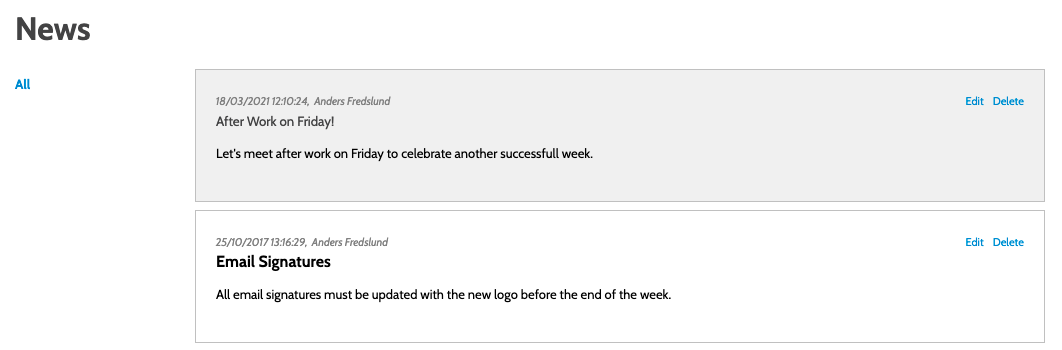
This will be all the internal news items shared with your team. If you have permission to see it, it will be here.
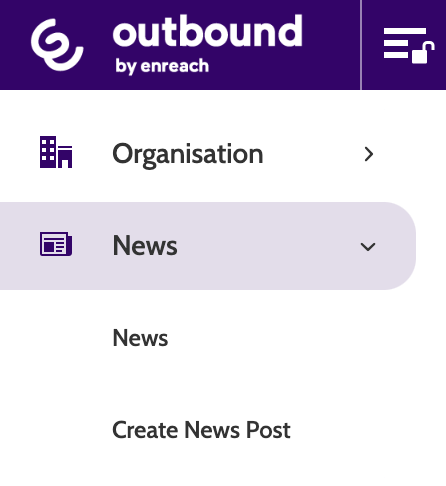
To navigate back to news, expand News in the left-hand menu and click News.
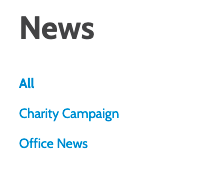
Select All to view all news stories.
Tagged news stories will have their tags as filters underneath All.
Click Edit to be taken to the news editor, or Delete to delete a story.
Create a news post
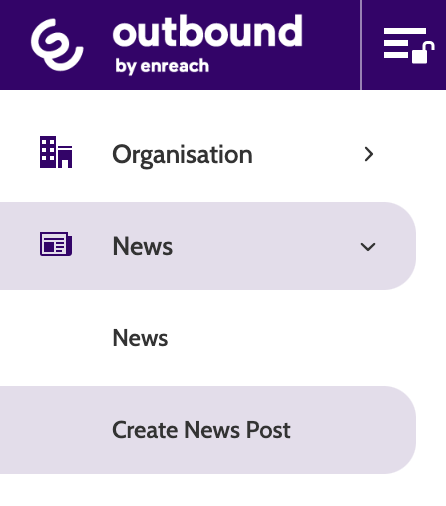
To create a news post click Create News Post.
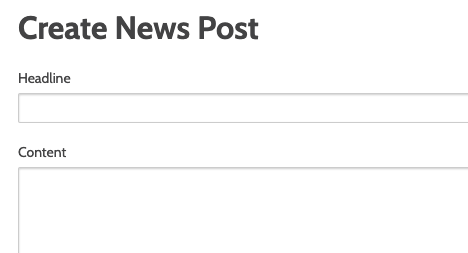
Enter a headline (max. 128 characters) and the content.
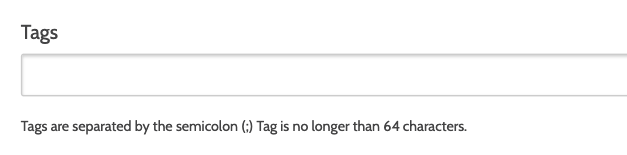
Enter any tags, separated by a semicolon (;), that will be used to filter your news posts. For example, it's a good idea to tag posts according to what campaign they refer to.
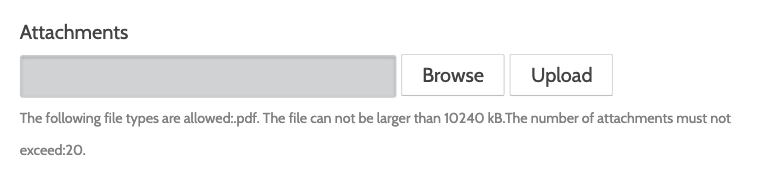
Upload a PDF file by clicking browse, then upload.
News posts can have up to 20 PDF files attached to them, and each file can be maximum 10240 KB.
Check Save as Draft to save the post in a draft state.
Check Mark as "sticky" to stick the post at the top of the page.
Next, edit who in your organisation will be able to view the post.
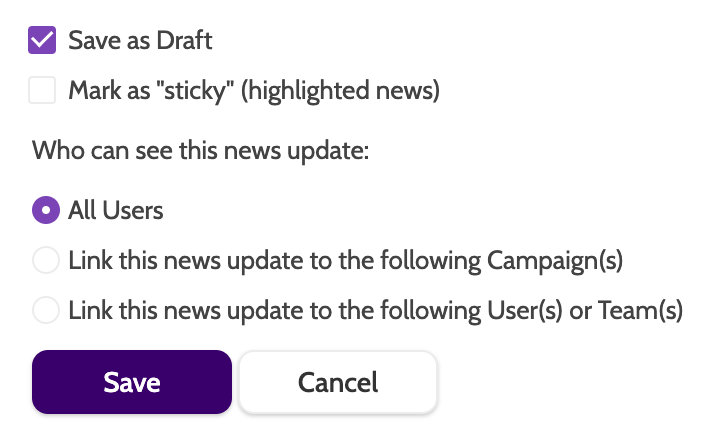
When your news post is complete, click Save or Cancel.
If you need to edit or delete a news post, this can be done from the news home page.