
Smart Talk Insights: Setting up video and in-person meetings
For a 360 view of your organisation's conversations, Smart Talk Insights can also record and analyse both video meetings, and in-person meetings, ensuring nothing valuable is lost.
Video meetings
Smart Talk Insights uses a calendar-connected “notetaker” bot to join, record, and analyse your video meetings automatically.
How it works
- Smart Talk Insights connects to your Google Workspace or Microsoft 365 calendar and reads your scheduled meetings.
- For meetings with a Zoom, Microsoft Teams, or Google Meet link, the Notetaker joins as a participant and records the meeting (audio and usually video), based on your Auto Join settings.
- You can configure the bot to join only external meetings, all meetings with externals, or all meetings that have a video link, meaning you have full control over what information is captured.
- After the meeting, the recording is uploaded securely into Smart Talk Insights and is turned into a 'conversation' with a transcript, summaries, key topics, and insights so you can focus during the meeting instead of taking notes.
Setting up the Notetaker bot
Microsoft Teams & Outlook
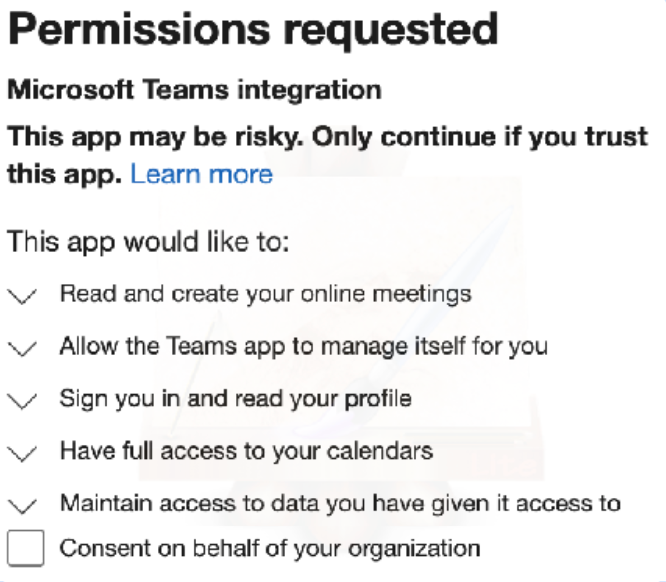
Step-by step
Enable Guest Access
Guest access allows the Notetaker to join your Microsoft Teams meeting as a guest. By default, this setting is turned off in Microsoft Teams, and you'll need admin privileges to enable it.
Follow these steps to enable guest access:
- Go to the Microsoft Teams Admin Center and log in with your credentials.
- This takes you to the Microsoft Teams Admin Center dashboard.
- Click Users and select Guest Access.
- Turn Guest Access ON and click Save. This allows people in your organisation to invite guest users like the Notetaker.
- With Guest Access enabled, Smart Talk Insights can now join your meetings. However, by default, Microsoft Teams requires guests to wait in the lobby.
Activating the Calendar integration
Once your administrator has set up guest access and given consent for the organisation, you can activate the integration for your user account.
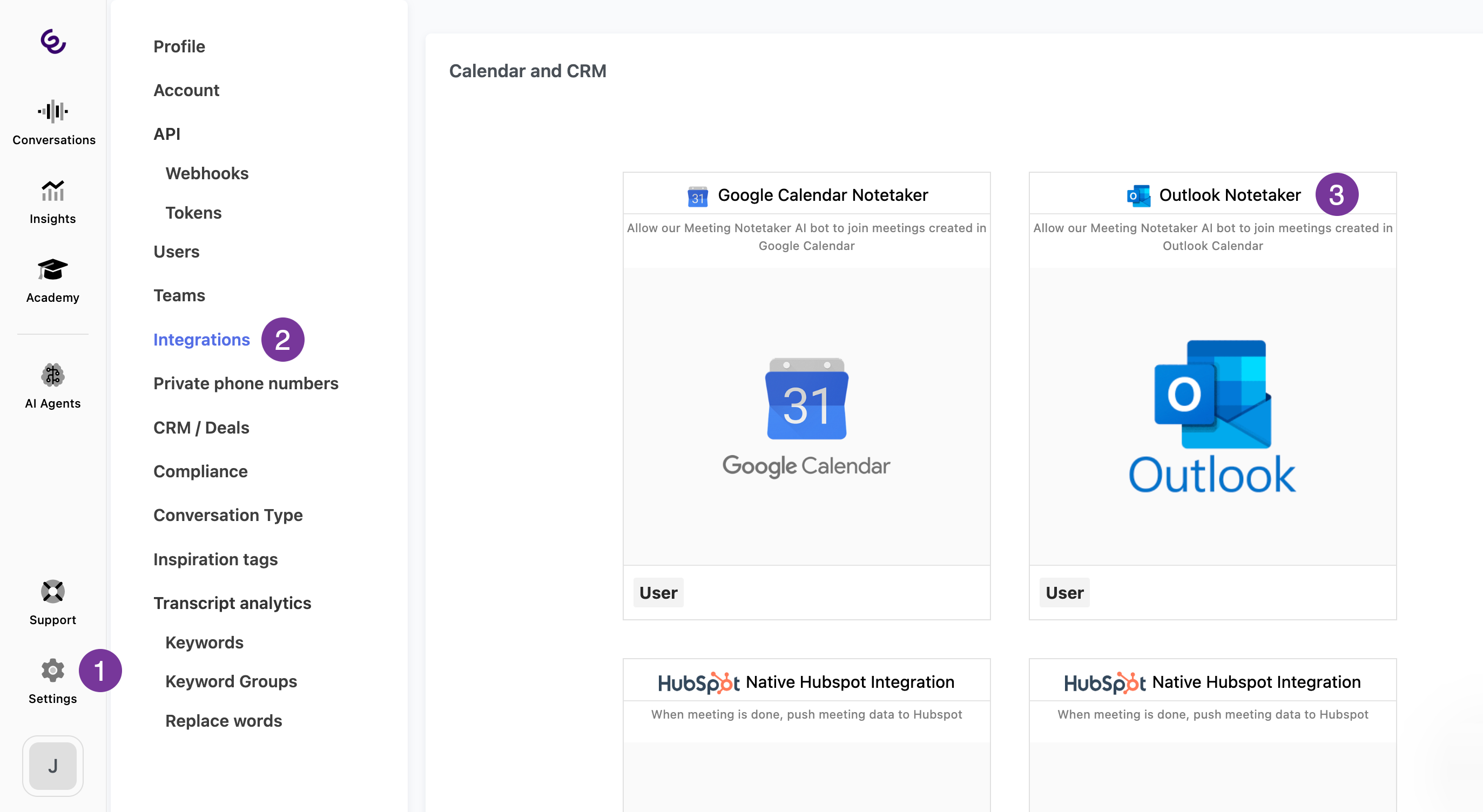
- In Smart Talk Insights, click on Settings in the bottom-left corner of the screen.
- Select Integrations from the menu.
- Click on Outlook Notetaker to connect your account.
- You will be prompted to sign in to your Microsoft account to authorise the connection.
- After connecting, you can verify that the connection is working by clicking on your avatar in the bottom-left corner of and then selecting My Calendars. Here, you should be able to see the events in your calendar. Note it could take up to 15 minutes for the meetings to show!
Google Meet Notetaker
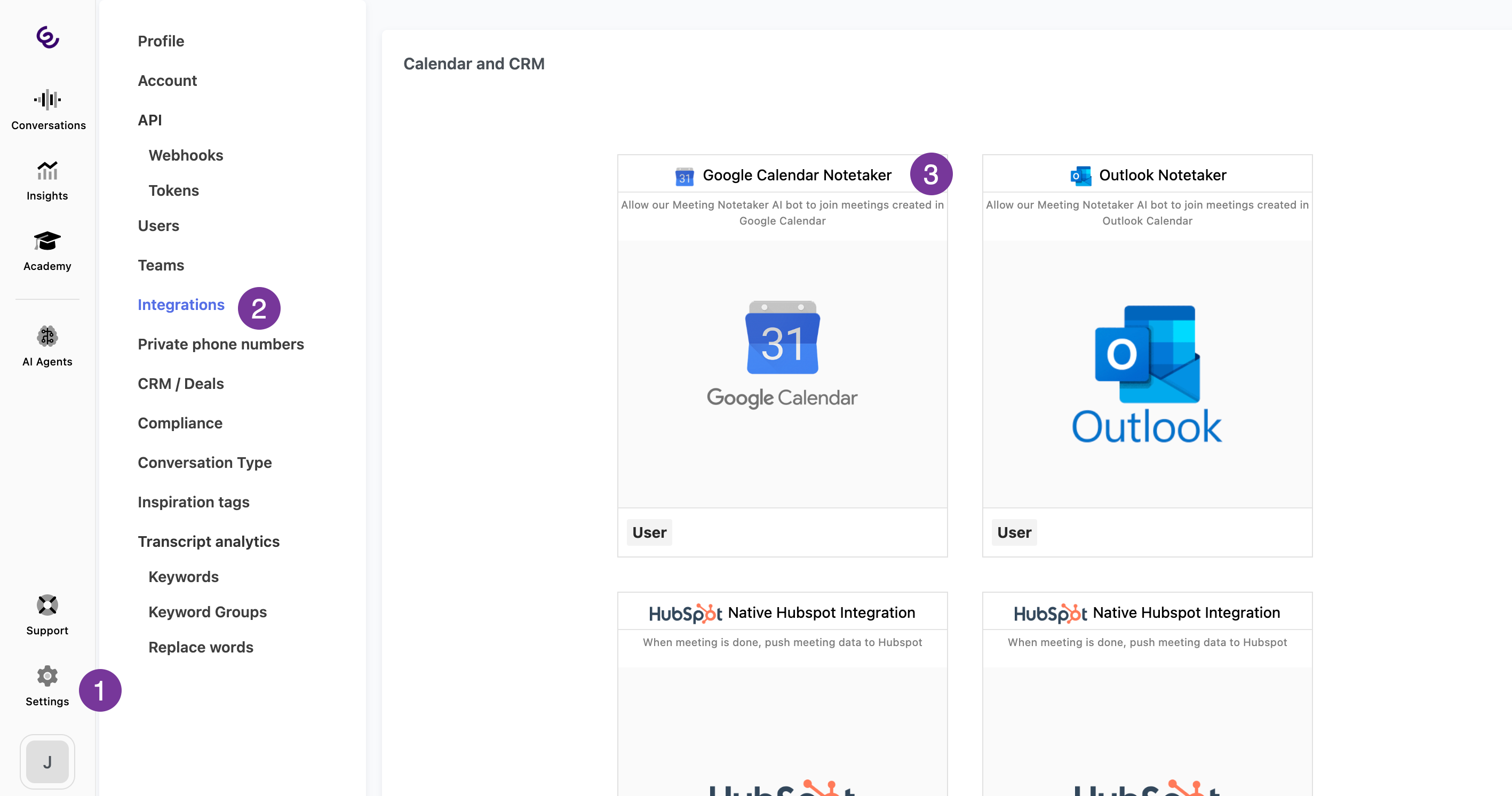
- In Smart Talk Insights, click on Settings in the bottom-left corner of the screen.
- Select Integrations from the menu.
- Click on Google Calendar Notetaker to connect your account.
- You will be prompted to sign in to your Google account to authorise the connection.
- Once authorised you will have to sign back in to Smart Talk Insights.
- After connecting, you can verify that the connection is working by clicking on your avatar in the bottom-left corner of and then selecting My Calendars. Here, you should be able to see the events in your calendar. Note it could take up to 15 minutes for the meetings to show!
Recording live meetings
Recording in-person meetings with Smart Talk Insights lets you capture every detail automatically, so you stay focused and present during the conversation.
As with phone calls and online meetings, live meetings are stored as conversations, and can be transcribed, summarised, and analysed with AI.
Step-by-step
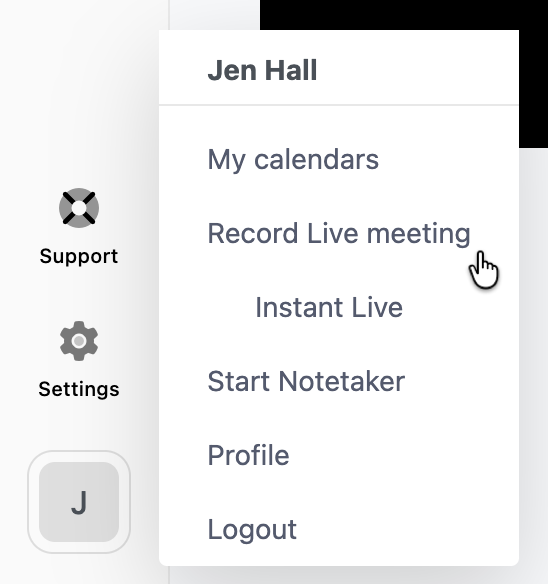
- Click your avatar in the bottom-left corner and select Record Live meeting from the menu
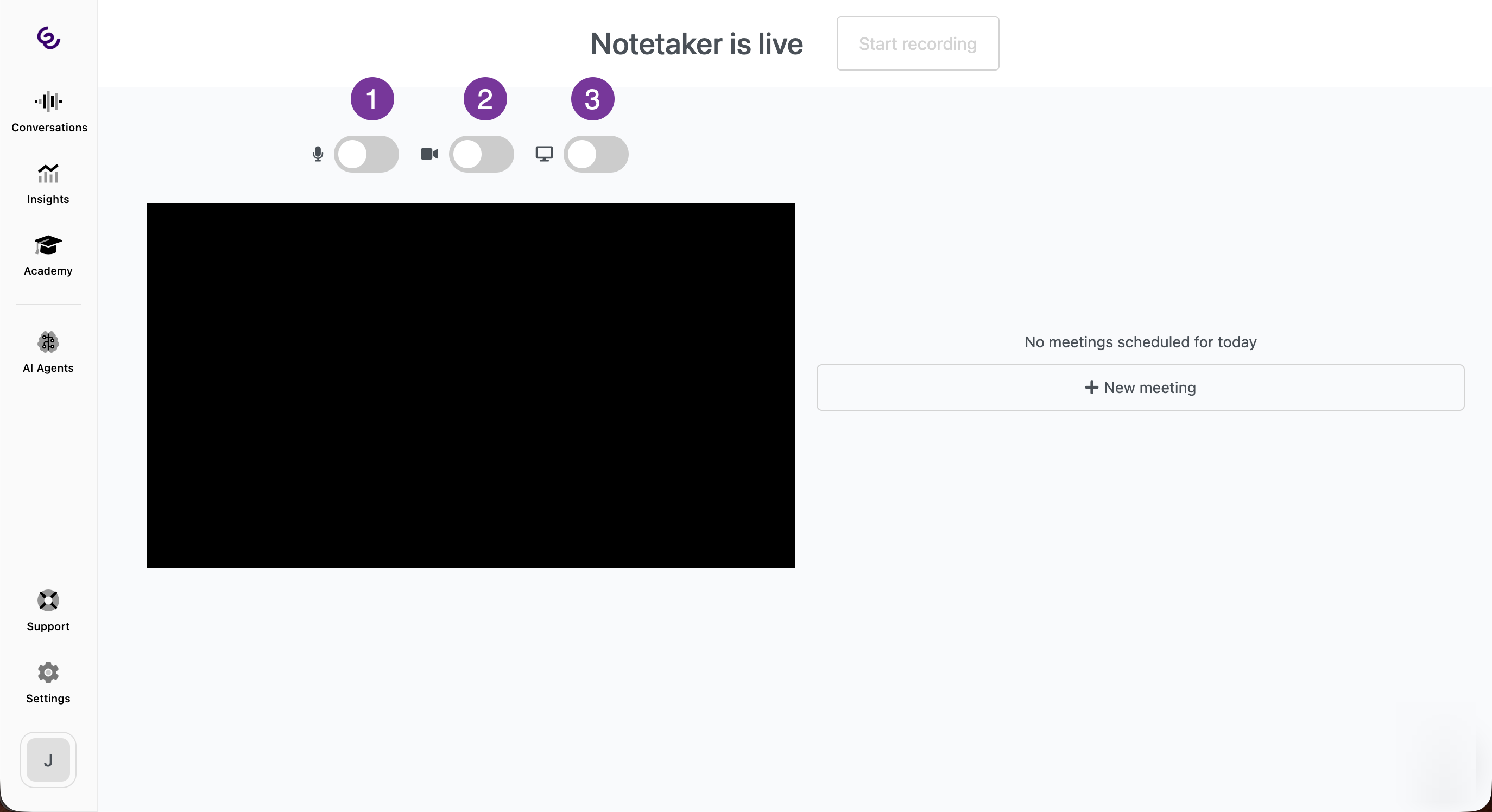
2 - Set up your recording:
1. Toggle to turn on the microphone
2. Turn on the camera
3. Toggle to share your screen or a tab which will be recorded
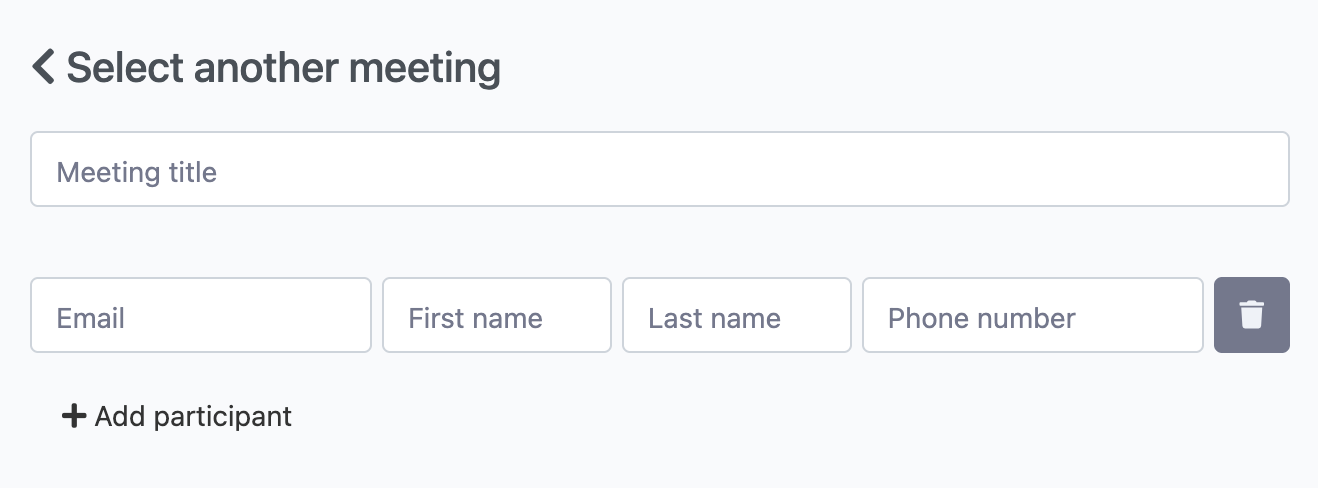
3 - Click New Meeting and add a meeting title, and the participants of the meeting, with email addresses so the attendees will be sent a link to the recording
4 - When you are ready to start the meeting, click Start Recording. When the meeting is done, click Stop recording, and confirm that the meeting is finished

5 - After a few seconds, the recording can be found under Conversations
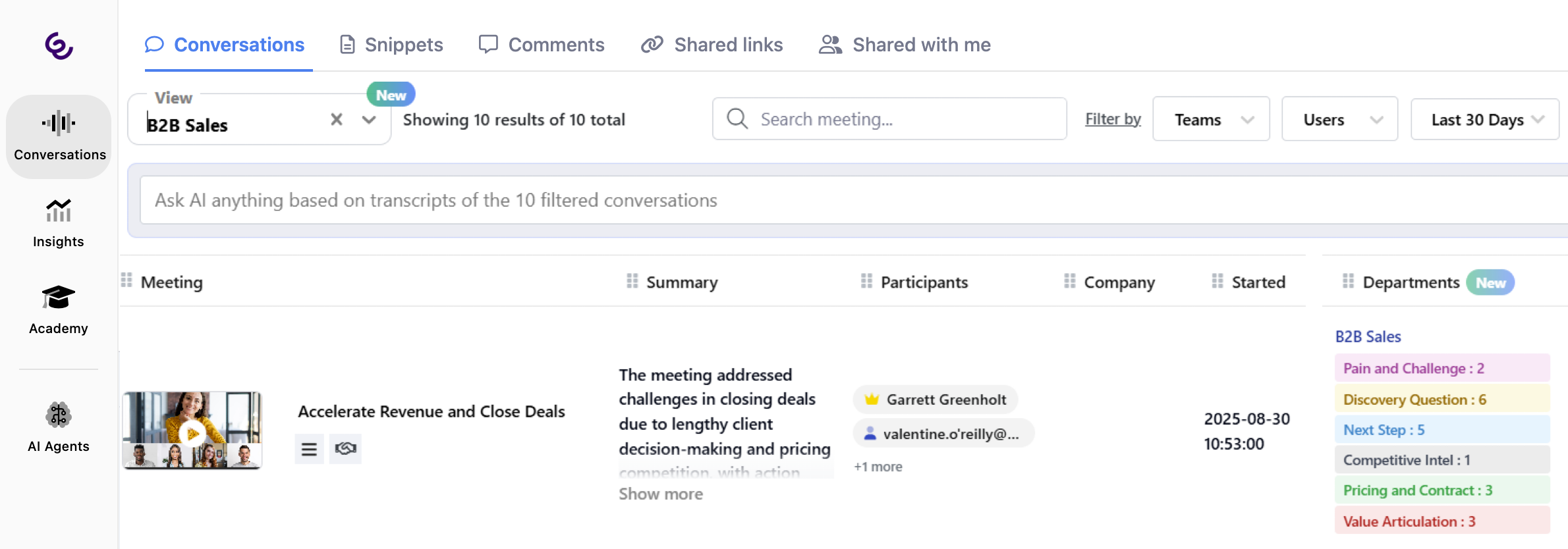
6 - Before the transcript is created, click on the conversation, then Full transcript, and define who is participating in the meeting