
Smart Talk Insights: Conversations
Conversations for Smart Talk Insights is your central hub for each and every conversation recorded, giving you a 360° view of all interactions in one place.
Here you'll find:
- Every synced or recorded interaction (video meetings, telephony calls, some live/offline meetings) with its own page.
- The recording, transcript, AI summaries, insights, variables, and links to CRM objects (accounts, opportunities, contacts, etc.) of each conversation
The Conversations page is comprised of several different tabs that you can select to switch between Conversations, Snippets, Comments, Shared links, and Shared with me.
Conversations
What are Conversations?
The Conversations page in Smart Talk Insights is your homepage for reviewing, analysing, and learning from every recorded call or meeting you’ve captured.
From here you can listen to recording, read summeries, view trends, and ask AI anything about the coversation transcripts.
Inspiration 💡
Training & Onboarding
- Use real call examples and snippets to show “what good looks like” and ramp new hires faster with concrete, contextual learning.
Process Improvement
- See where playbooks and scripts are actually followed or skipped, then refine flows using what happens in real conversations.
Knowledge Sharing
- Use search and timestamps instead of rewatching full meetings, making follow‑ups and preparation for next calls much faster.
Performance Analysis
- Review calls with transcripts and highlights to coach more precisely, benchmark behaviour, and track improvements over time.
Working with conversations
Step-by-step
1 - Open Conversations in the left hand menu
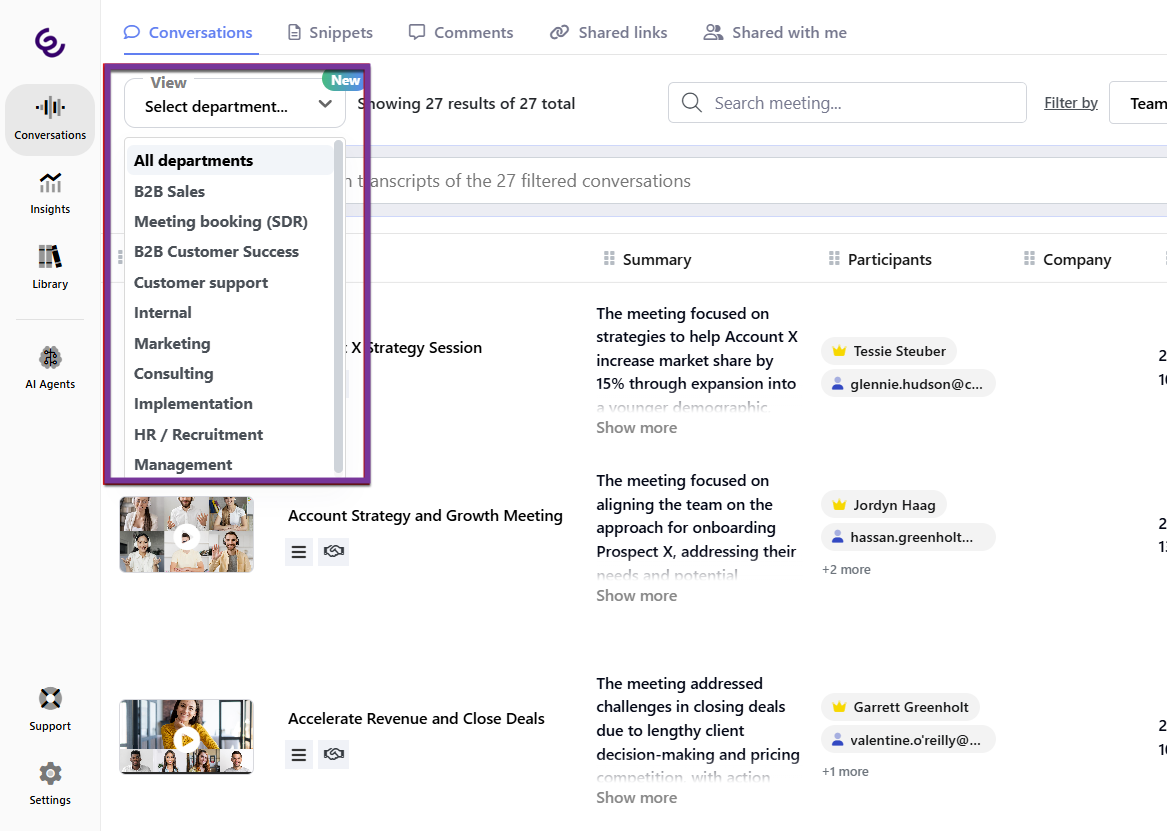
2 - The default view shows all conversations in the most recent order. Click View to choose from pre-defined departments such as B2B Sales, Marketing, and Customer Success, and only view conversations that have been automatically matched to that department
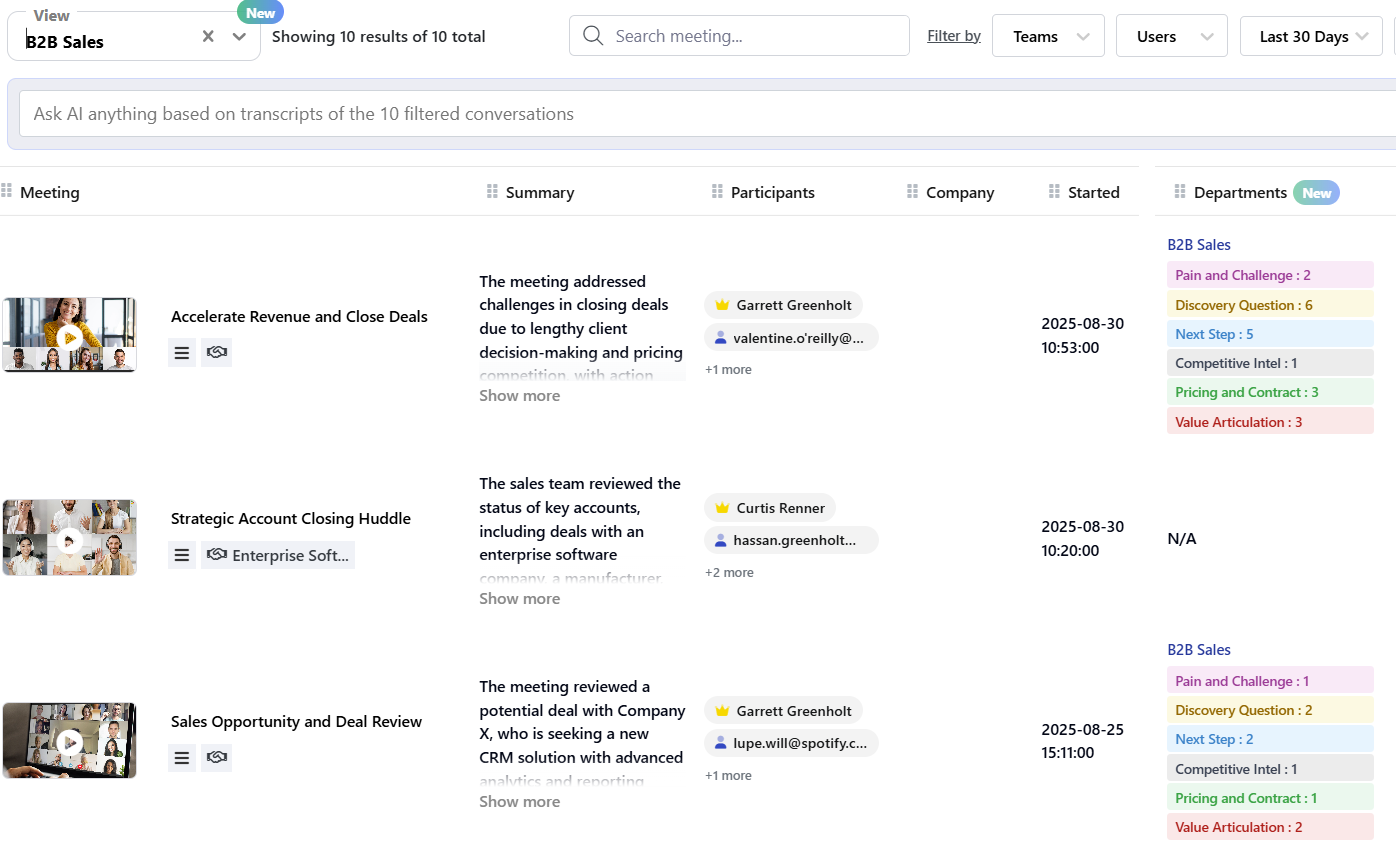
3 - Under the Departments column you will see a list of tags generated by Smart Talk Insights that categorise the conversation
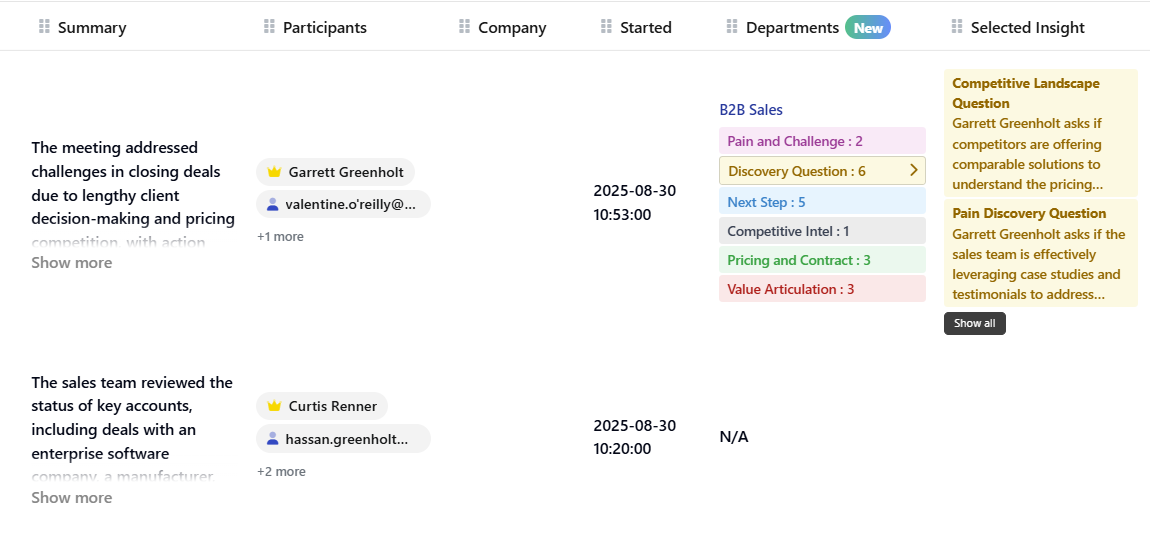
4 - Click a tag to view the details, which will be displayed in the Selected Insight column
5 - Drill-down into your conversations by using the filters, or customise the view with the Manage Columns option

6 - Clicking on a conversation will open that conversation in a new tab
Snippets
What are Snippets?
Snippets are customisable snapshots of your conversations that you can save and use for turning important moments (objections, great pitches, customer quotes, coaching moments) into shareable, reusable clips for training and reviews.
Conversation snippets can be saved in folders and shared with your organisation in the Academy module, allowing for best practice training at scale across your teams.
When you delete a folder, the original snippets (and recordings) stay safe - only the folder link gets removed.
Inspiration 💡
Training & Onboarding
- Create folders like "Successful Onboarding" with snippets showing best practices from top performers
- Build "First demo - deal won" collections to train new sales reps
Process Improvement
- Save snippets of effective objection handling or customer success strategies
- Curate examples of strong action items and follow-up techniques
Knowledge Sharing
- Organize snippets by department themes - like customer feedback patterns or competitor mentions
- Create searchable libraries of solutions to common challenges
Performance Analysis
- Collect snippets showing high-performing sales strategies or communication styles
- Build folders around specific goals to track what works
Working with snippets
Step-by-step
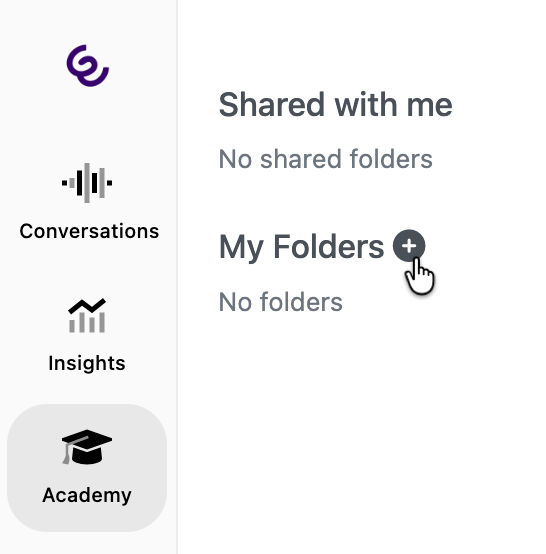
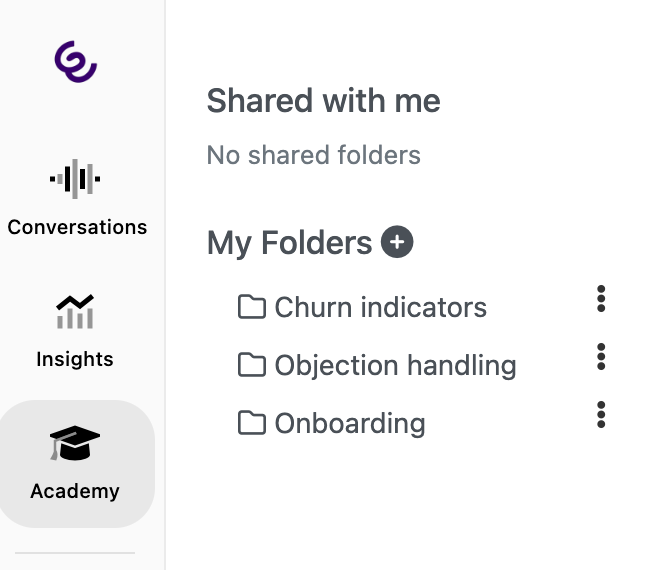
- First, create a folder to store the snippets. Click on Academy, then create a folder by clicking the plus icon, entering the folder name in the pop-up, and clicking Save.
2 - To create a snippet, open the source conversation from the Conversations page
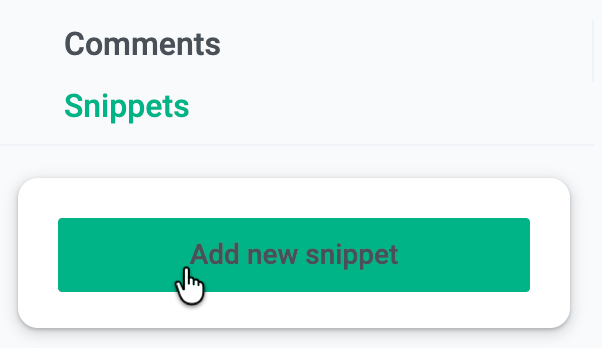
3 - In the right side of the page, click Snippets, then Add new snippet
4 - Use the blue box to locate the section of the conversation you want to save as a snippet. Change the length of the snippet by resizing the box.
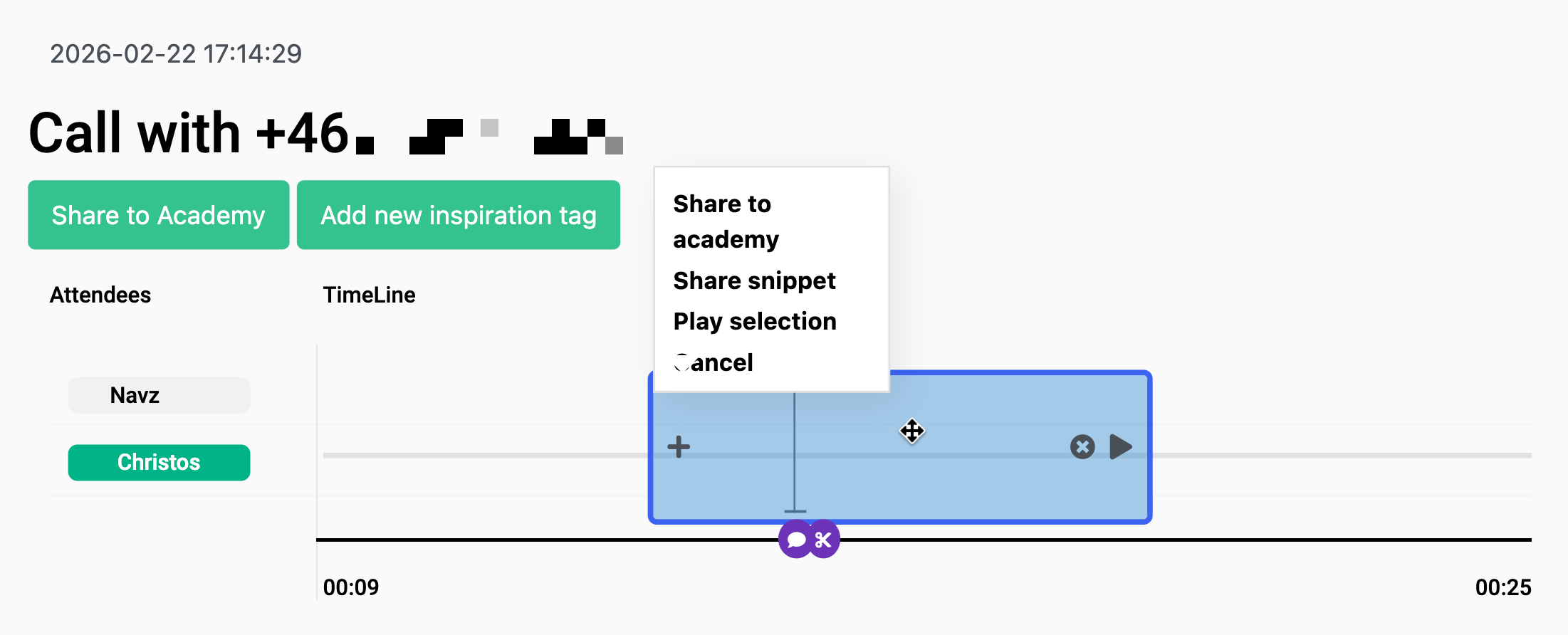
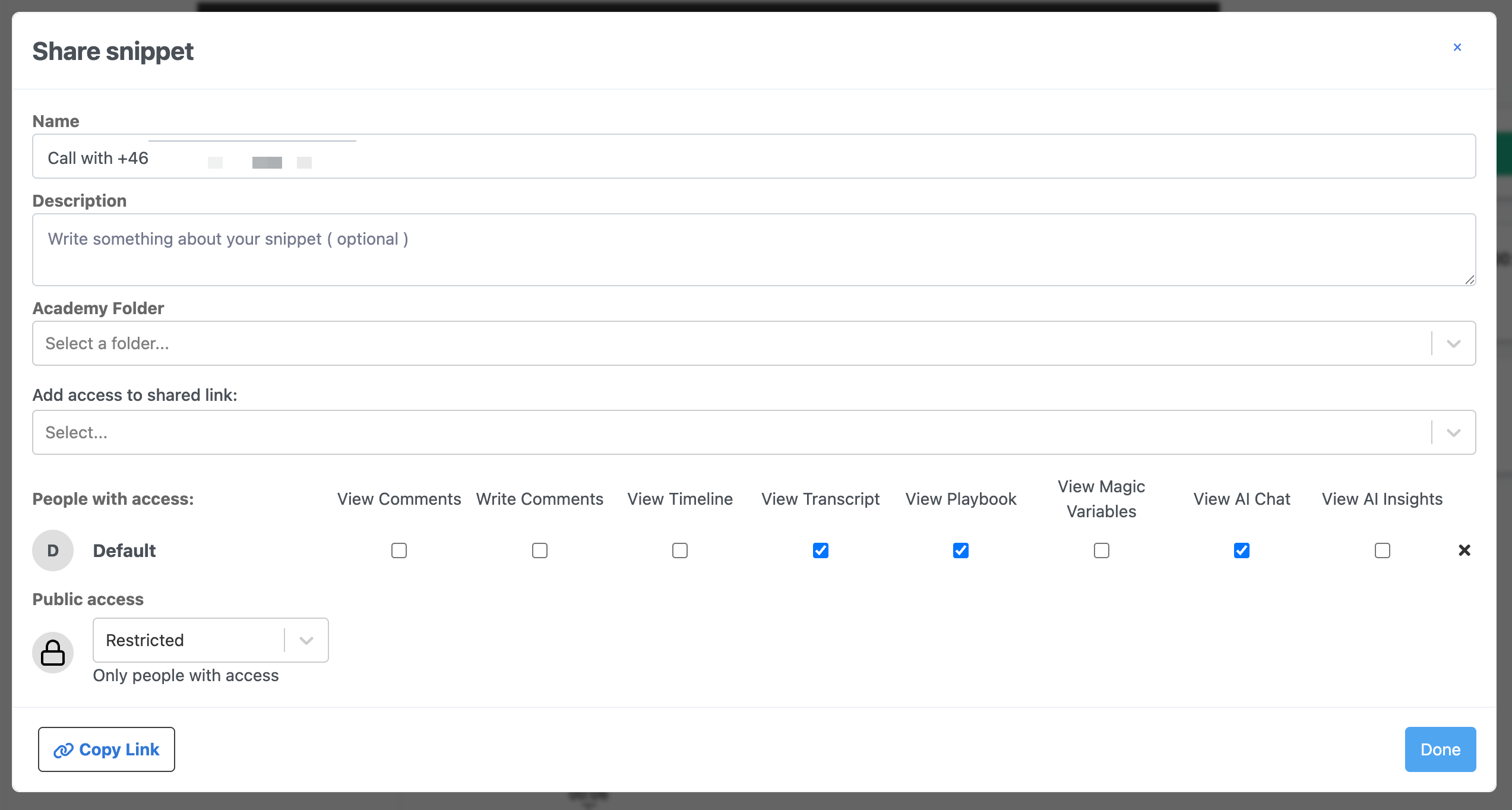
5 - To save a snippet, click the white box and enter the following information:
- Name: the default is the conversation name, but give it something descriptive and easily identifiable
- Description: add some context
- Academy Folder: select which folder it should be stored in
- Add access to shared link: if you want to share the snippet, grant access rights to the recipient by checking the boxes
- Public access: select Restricted so only the teams or users that have been granted access can view the snippet: select Open so anyone with the link can access
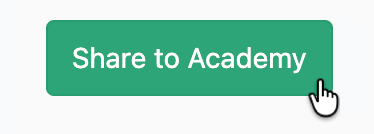
6 - You can also add the snippet to a folder by clicking Share to Academy and selecting the folder from the menu
Viewing snippets
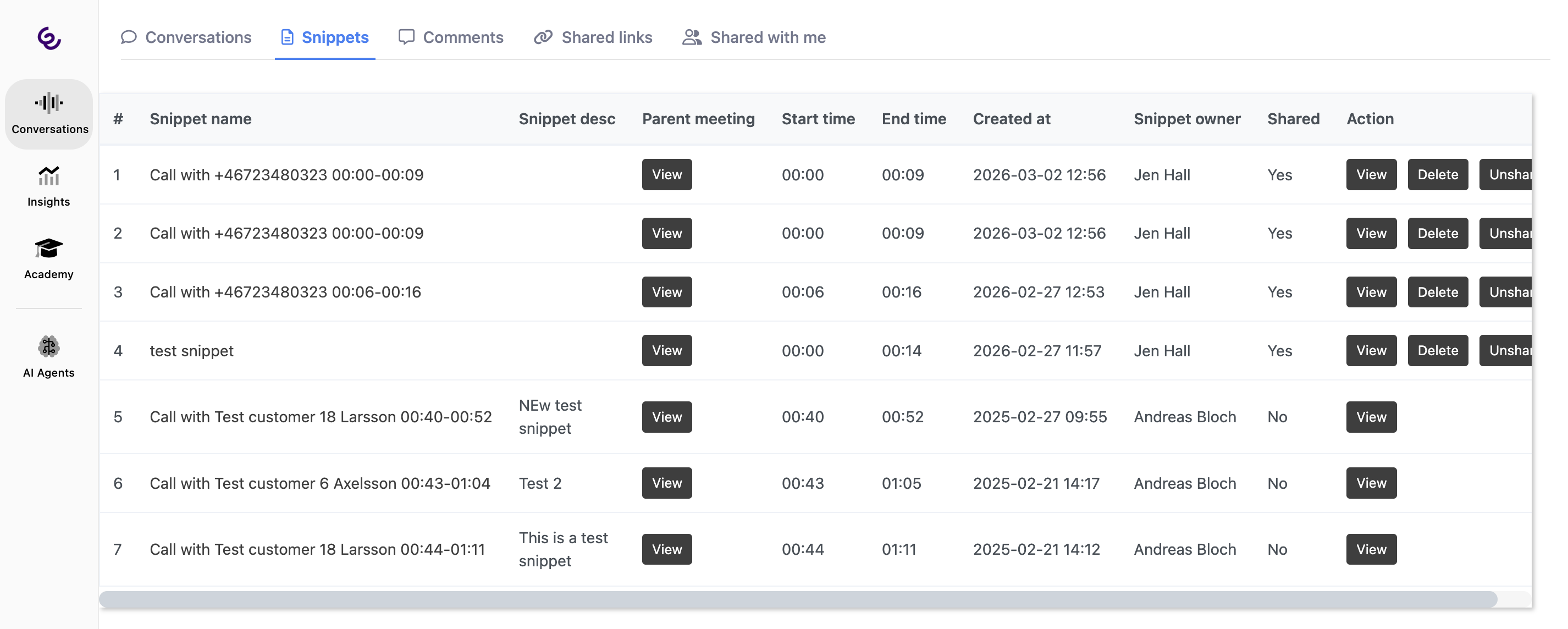
Once created, snippets can be viewed in two places:
- By clicking the Snippets tab in the top menu of Conversations
2 - Grouped together by type in folders in the Academy page
Comments
What are comments?
Comments in Smart Talk Insights lets participants discuss and clarify meeting notes and action items directly inside a shared meeting note, instead of in separate emails or chats.
Inspiration 💡
Training & Onboarding
- Turn recurring onboarding sessions into a mini playbook: tag those meetings as “Onboarding” and use comments to clarify questions new hires ask, then refine the agenda over time.
- Ask new hires to comment directly on unclear steps in the notes (e.g., “I don’t understand step 3”), then update the process and resolve the comment so you build better onboarding materials from real confusion points.
Process Improvement
- Tag meetings by process (e.g., “Support escalation”, “Release retro”) and use comments to log observed issues and proposed experiments right under the relevant agenda item.
- When a process fails (incident, bug, customer complaint), capture the timeline in the note and let stakeholders comment in-line with root-cause details and ideas for prevention, so the whole improvement story lives in one place.
Knowledge Sharing
- Use meeting categories (e.g., “Customer insights”, “Product discovery”, “Sales – Demo”) so notes become a lightweight knowledge base that people can search later.
- Encourage people who were not in the meeting to add clarifying or “how did you decide this?” comments after they read the note.
Performance Analysis
- After key calls (sales, support, project reviews), add quick coach-style comments: what went well, what to improve next time, and which behaviors to repeat, so you build a thread of coaching moments over time.
- On quarterly or monthly review meetings, comment on whether previous action items were completed on time and what impact they had (e.g., “This experiment improved response time by 15%”), making it easier to connect meetings to outcomes.
Working with comments
Step-by-step
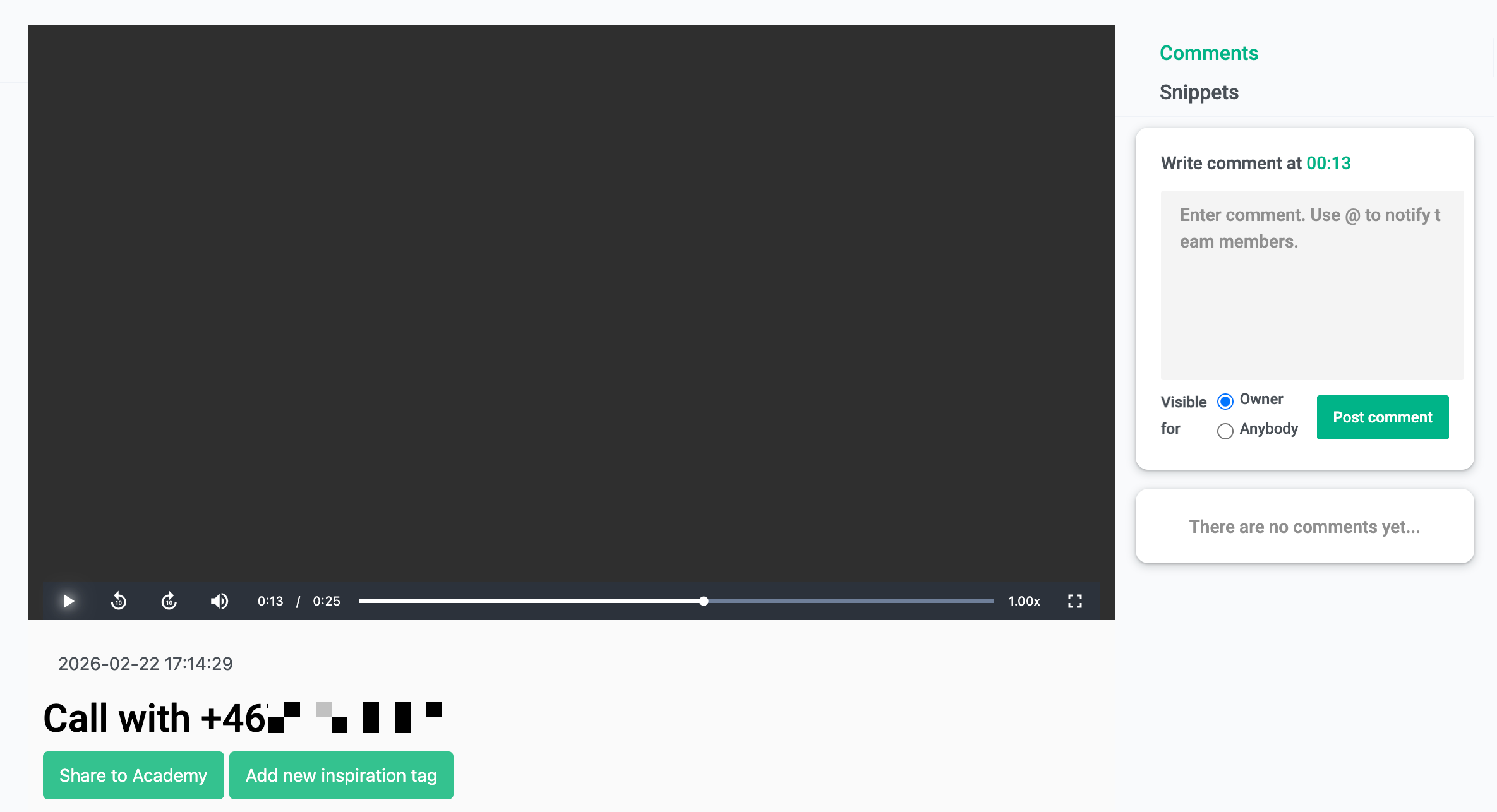
- Pause the conversation at the moment you want to leave a comment, and enter your comment in box to the right. The comment will be timestamped to that specific moment
- Toggle between Owner and Anybody to select who the comment will be visible to
- Click Post comment when done
4. To reply leave a reply, click on the comment, enter your response and click Reply
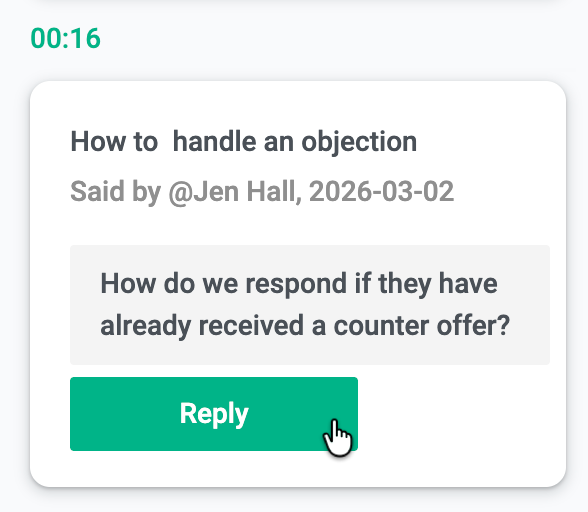
5. All comments and replies can be viewed in the Conversations page by clicking Comments in the top.
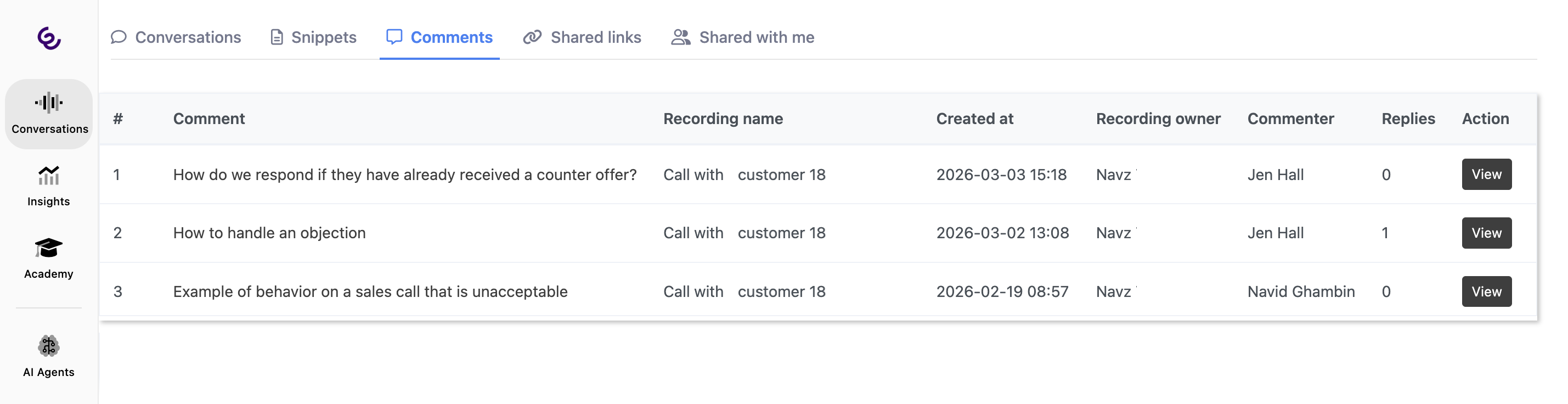
Important things to note:
👉 Comments are attached to a specific meeting note that is automatically linked to a calendar event, so discussion stays tied to that meeting rather than scattered across tools.
👉 Smart Talk Insights notes (including their comments) can be shared via link, email, or tools like Slack, so stakeholders who were not in the meeting can review the discussion thread.
👉 Use comments to refine or reassign tasks, as Smart Talk Insights lets you track action items from meetings, and ensure owners stay accountable.
Shared links & Shared with me
On the Conversations page, the Shared links and Shared with me tabs are all about how recordings are shared and who can see what.

Shared links
- Shows the conversations where you (or your org) have generated a public or semi‑public share link, so you can see exactly what is accessible via URL outside of Smart Talk Insights.
- Provides a central place to manage shared content: from here you can reopen a shared conversation, copy the link again, or revoke access by disabling/deleting the share link when it is no longer needed.
- Helps with compliance and governance because you always have a list of what has been shared via links, instead of hunting through individual calls.
Shared with me tab
- Lists conversations that other people have shared with you, either directly (e.g. a manager sharing a specific call) or via a shared link that grants you access.
- Gives you a single place to find coaching examples, important customer calls, or cross‑team conversations that colleagues want you to review, without mixing them into your own recordings list.
- Encourages cross‑functional collaboration, since sales, CS, product, and leadership can share key calls with each other while Meetric still enforces organisation‑level permissions and policies.