Campaigns: Update Leads
Bulk update data in leads that have already been uploaded to Campaigns.
Before you begin you will need a CSV, XLS, or XLSX file, no more than 4MB, with the Data Fields you want to update, and the Data Field used for duplicate searches.
How to update leads
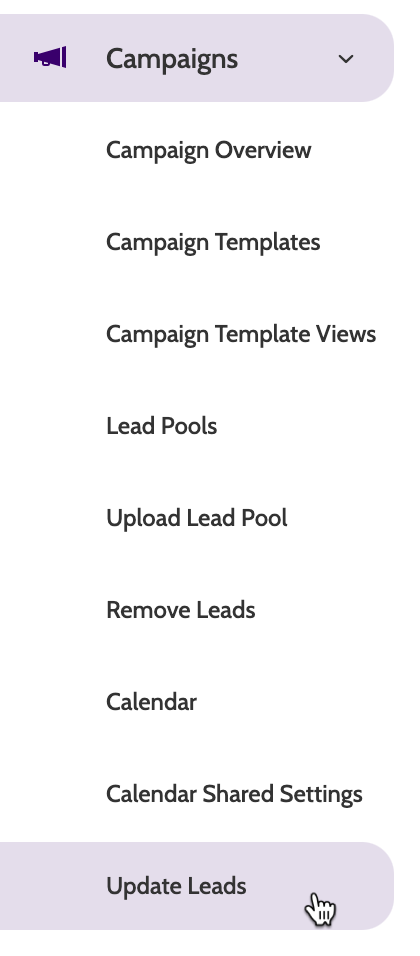
Update Leads can be found under the Campaigns menu.
Duplicate Method
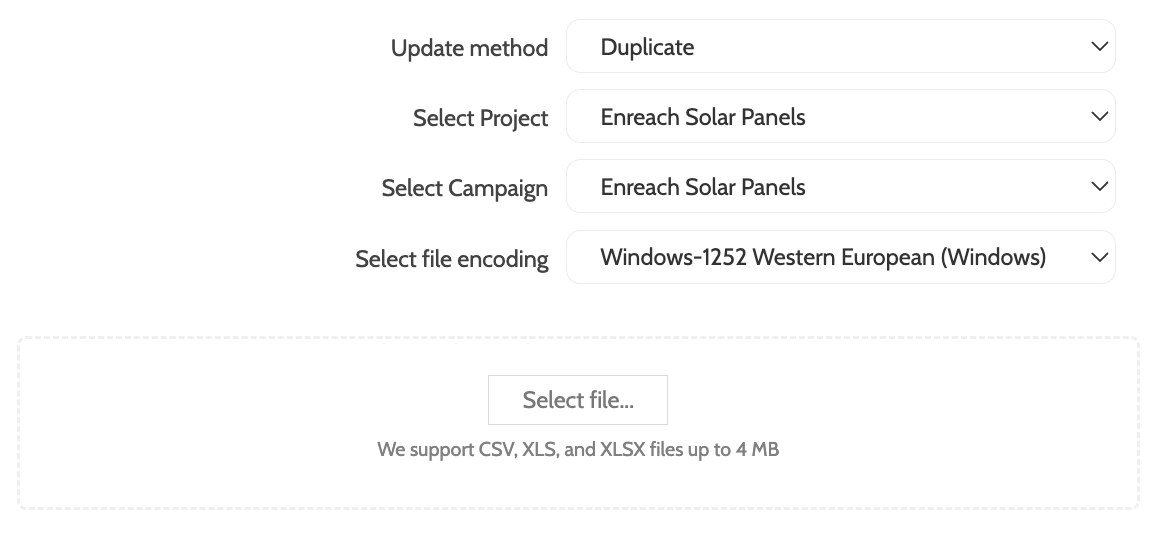
The Duplicate Method will use the duplicate search function to locate and update the lead data contained in your file:
- Update Method: select Duplicate from the menu
- Select Project: select which Project the Leads you want to update belong to
- Select Campaign: select which campaign the leads you want to update belong to
- Select File Encoding: choose the method of encoding the file.
- Select File: click Select File to upload a file from your computer. We support CSV, XLS, and XLSX files up to 4MB.
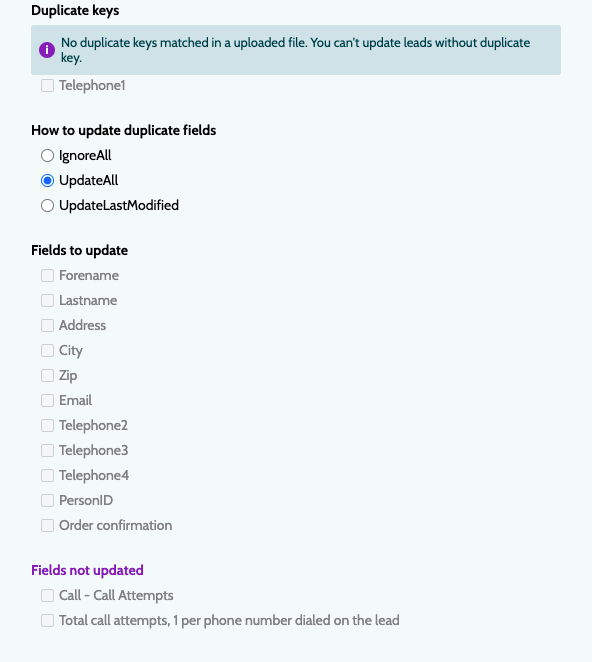
Once you have uploaded your file, the lead data will be shown to the right:
- Duplicate keys: this is the name of the master data field that you are using for the Duplicate key in your file. This is configured in page 2 of creating a campaign template
- How to update duplicate fields: select the method of updating any duplicate fields found
- Fields to Update: check the boxes of any data fields you want to update.
Click Preprocess to being updating leads. Outbound will tell you if this was successful and leads were updated.
OutboundID
The OutboundID method will use the Outbound unique Lead ID to locate and update the leads with the data contained in your file:
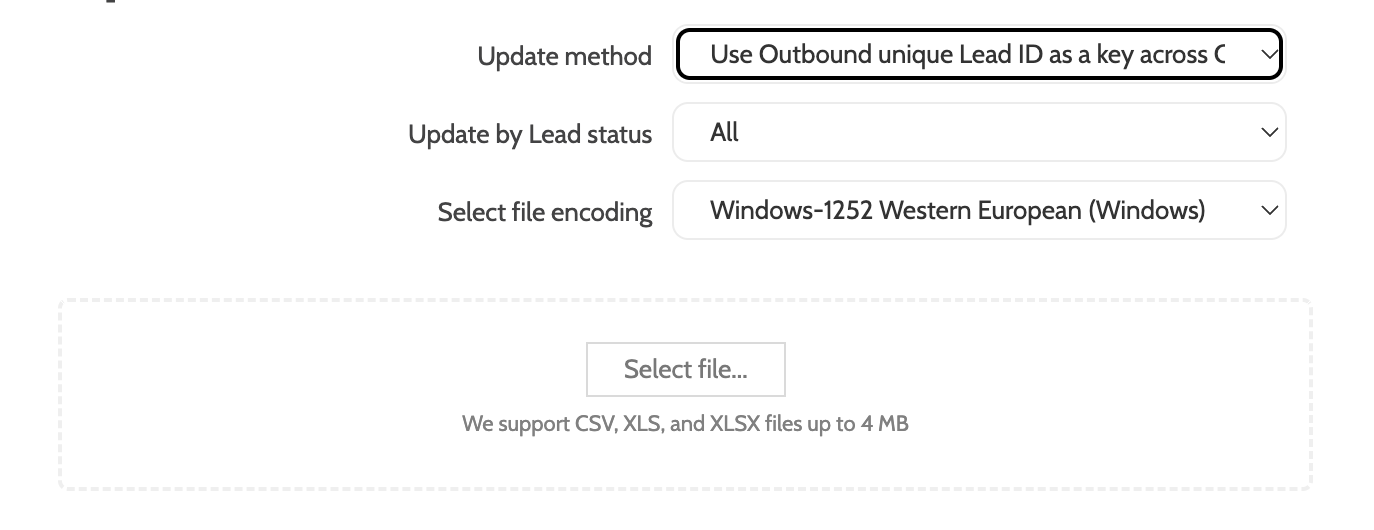
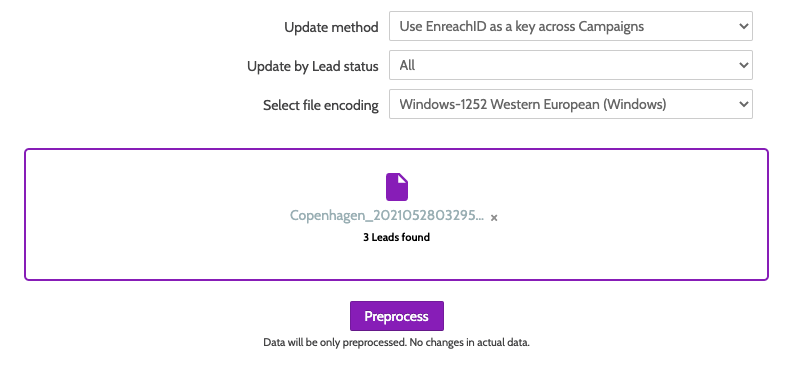
- Update method: select Use Outbound unique Lead ID as a key across Campaigns
- Update by lead status: select the method of updating leads by lead status. Choose between All, Open Only, or Closed Only
- Select File Encoding: select the method of encoding the file
- Select File: click Select file to upload a file from your computer. We support CSV, XLS, and XLSX files up to 4MB.
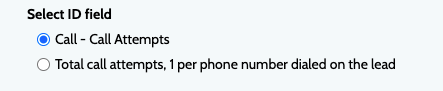
Once you have uploaded your file, the lead data will be shown to the right.
Click Preprocess to being updating leads.
Outbound will then tell you if this was successful, and how many leads were found, and how many were updated.
Click Update to update leads.
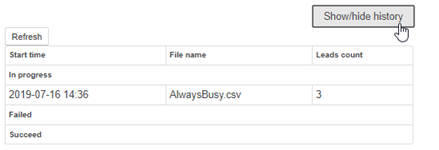
Once leads have been updated, you can view your changes by clicking Show/hide history.