
Smart Talk Insights: Integrating with HubSpot
What the CRM integration does
The HubSpot integration connects your CRM with Smart Talk Insights so conversation data and insights are automatically synced with the correct records.
With this integration you can:
- Automatically attach AI-generated summaries from calls and meetings to HubSpot records.
- Link conversations to contacts, companies, deals, and tickets.
- Connect conversation data with deal information and meeting types.
- Analyse conversations alongside CRM pipeline data.
This ensures all key information from meetings, calls, and recordings is captured in your CRM without manual updates.
How to connect HubSpot
Prerequisites
Before connecting HubSpot, ensure you have:
- Admin or appropriate permissions in your HubSpot CRM
- Contact records in HubSpot containing email addresses or phone numbers for matching conversations.
Conversations are matched to CRM records using participant details such as email, phone number, or name.
Setup steps
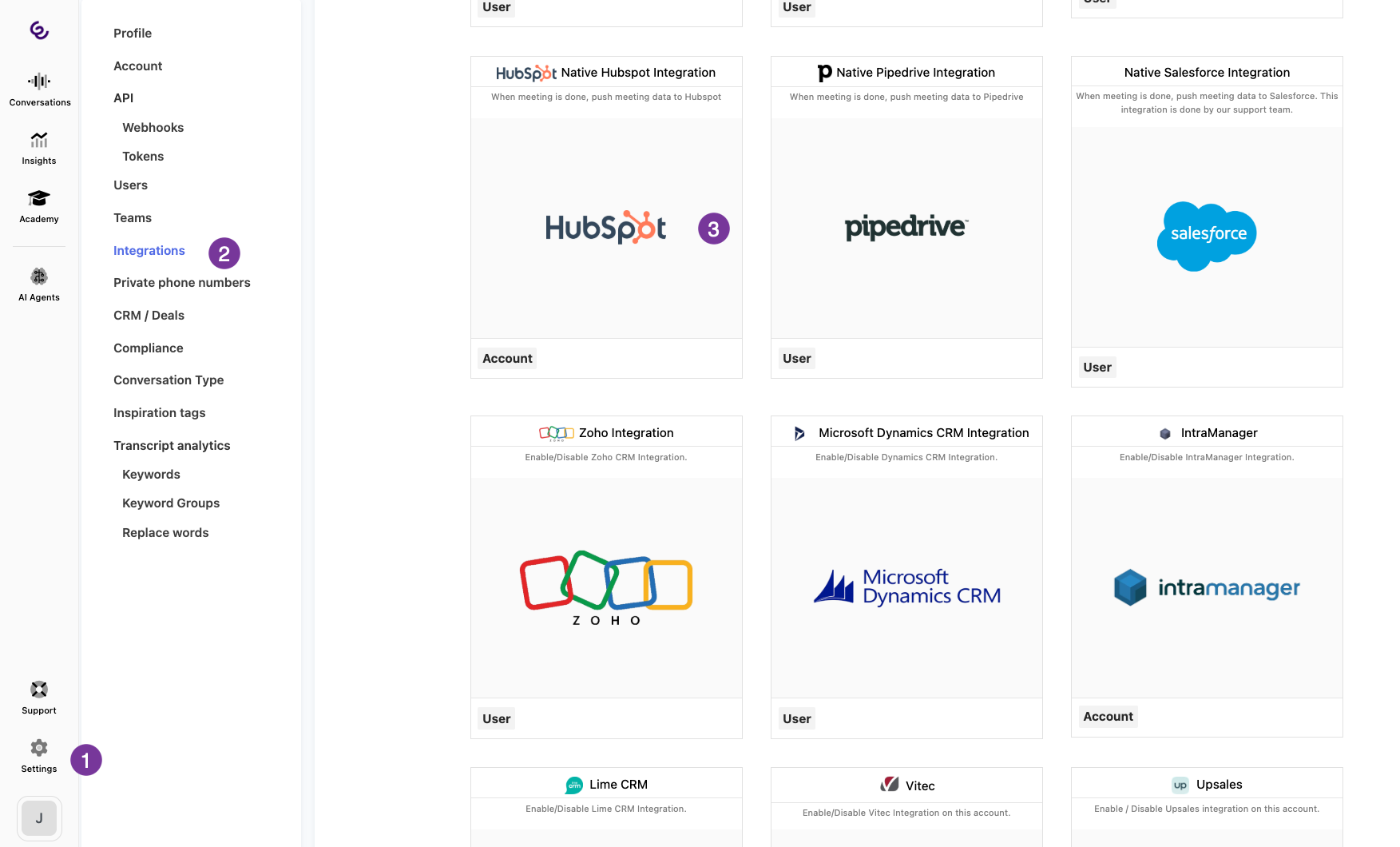
- In Smart Talk Insights, go to Settings → Integrations → HubSpot.
- Connect your HubSpot account and authorise the integration.
- Once authorized, the integration will appear as Connected.
After setup, Smart Talk Insights can automatically sync summaries and conversation data with your CRM records.
What happens after a meeting or call
When a conversation is completed:
- Smart Talk Insights generates an AI-powered summary of the interaction.
- Participants are matched with HubSpot contacts using their email or phone number.
- Relevant CRM data (such as deals or meeting types) is fetched and associated with the conversation.
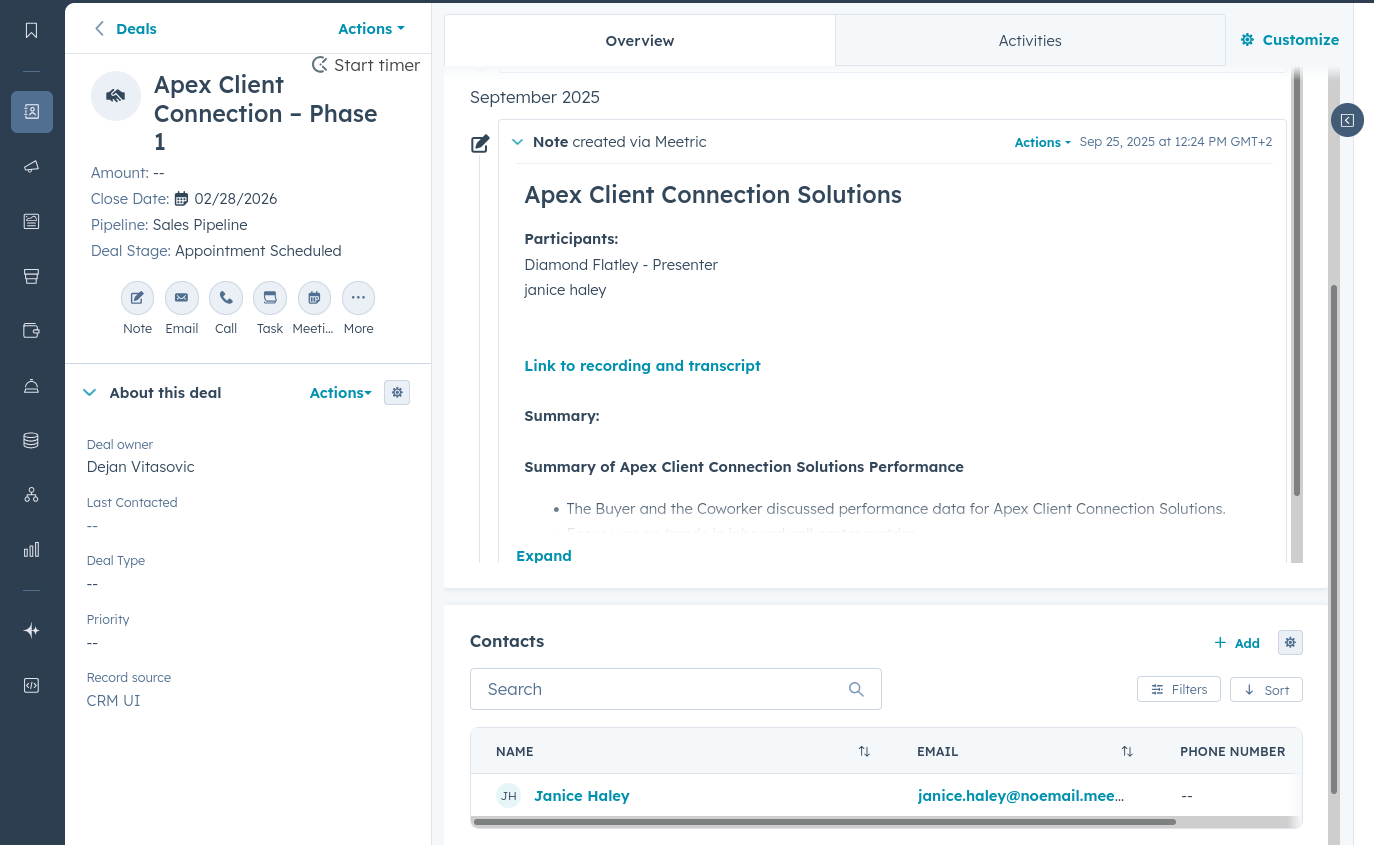
- The summary and conversation information are added to the appropriate HubSpot records.
The synced information includes:
- Meeting or conversation summary
- Recording link
- Conversation details and metadata
- Associated contact, company, or deal.
Deal and meeting data
The integration also pulls CRM data from HubSpot to enrich Smart Talk Insights insights.
Meeting type syncing
Smart Talk Insights can fetch the meeting type associated with a scheduled meeting, enabling conversation analysis based on meeting categories.
Deal syncing
Deal information connected to conversation participants is imported, including:
- Deal name
- Deal value
- Deal creation date
- Deal status
- Deal close date.
If multiple deals are found for a contact, Smart Talk Insights selects the deal with activity closest to the conversation date.
Where the summaries appear in HubSpot
After syncing, conversation information can appear on:
- Contact records
- Company records
- Deal records
- Ticket records
This ensures all relevant conversation details are easily accessible within the HubSpot timeline and activity history.
Common troubleshooting issues
No summary appears in HubSpot
Possible causes include:
- The conversation participant could not be matched to a HubSpot contact.
- The AI summary is still processing.
Conversation not linked to a deal
This usually occurs when:
- The contact has no active deal in HubSpot.
- The deal could not be matched based on participant data.
Multiple deals found
If several deals exist for the same contact, Smart Talk Insights will automatically associate the conversation with the deal closest to the conversation date.
Integration stopped syncing
If syncing stops working, reconnect the integration from Settings → Integrations.
Security & Privacy
The integration connects to HubSpot using secure API access and token-based authentication.
Key security details include:
- Secure API authentication and token management
- Encrypted communication with HubSpot APIs
- No storage of CRM user passwords.