
Smart Talk Insights: Integrating with Pipedrive
Integrating your CRM with Smart Talk Insights lets you automatically connect conversations to the right accounts, contacts, and deals, and push AI summaries and data back into your CRM.
By integrating Smart Talk Insights with your CRM:
- Sales representatives save 1–2 hours per day by eliminating manual note‑taking and CRM updates, while still keeping CRM data cleaner and more complete
- Leaders get a true 360° view: pipeline and account views in CRM are backed by the actual calls and meetings, making forecasting, coaching, and root‑cause analysis much more accurate.
What the CRM integration does
- Syncs key CRM objects (accounts/companies, contacts, deals/opportunities, tickets/cases) so Smart Talk Insights understands who you’re talking to and in what context.
- Automatically attaches summaries, notes, and recording links from video, live, and telephony conversations to the correct records in CRMs such as Salesforce, HubSpot, Dynamics, and Pipedrive.
- Fetches deal and meeting data, allowing you to filter and analyse conversations by pipeline stage or meeting type.
Connecting to Pipedrive
Prerequisites
- Access: Admin or user access in Pipedrive to authorize apps via OAuth
- Permissions: Access to Smart Talk Insights with permission to manage integrations
- Best Practice: Ensure people in Pipedrive have an email (preferred) or phone set for reliable matching.
Connect Pipedrive and Smart Talk Insights
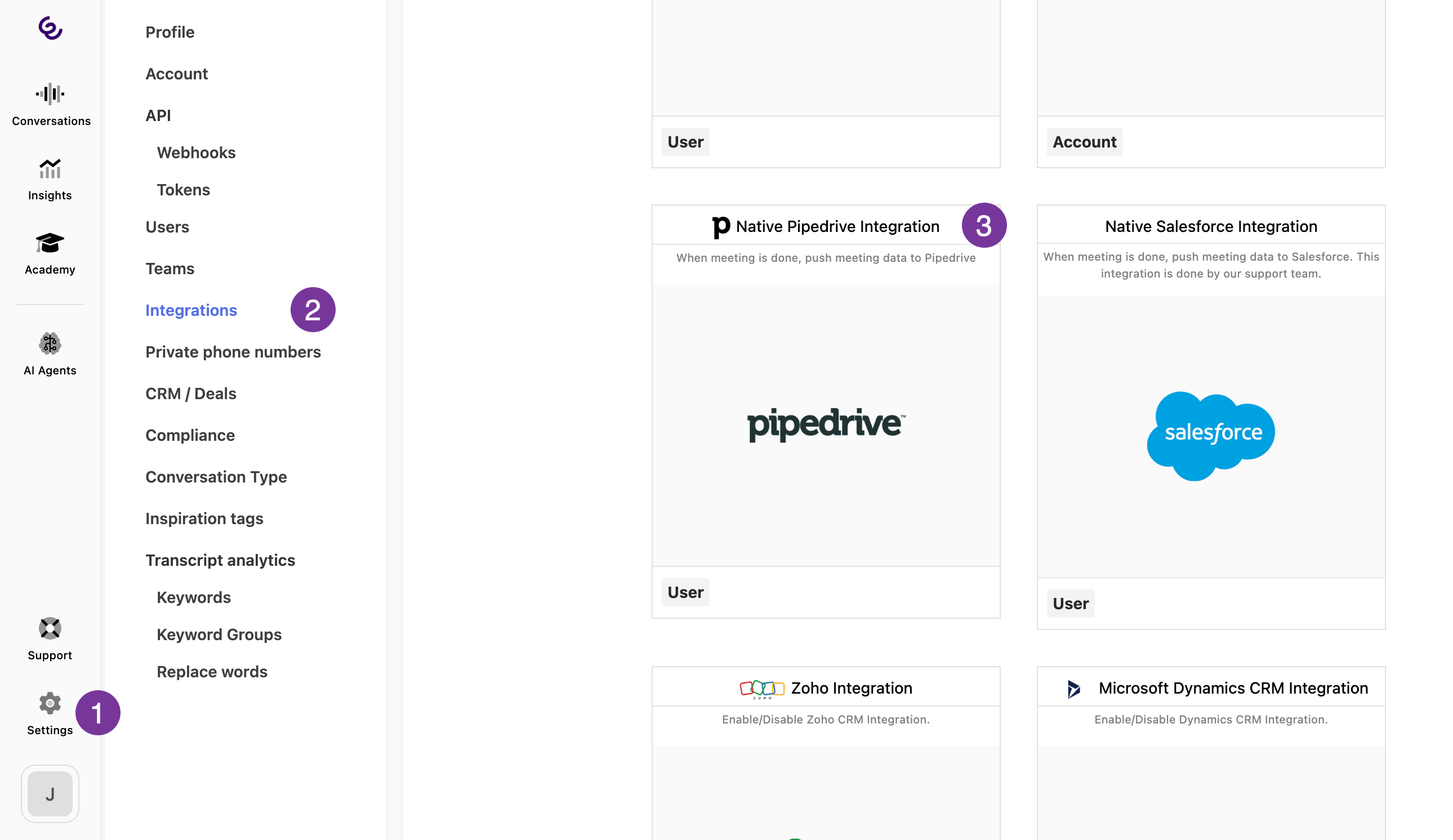
- In Smart Talk Insights, go to Settings → Integrations → Pipedrive.
- Click Connect. You will be redirected to Pipedrive.
- Approve Permissions: Log in and allow Smart Talk Insights to create notes and activities.
- Confirm: Once redirected back, Pipedrive will show as Connected.
How insights are added to Pipedrive
After your meeting ends, Smart Talk Insights generates an AI summary.
Meeting participants are then matched to Pipedrive contacts, and a note about the meeting is created.
Creating an activity in Pipedrive
If a Conversation Type in Smart Talk Insights matches an existing Pipedrive Activity Type name, an activity is created with:
- Subject: Meeting name.
- Description: The AI summary content.
- Details: Linked to person/deal, includes duration and due date (meeting end time).
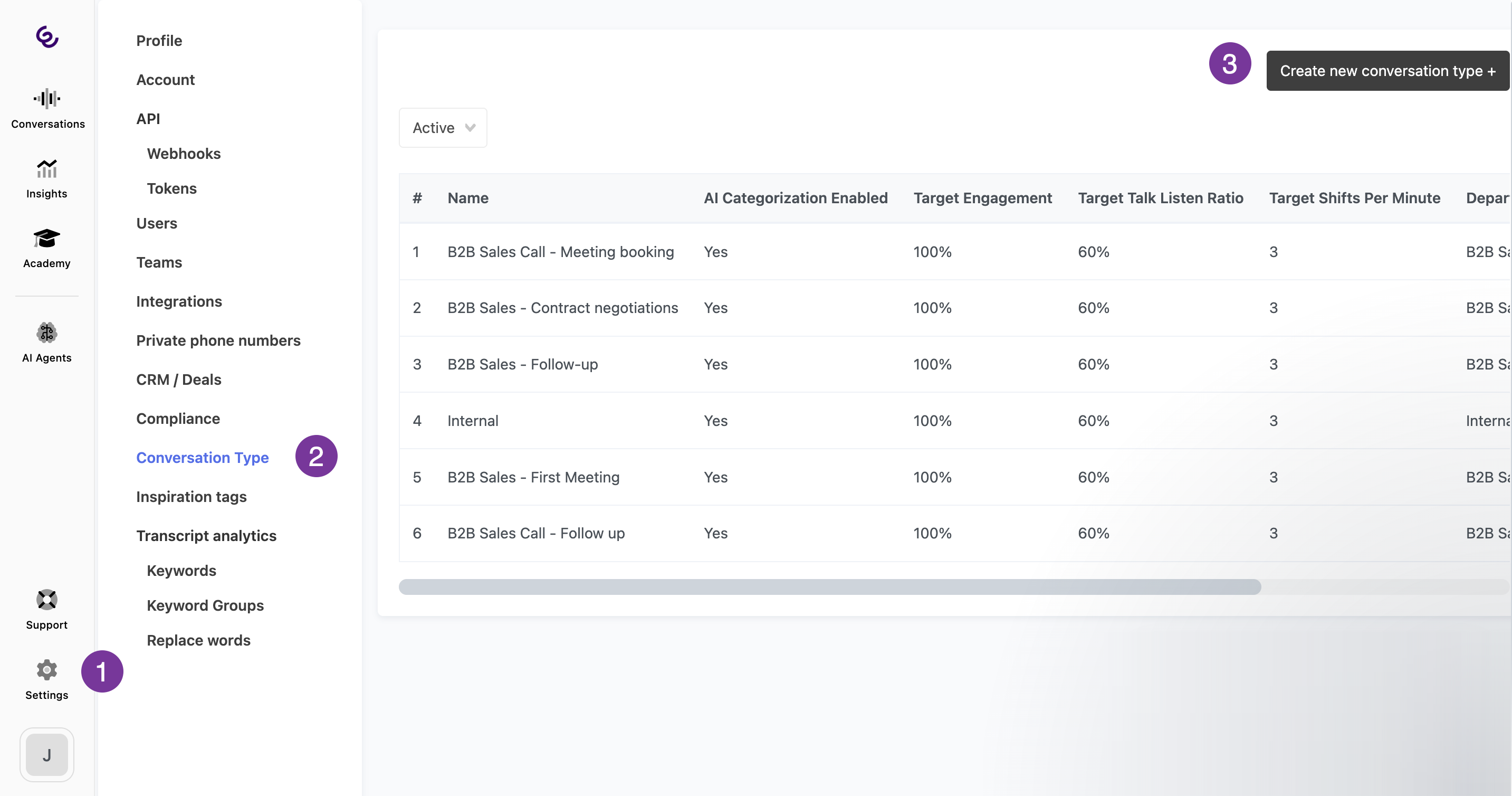
To create a Conversation Type, navigate to Settings > Conversation Type > Create new conversation type.
Finding the summary in Pipedrive
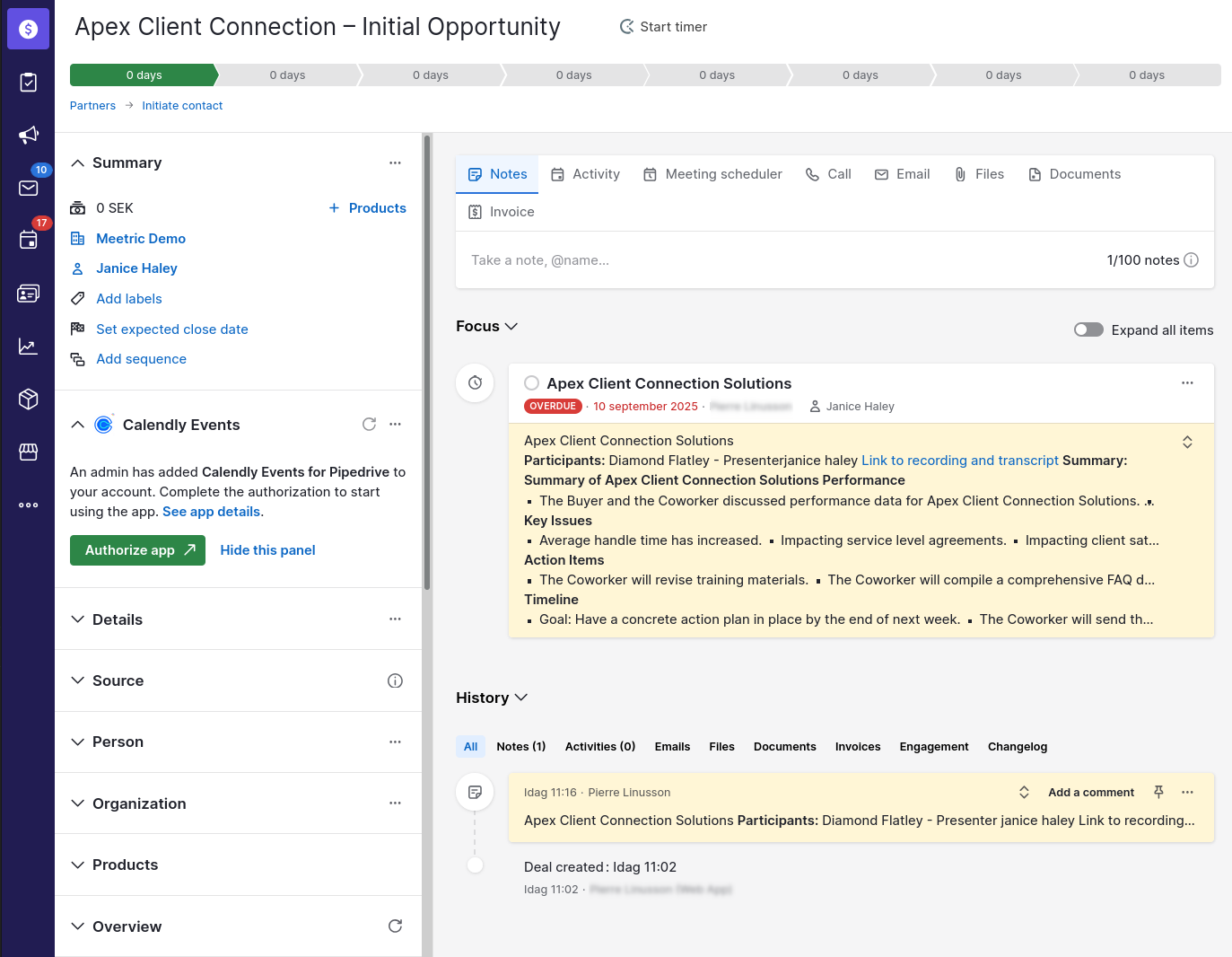
After the conversation, the summaries can be found in the following places:
- Person: Notes section (or timeline)
- Deal: Notes section
- Activity: Activities tab/timeline
Troubleshooting
Problem: “I’m connected, but no note appears”
Check the following:
- Can a participant be matched? At least one receiver must match a Pipedrive contact by email or phone. If the receiver has neither, Smart Talk Insights cannot perform the match.
- Processing Time: The summary may still be processing. Wait a few minutes and refresh the page in Pipedrive.
Problem: “Note is on person but not on deal”
Most common causes:
- The person has no active or historical deals in Pipedrive.
- The meeting wasn’t linked to a specific deal, so Smart Talk Insights couldn’t confidently attach it.
- What to check: Open the person record and verify there is an associated deal. If multiple deals exist, Smart Talk Insights typically attaches to the newest one.
Problem: “Activity is missing”
Most common causes:
- No Match: There is no Pipedrive Activity Type that matches your "conversation type" name exactly.
- Permissions: Your Pipedrive account may have insufficient permissions to create activities.
- Fix: Create or rename an Activity Type in Pipedrive to match your conversation type, then reconnect Pipedrive to ensure all permissions are granted.
Problem: “Wrong contact matched”
- Cause: This is usually due to duplicate contacts or shared phone numbers in Pipedrive.
- Fix: Ensure email and phone values are unique where possible and prioritise email-based matching for the highest accuracy.
Problem: “It worked before, now it stopped”
- Cause: The most common cause is that the OAuth access token has expired or been revoked.
- Fix: Simply Disconnect and then Reconnect Pipedrive within your settings.
Security & Privacy
We prioritise the safety of your data with industry-standard protocols:
- OAuth 2.0 Authentication: We use OAuth to connect to Pipedrive, meaning we never see or store your Pipedrive password.
- Encrypted Data Transfer: All communication between Smart Talk Insights and Pipedrive is encrypted using HTTPS to ensure your data is protected in transit.
- Secure Token Storage: Your access tokens are encrypted and stored securely within our infrastructure.
- Data Sovereignty: Pipedrive only receives the meeting summary and a link back to Smart Talk Insights. Your actual meeting recordings and transcripts stay securely stored in Smart Talk Insights and are never sent to Pipedrive.