
Smart Talk Insights: AI Agents
AI Agents are customisable bots you can shape to capture exactly what insights you need from your conversations.
Each AI Agent, created by you, will have it's own purpose, and can be aligned exactly with your business goals to extract invaluable data automatically.
There are four kinds of AI Agents in Smart Talk Insights that you can train to analyse your conversation data inside Enreach Outbound:
- Magic Insights - ask open questions and receive answers that allow you to gather deep conversational insights across your whole organisation
- Meeting Summary - create detailed, accurate meeting summaries so you can focus on the conversation, and not talking notes
- Playbook - create and follow structured processes with playbooks for each type of conversation, and make sure your team stays consistent
- Magic Variables - ask specific questions and track themes over time.
Magic Insights
With the Magic Insights AI Agent, you can ask open questions about your conversations, get detailed answers, transforming raw data into common themes and trends, quantified insights like frequency, sentimes, and patterns, all tailored to your own goals.
Inspiration 💡
- For sales teams: Identify phrases that are common across successful sales, or lost opportunities
- For support teams: track recurring issues, onboarding pain-points, or early churn signals
- For product teams: follow feature requests or common friction areas to improve on.
Step-by-step
- Click AI Agents in the left hand navigation
- Click Add New AI Agent
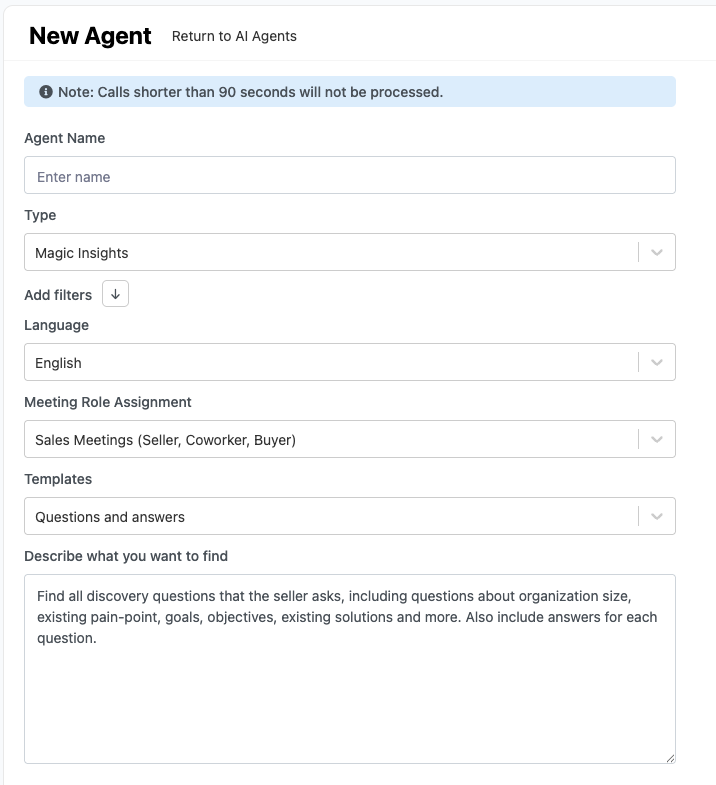
- Enter an agent name, and select Magic Insights from the drop down menu
- If needed, expand the Add filters button so your AI Agent will filter on options such a recording type, campaign, call outcome, and conversation type
- Select the conversation langauge from the drop-down menu. AI Agents can only analyse calls in one language, so you will need to duplicate or add a new AI Agent for other languages
- Under Meeting Role Assignment, choose the category of conversation your AI Agent will analyse
- Under Templates, direct your AI Agent in the right direction with what you want it to focus on. Select from Competitors Mentioned, Closing Attempts, or Questions and Answers
- Refine the focus by adding your objective in the final box, Describe what you want to find.
Test before you save
It's a good idea to test and refine you AI agent before you start using it.
Search for a conversation in the search bar, or select on from the drop down.
Click Try and save.

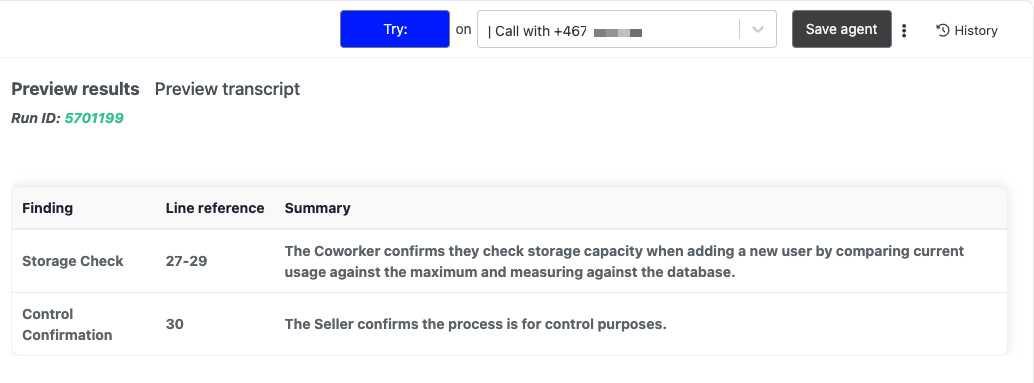
The results will show under Preview results.
If you are happy with the results, click Save agent.
If there is more work to be done, refine the custom commands under Describe what you want to find.
Meeting Summary
With the Meeting Summary AI Agent, define your own question set that can be used to analyse conversations at scale, and turn hard-to-analyse data into structured answers and actionable insights.
Inspiration 💡
- For sales teams: “Did they confirm decision‑maker?”, “Is there a clear next step?”, “Was pricing discussed?”.
- For support teams: “Is this a churn risk?”, “Is the customer blocked?”, “Was an escalation required?”.
- For Operations or QA teams: compliance checks, script adherence, and presence/absence of required disclosures.
Step-by-step
- Click AI Agents in the left hand navigation
- Click Add New AI Agent
- Enter an agent name, and select Meeting Summary from the drop down menu
- If needed, expand the Add filters button so your AI Agent will filter on options such a recording type, campaign, call outcome, and conversation type
- Select the conversation langauge from the drop-down menu. AI Agents can only analyse calls in one language, so you will need to duplicate or add a new AI Agent for other languages
- If needed, select a max. word count that will limit the length of the conversation transcript
- Under Meeting Role Assignment, choose the category of conversation your AI Agent will analyse
- Under Templates, direct your AI Agent in the right direction with what you want it to focus on. Select from:
- General meeting summary
- General meeting summary - detailed
- Solution selling
- BANT (Budget, Authority, Need, Timeline)
- Challenger Sales, and
- Support Call - Each template will come with a pre-filled description of what the AI Agent should analyse. Refine the focus by adding your objective in the final box, Describe what you want to find.
Test and save
It's a good idea to test and refine you AI agent before you start using it.
Search for a conversation in the search bar, or select on from the drop down.
Click Try and save.
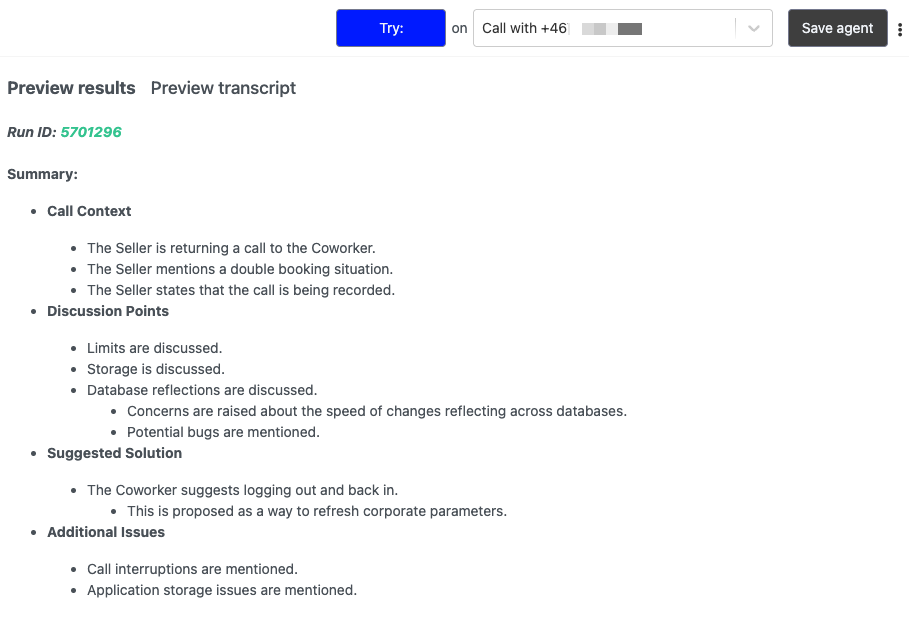
The results will show under Preview results.
If you are happy with the results, click Save agent.
If there is more work to be done, refine the custom commands under Describe what you want to find.
Playbook
With the Playbook AI Agent, define your own question set that can be used to help teams follow consistent, process-driven conversations, analyse at scale, and turn hard-to-analyse data into structured answers and actionable insights.
Inspiration 💡
- For sales teams: Standardise discovery, objection handling, and closing steps
- For support teams: Use troubleshooting and escalation scripts to reducing handling time and improve resolution quality and customer sentiment
- For customer success teams: drive consistent onboarding and renewal conversations with mandatory checkpoints to follow.
Step-by-step
- Click AI Agents in the left hand navigation
- Click Add New AI Agent
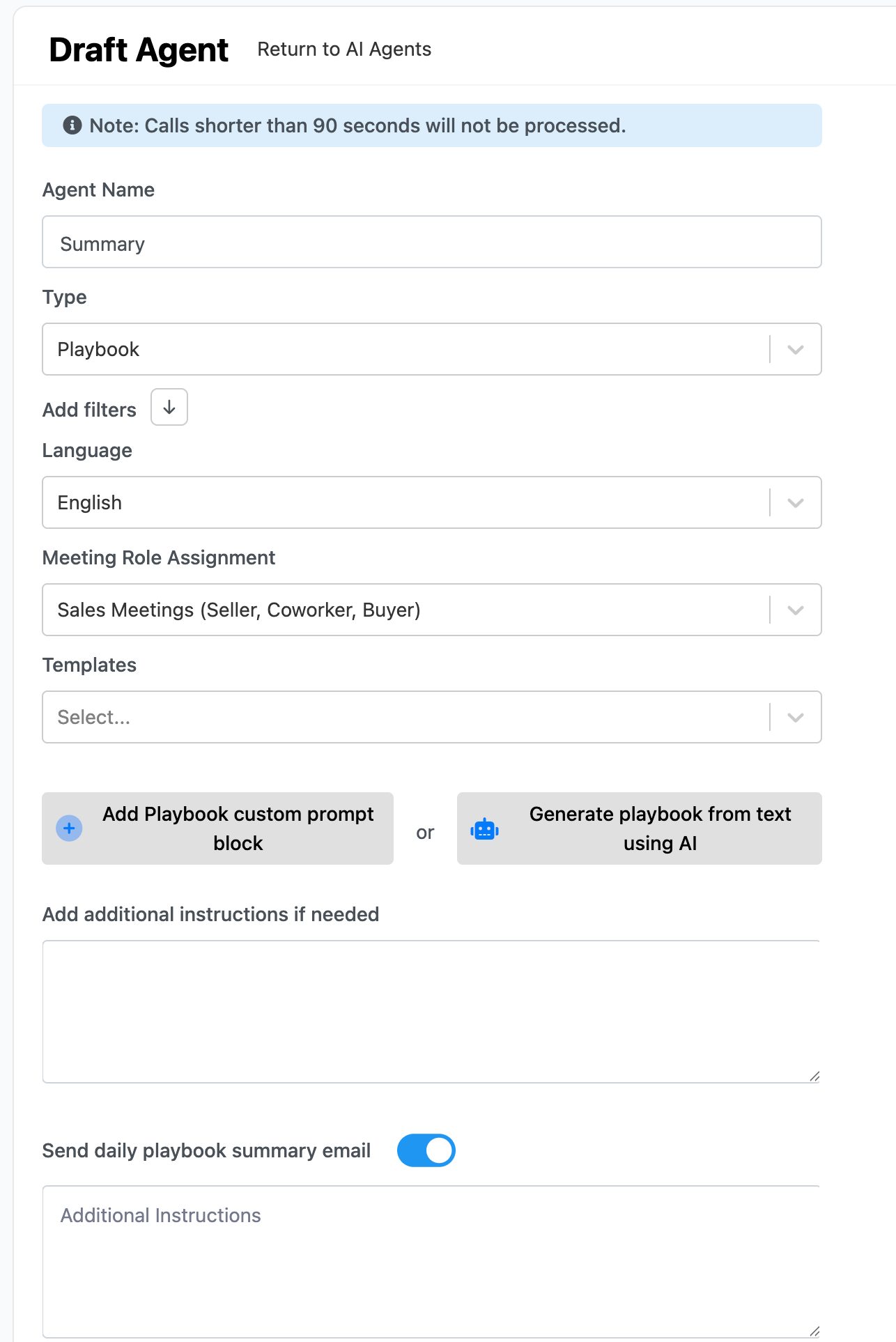
- Enter an agent name, and select Playbook from the drop down menu
- If needed, expand the Add filters button so your AI Agent will filter on options such a recording type, campaign, call outcome, and conversation type
- Select the conversation langauge from the drop-down menu. AI Agents can only analyse calls in one language, so you will need to duplicate or add a new AI Agent for other languages
- Under Meeting Role Assignment, choose the category of conversation your AI Agent will analyse
- Under Templates, you can add a pre-made template
- Sales Organisation
- Lead Qualification
- Product Demo
- Negotiation and Closing - Each template will come with a pre-filled suggestion of each step of the playbook. Add a new block, edit, delete, or re-arrange blocks to ensure your Playbook AI Agent is analysing your conversation data exactly how you want it to.
- To create your own playbook from scratch, built it by using the custom prompt blocks, or generate it using AI.
- To send a daily summary of the findings to your email address, toggle on the email option.
Magic Variables
With the Magic Variables AI Agent, define your own question set that can be used to analyse conversations at scale, and turn hard-to-analyse data into structured answers and actionable insights.
Inspiration 💡
- For sales teams: “Did they confirm decision‑maker?”, “Is there a clear next step?”, “Was pricing discussed?”.
- For support teams: “Is this a churn risk?”, “Is the customer blocked?”, “Was an escalation required?”.
- For Operations or QA teams: compliance checks, script adherence, and presence/absence of required disclosures.
Step-by-step
- Click AI Agents in the left hand navigation
- Click Add New AI Agent
- Enter an agent name, and select Magic Variables from the drop down menu
- If needed, expand the Add filters button so your AI Agent will filter on options such a recording type, campaign, call outcome, and conversation type
- Select the conversation langauge from the drop-down menu. AI Agents can only analyse calls in one language, so you will need to duplicate or add a new AI Agent for other languages
- Under Meeting Role Assignment, choose the category of conversation your AI Agent will analyse
- Click Add new variable to start building your AI Agent.
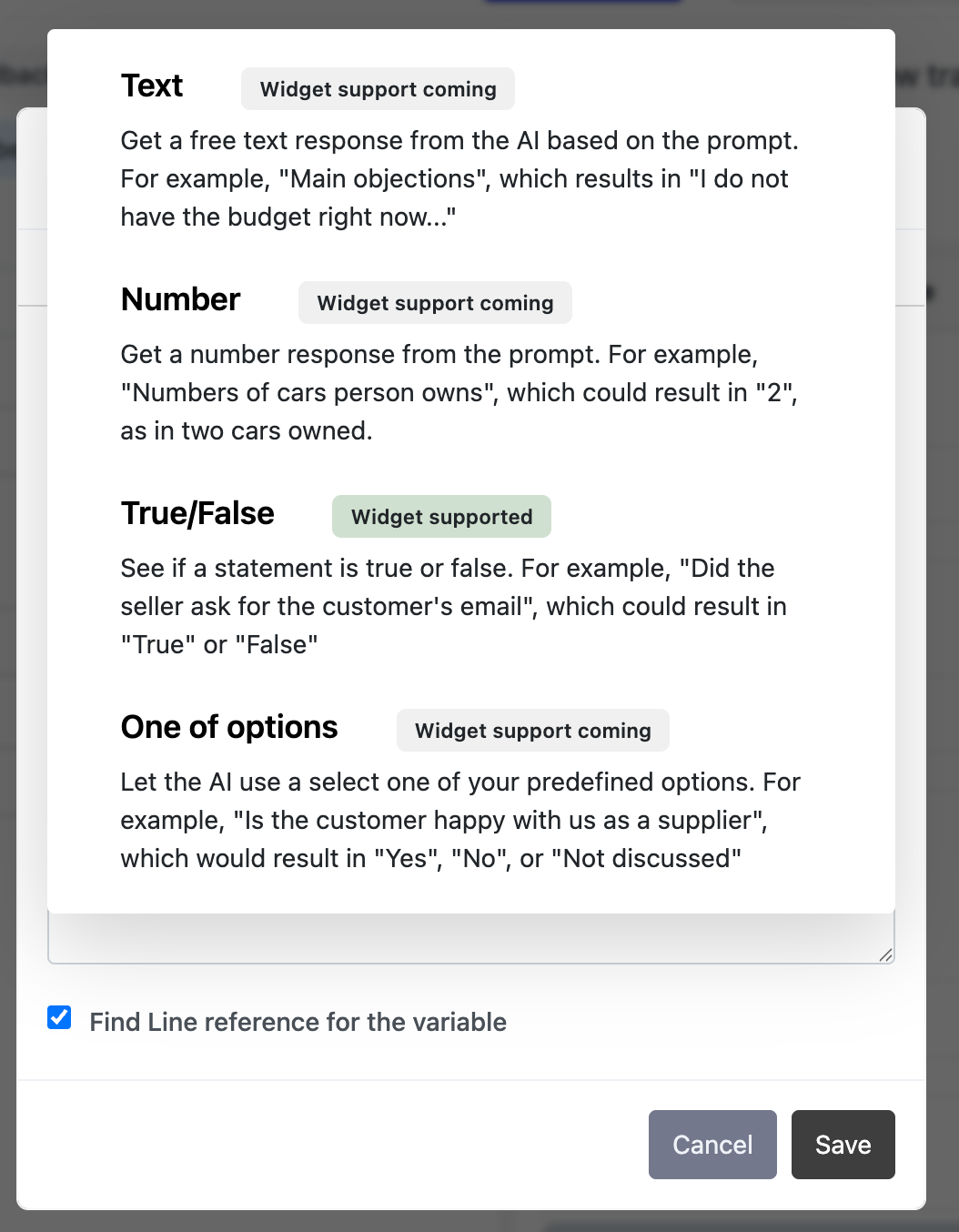
Text will return a text response, and is great for open-ended questions
Number returns a numerical value
True/False will provide a binary true or false answer to a question
One of options lets you provide a list of answers that will answer the question
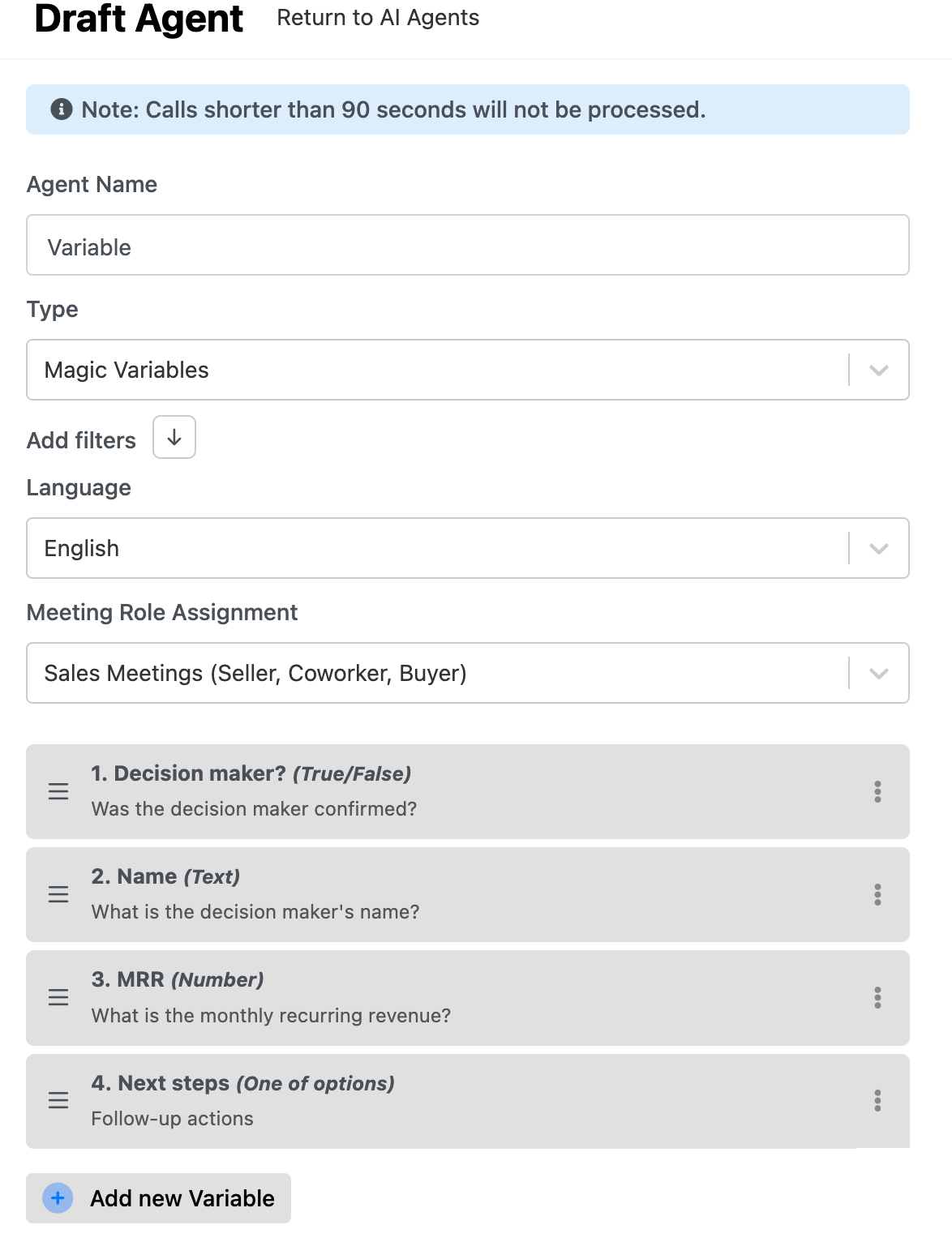
When the variables are created and saved, the AI Agent will look something like this:
Using AI Agents
Once you've created your AI Agents, add them to a dashboard in the Insights menu to begin analysing your conversational data at scale.
Learn how to do that here.