Flows: Webtracking
With Webtracking you can setup tracking for your website, track leads as they move through, and collect a large variety of data.
Navigation page
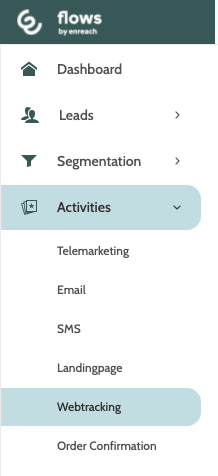
Webtracking can be found under the Activities menu.
Here you can see all of the webtracking activities you have saved.
Double click on any activity to view the details.
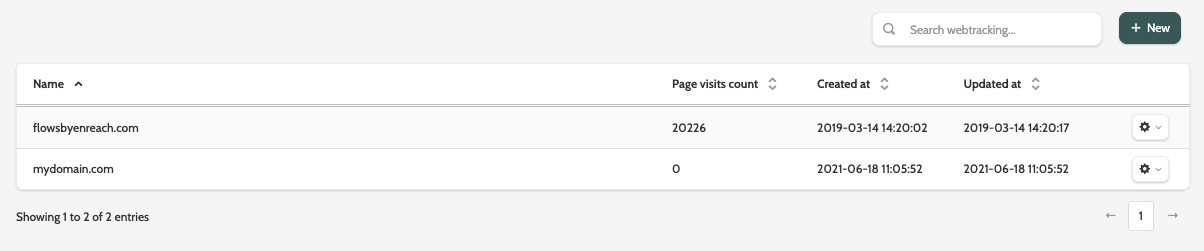
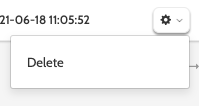
Click the cog and select Delete to delete a webtracking activity.
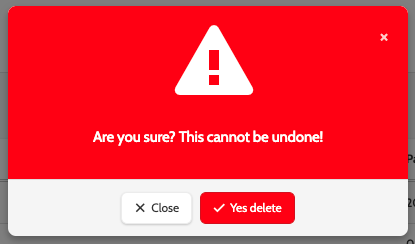
You will be asked to confirm, as deleted activities cannot be recovered.
If you are sure, click Yes delete.
Use search to find for any webtracking activities, or click + New to create a new one.

Create a webtracking activity
To create a new webtracking activity, click + New in the top right of the navigation page.
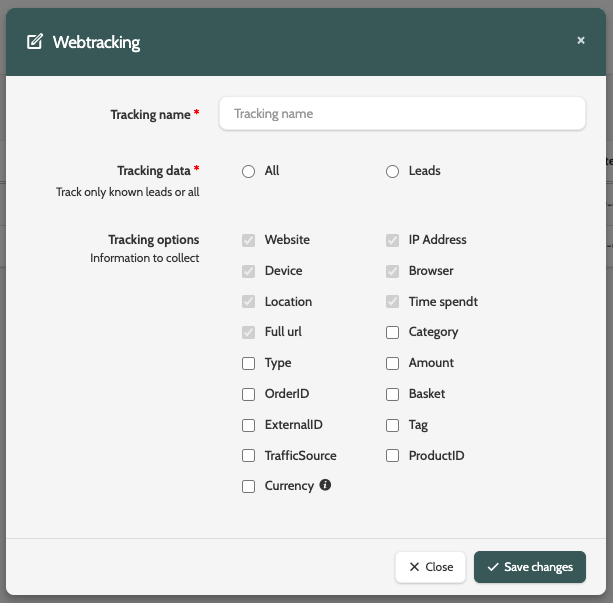
In the pop-up window, enter the following details:
- Tracking name: the name of your webtracking, and is internal only. We recommend to use the same name as the domain you are tracking
- Tracking data: decide whether to track the data of all visitors to your website, or only existing leads in Flows. It is recommended that you track All data
- Tracking options: check the boxes of which data you wish to track. The following options are default: Website, Device, Location, Full URL, IP Address, Browser, and Time spent.
When you are finished, click Save changes.
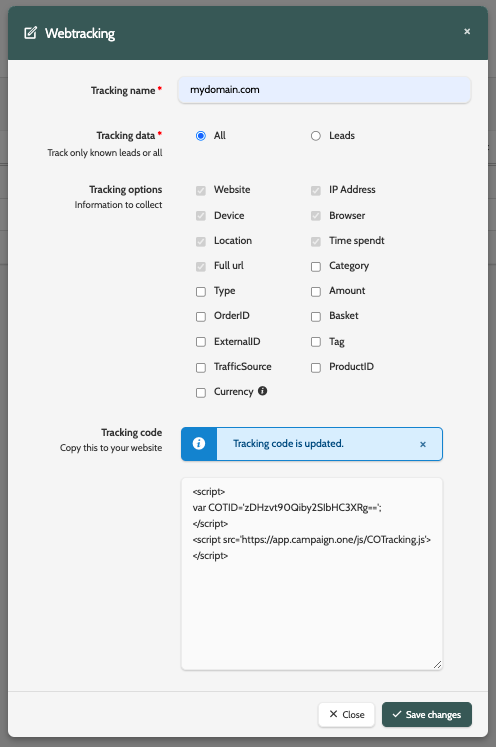
When you have saved the changes a tracking code will be generated for you to paste to your website.
Paste the tracking code into the HTML in either the header or the footer of your website's code.
Webtracking reports
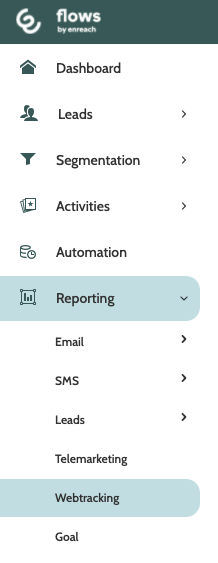
To view the reports for your webtracking activity, expand the Reporting menu and select Webtracking.
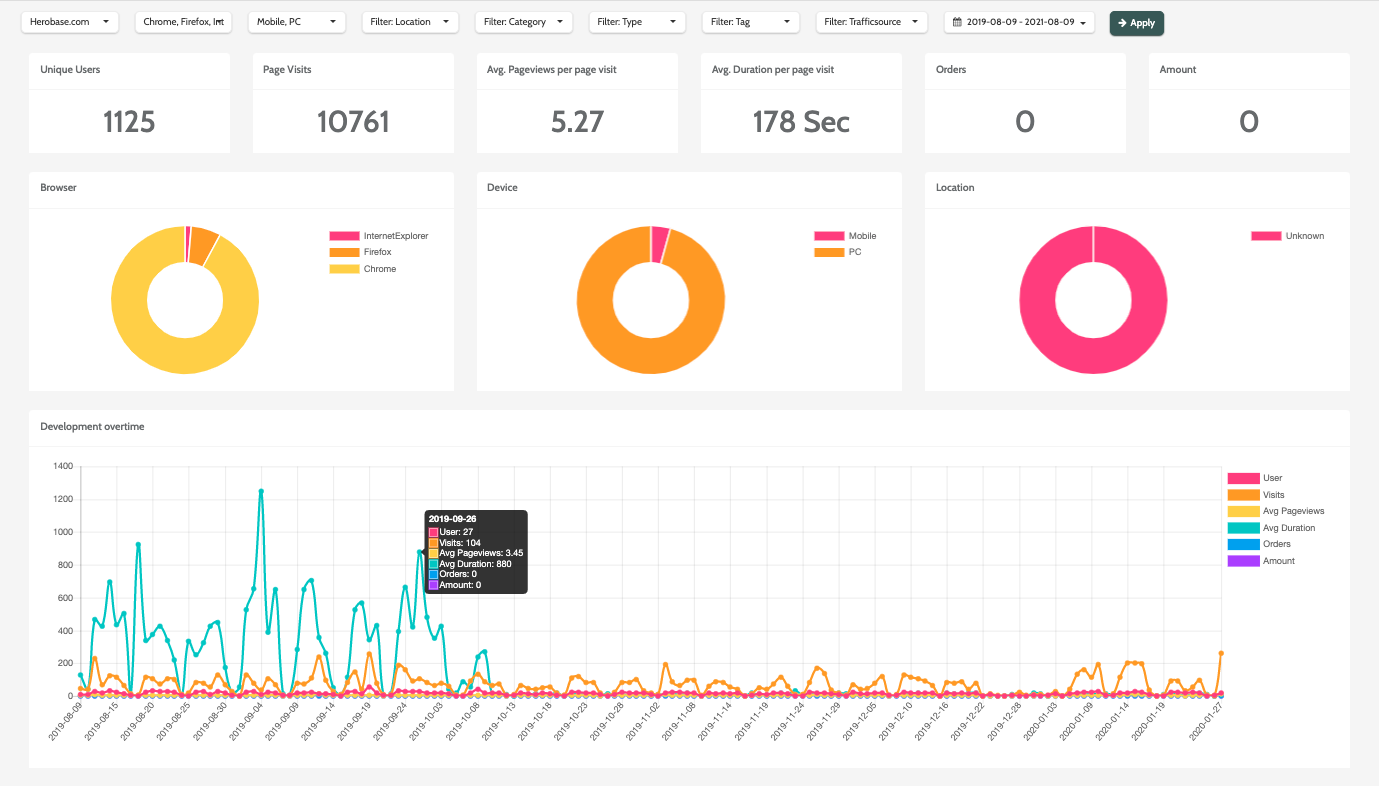
Here you can view a complete breakdown of visitors to your website, including Unique Users, Page Visits, and the Average Duration per Page Visit.