
Flows: Telemarketing reports
With telemarketing reports you can create and view reports for all of your telemarketing agencies.
Telemarketing reports can be found under the reporting menu.
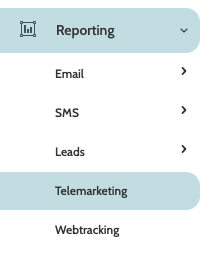
In the navigation page, begin building your report with the filters:
- Filter: Saved filters: if you have any saved telemarketing report filters, select the relevant ones from the menu
- Filter: Column: expand the menu and select the KPI(s) from the list that you wish to include
- Filter: Campaign: filter the report by which telemarketing campaign(s) to include
- Group 1: select a category, or Group, to be included in the Details report chart
- Group 2: select a second category to be included
- Date: use the date picker to choose a custom or preconfigured date range for your report.

Click Apply to view the report.

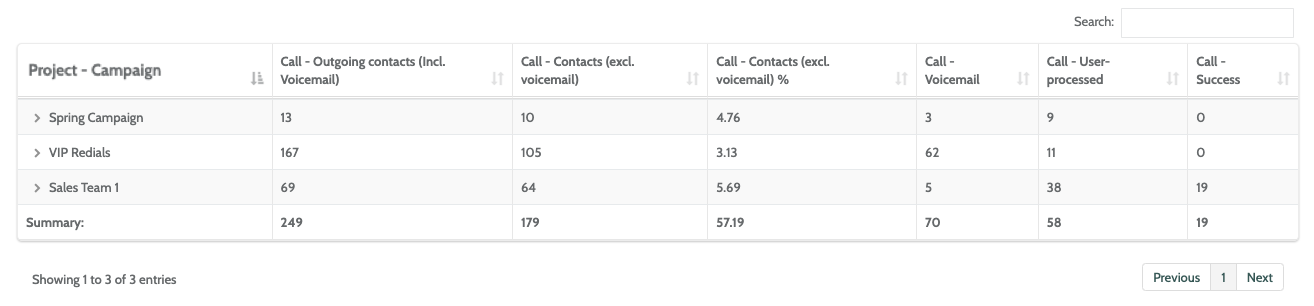
In the first column will be the data from Group 1 and Group 2. In the image below, we have chosen Project and Campaign.
Clicking on the project 'Spring Campaign' will expand all of the campaigns contained within that project, along with all of the campaign data for the chosen KPIs.
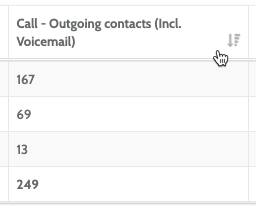
Click a column header to rearrange the numbers from highest to lowest.
Click Option to expand a list of options when working with the report.
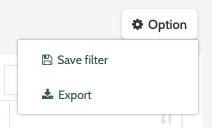
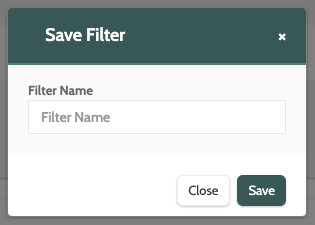
Click Save filter to save the telemarketing report as a saved filter.
Click Export to download the telemarketing report as a .CSV file to your desktop.