
Insights: Time Usage
With Time Usage, gain a complete overview on how users in your teams spend their time in Outbound.
Navigation page
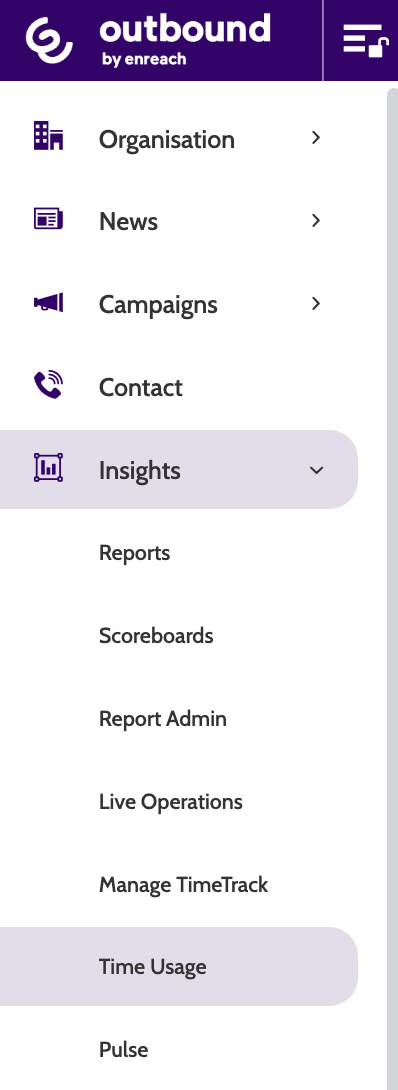
Time Usage can be found under the Insights menu.
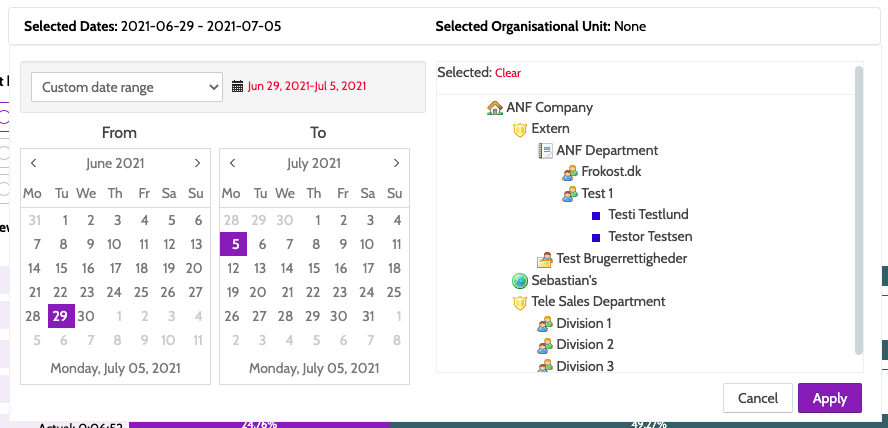
At the top of the page you will see two options: Selected Dates and Selected Organisational Unit.
Expand these to select a desired date range to fetch the data for, and which teams or users you want to show.
Click Apply to view the selected settings.
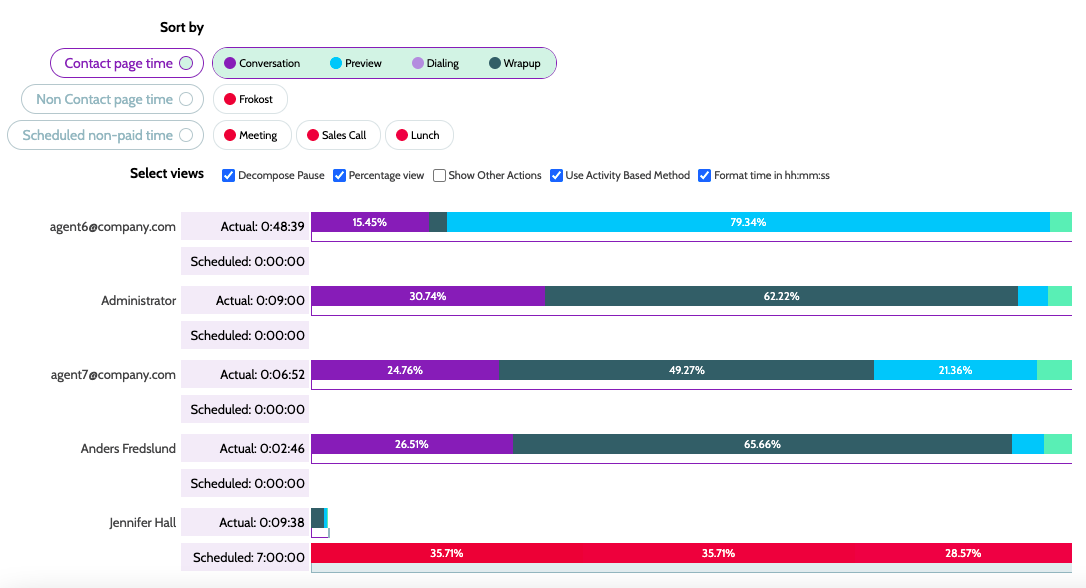
When you've applied your filters, Time Usage will be populated with data.
Below you will see a series of horizontal bars representing users, with a breakdown of the time they spent on different activities in colour-coded blocks.
Hover your cursor over each block to see a pop-up of the activity and time spent on it by each user.
Click Export or Detailed Export to download a CSV file of the results.

Sorting the view
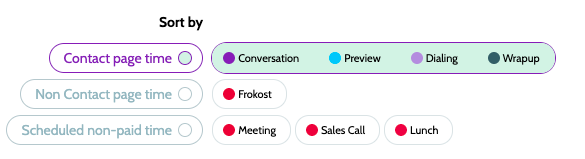
There are three main methods to sort the view by:
- Contact page time is divided between agent activities on the contact page
- Non Contact page time is any activity that doesn't take place on the contact page
- Scheduled non-paid time is any unpaid activity during the work day, such as lunch or coffee break.
In Contact page time you will see the following:
- Conversation time is when the agent is connected to the lead. Conversation time begins when the agent connects with the lead, or the lead's voicemail
- Preview is the time the agent spends on the contact page before dialing the lead, either in preview when using the power dialer, or the time between being presented a VIP redial and clicking dial
- Dialing time is the time spent waiting to connect with the lead, either when dialing leads with the power dialer, or waiting for leads with predictive dialer
- Wrap-up time begins when the call is disconnected. Usually this involves the agent makes changes to the lead data, registering outcomes, sending emails or SMS, beginning order confirmations, or a number of other activities.
Clicking individual actions in Contact page time and Non Contact page time will reorganise the users based on the most to least time spent on that activity.
In Select Views, you can choose what you want to see on the bars by activating different views:
- Decompose Pause divides the pause bar into the different pause types that you have created for users.
- Percentage View toggles between calculating the bars length by actual time and percentage of the time logged on.
- Show other actions toggles displaying administrative work not directly connected to dialing, such as campaign creation, my redials, creating leads, and Reports.
Use Activity Based Method toggles between two different methods of calculating user activity, breaking the time logged on into 4 minute sections. If the user performs an activity inside Outbound, 4 minutes are added to the user's time bar. This is beneficial for calculating time usage for when a user has duties that has nothing to do with Outbound. If the user forgets to log out from the system during these other duties, this time is removed from the total calculation.
For users that continuously work in Outbound, Use Activity Based Method is not recommended, as viewing time usage with Contact page time is more productive.
