If you are an admin user, you can use Audio Management to upload sound files for your calls.
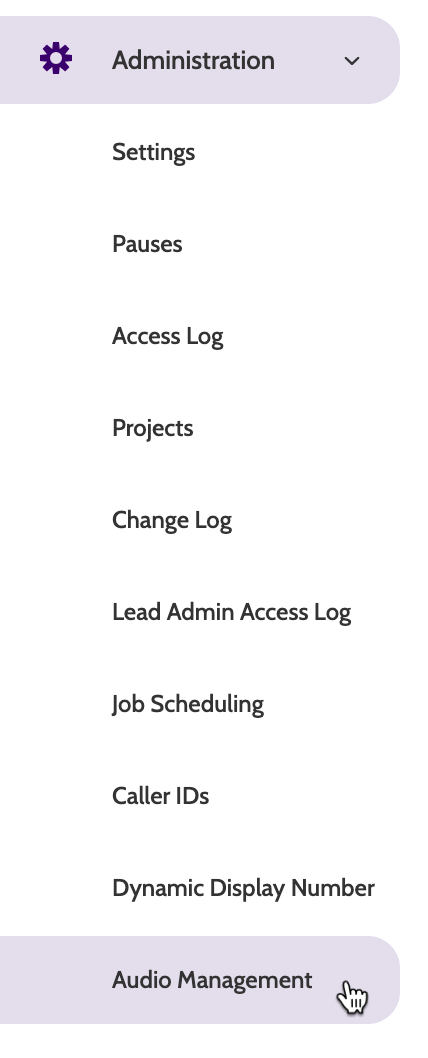
Audio Management can be found under the Administration menu.
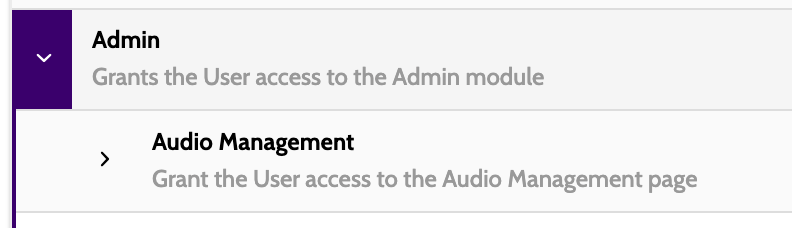
Please note that you will need both the Admin and the Audio Management feature permissions, granted in Organisation > Feature Permission.
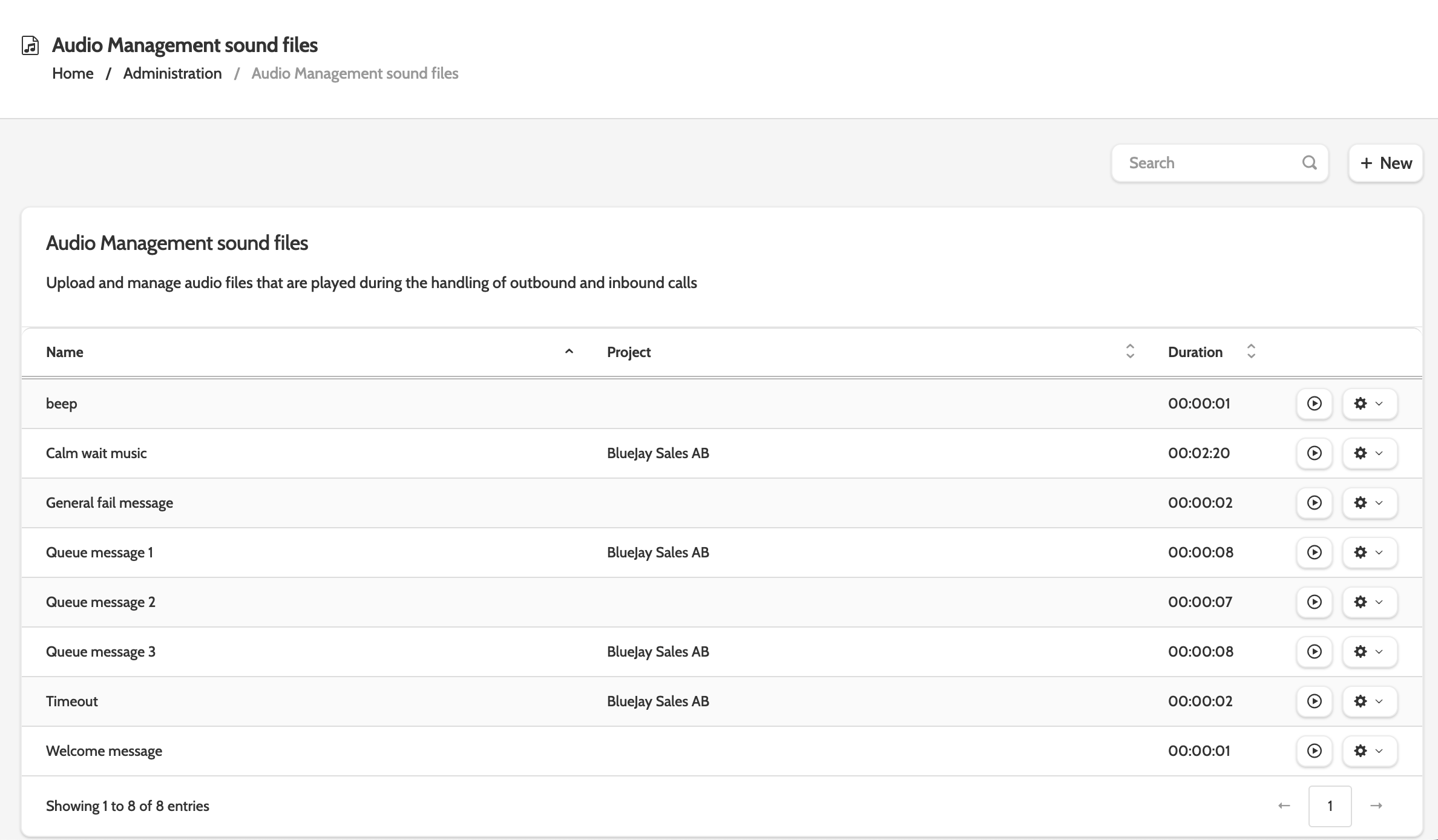
In the Navigation page, you will see a list of all call sounds. If you haven't uploaded any, you can use any of the default sounds:
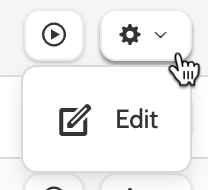
Click the play to preview the sound, or the cog to edit.
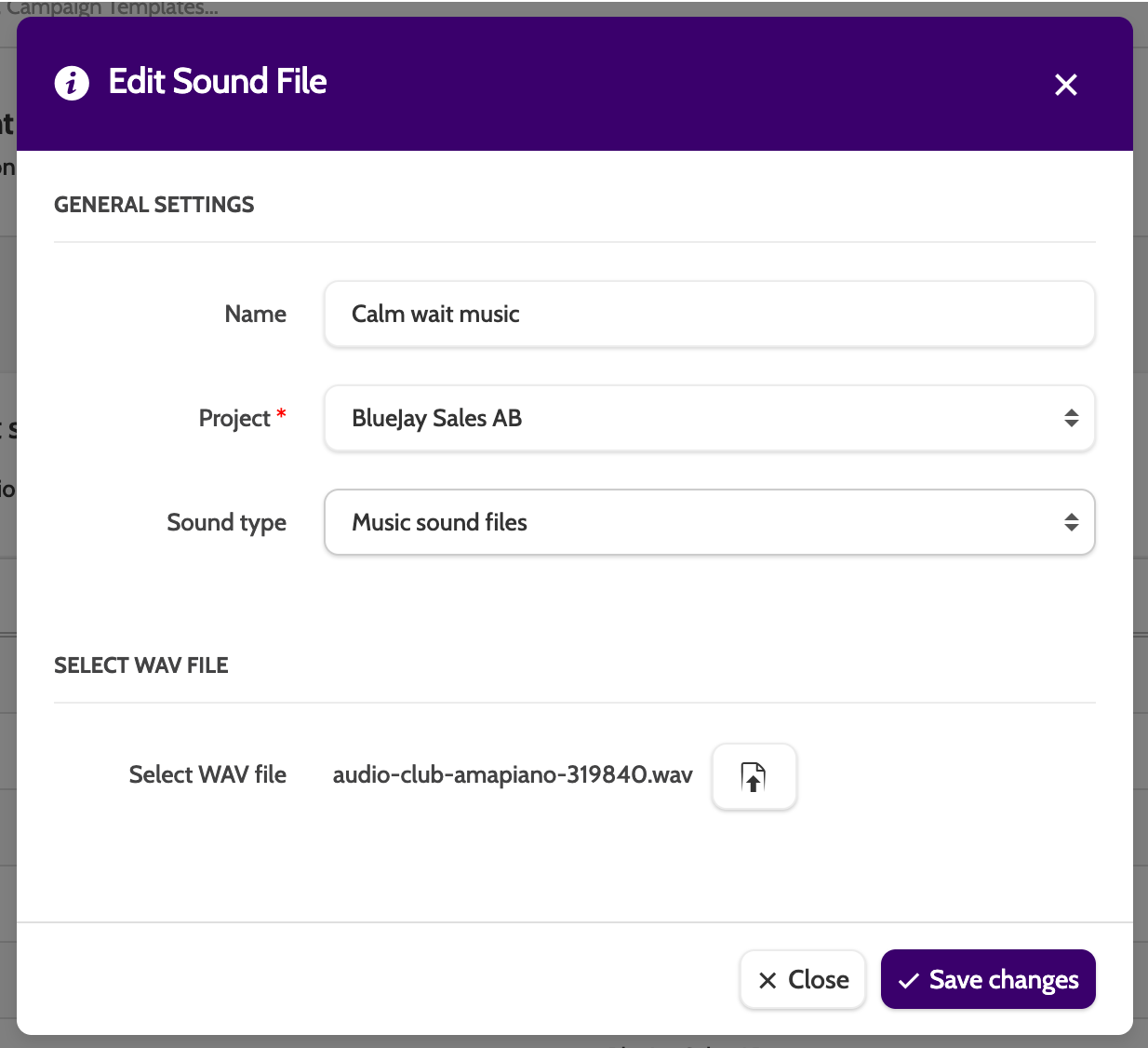
To edit a sound file, enter a new name and select a project it will belong to.
To change the wav-file, click the upload icon to choose a file from your desktop.
Uploading audio files
To upload your own sound file, click + New.
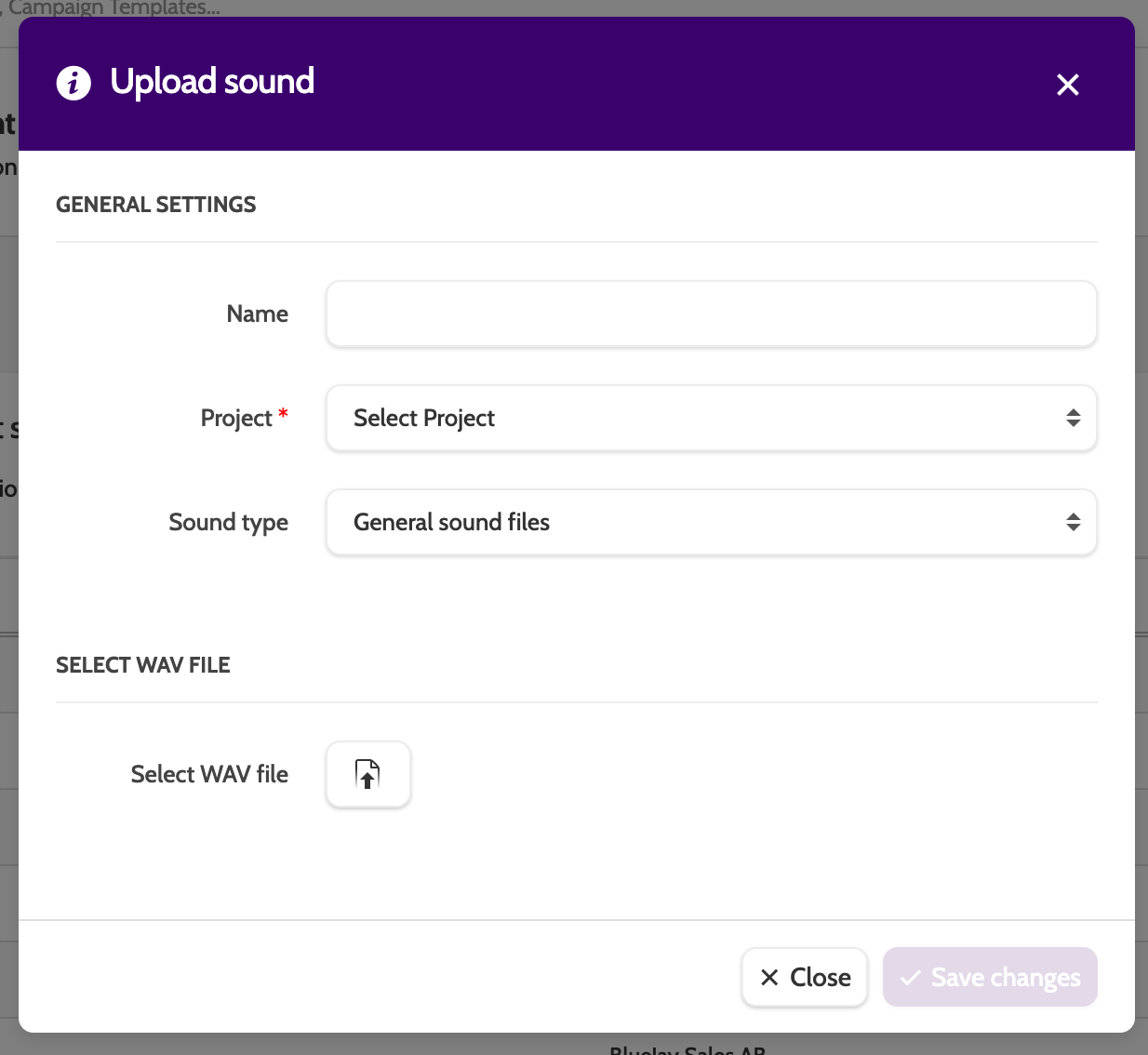
Name: enter a name for the audio file
Project: select the project it will belong to. Campaigns placed in that project will be able to use the audio file
Sound Type: select the type of audio file. General sound files are used for incoming calls; Music sound files are used for playing hold music; Queue position sound files are used for queues in incoming calls.
Finally, click the upload icon to choose a wav-file from your desktop.
Using audio files
Using customised audio files is a simple and effective way to manage the customer experience when interacting with your leads. Reduce frustration for leads that are waiting, keep them informed about the call progress, and use the wait time to play on-brand messages.
Click on one of the links below for inspiration on how to make the most of audio files, and for step-by-step guides.