
Campaigns: Campaign Template Views
Campaign template views allows you to create a filtered view of a campaign template where you can choose which data fields are displayed.
Using Campaign Template Views has the great advantage of being a quick way to create filtered templates and hide certain fields for certain Campaigns, and any changes made in the Master Template will be immediately be applied to the Views.
View campaign template views
Campaign Template Views can be found under the the Campaigns menu.
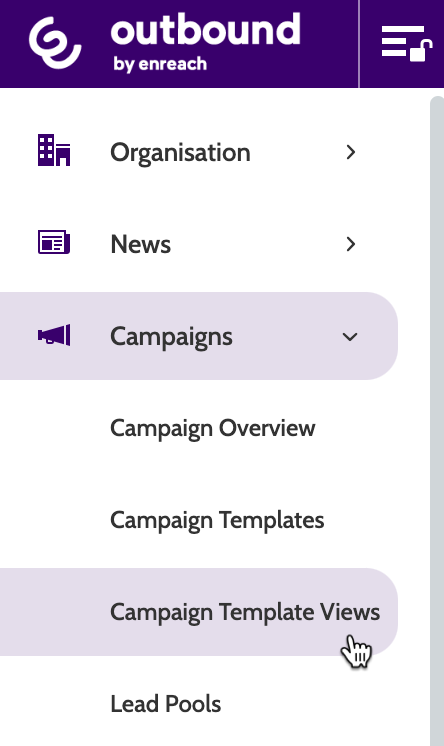
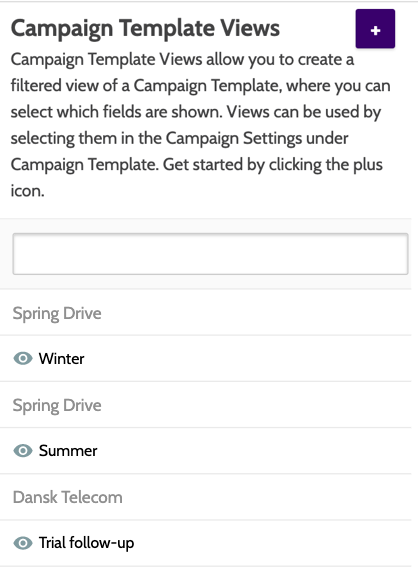
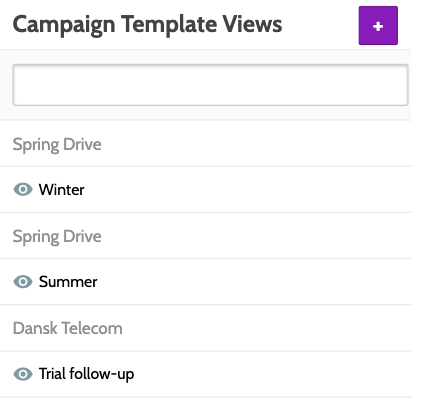
In the left of the navigation page, you will see your existing campaign template views.
The original campaign will be in grey writing, with the campaign template views underneath next to an eye icon.
Create a campaign template view
To create a new campaign template view, click the plus icon.

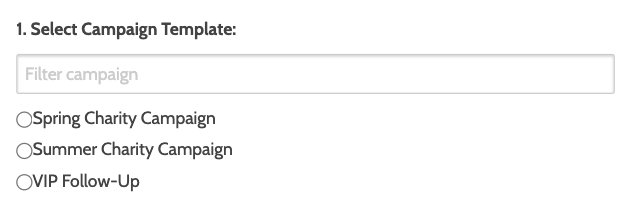
Under Select Campaign Template, choose the existing campaign template that you want to make a campaign template view from.
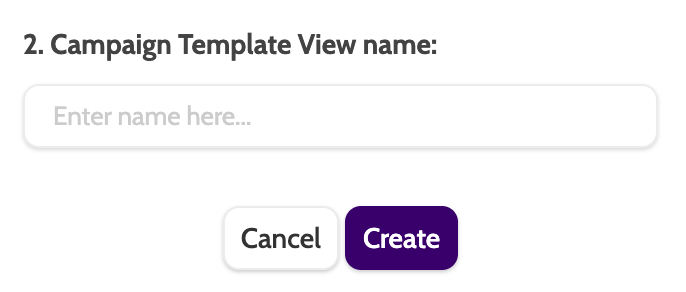
Enter the name and click Create.
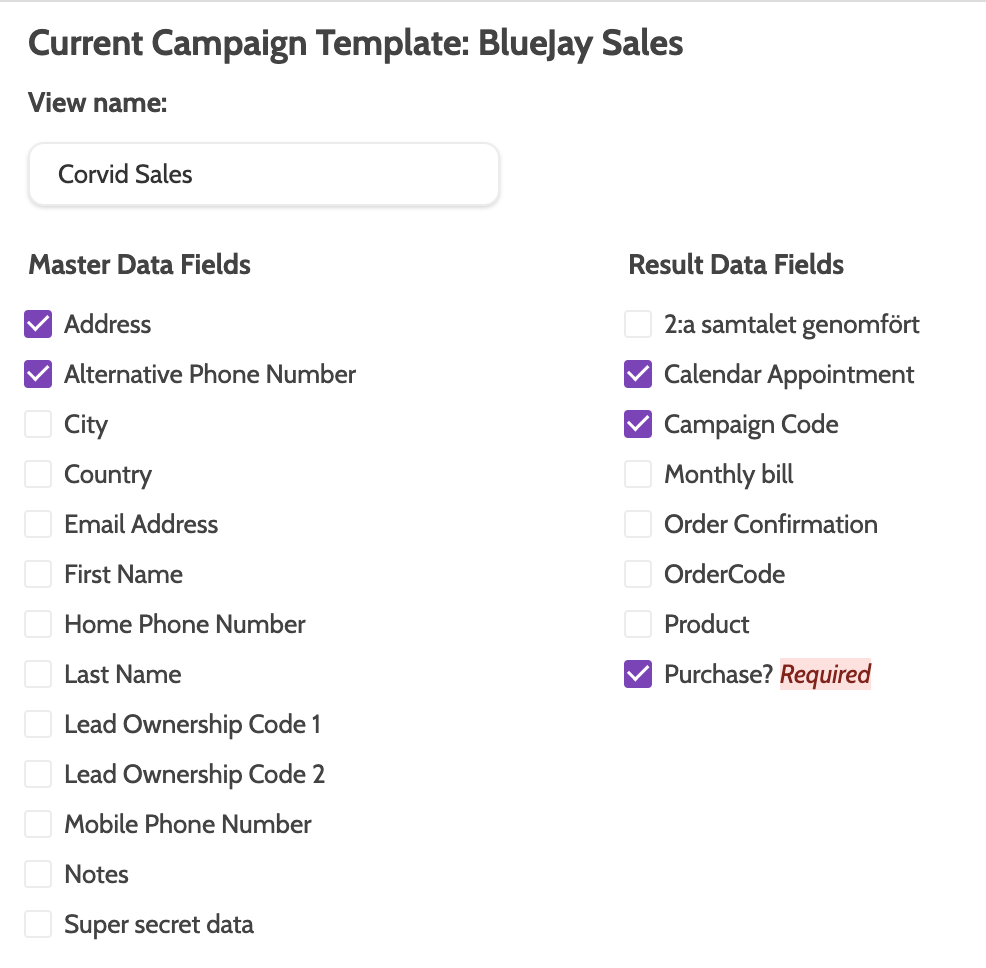
All of the data fields from your selected campaign template will show.
Select which ones you want to duplicate in your campaign template view by checking the boxes.
Unchecked fields will not be duplicated.
Click Save when you have finished
The campaign template view will now be visible in the navigation, and ready to select when working with the original campaign!
Using a campaign template view
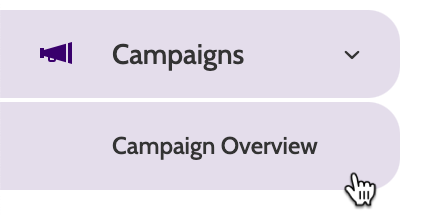
To begin using your campaign template view, expand the Campaigns drop-down menu and select Campaign Overview.
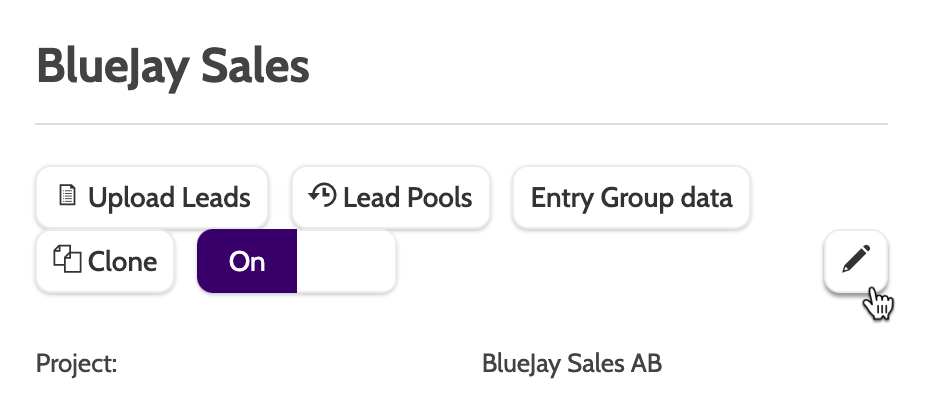
Choose the campaign you want to work with, and click the pencil.
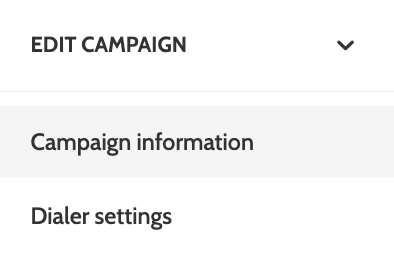
You will be taken to the Campaign information section of the Edit Campaign page.
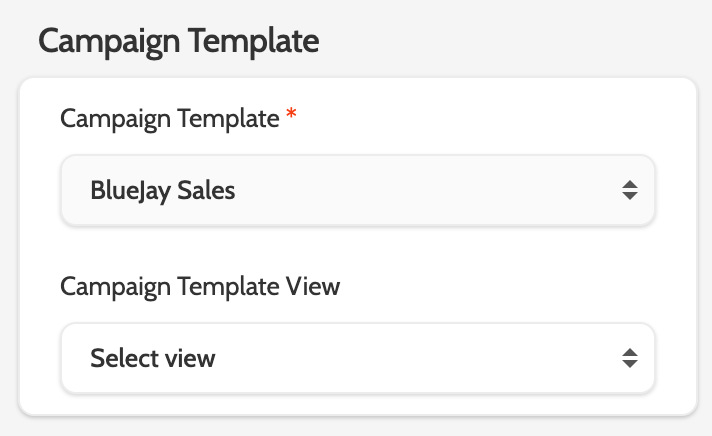
Under Campaign Template, expand the Campaign Template View drop-down menu and select the view you want to work with.
Click Save to save, or Cancel to exit without saving.
Now agents working on this campaign will be working with the campaign template view, and not the original campaign template.