Flows: SMS
With SMS you can create SMS from scratch in our SMS editor, schedule sendings, and manage existing SMS.
Navigation page
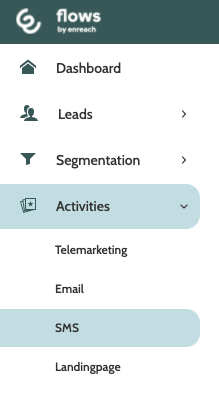
SMS can be found under the Activities menu.
In the navigation page, you can see all the SMS you have saved within Flows.
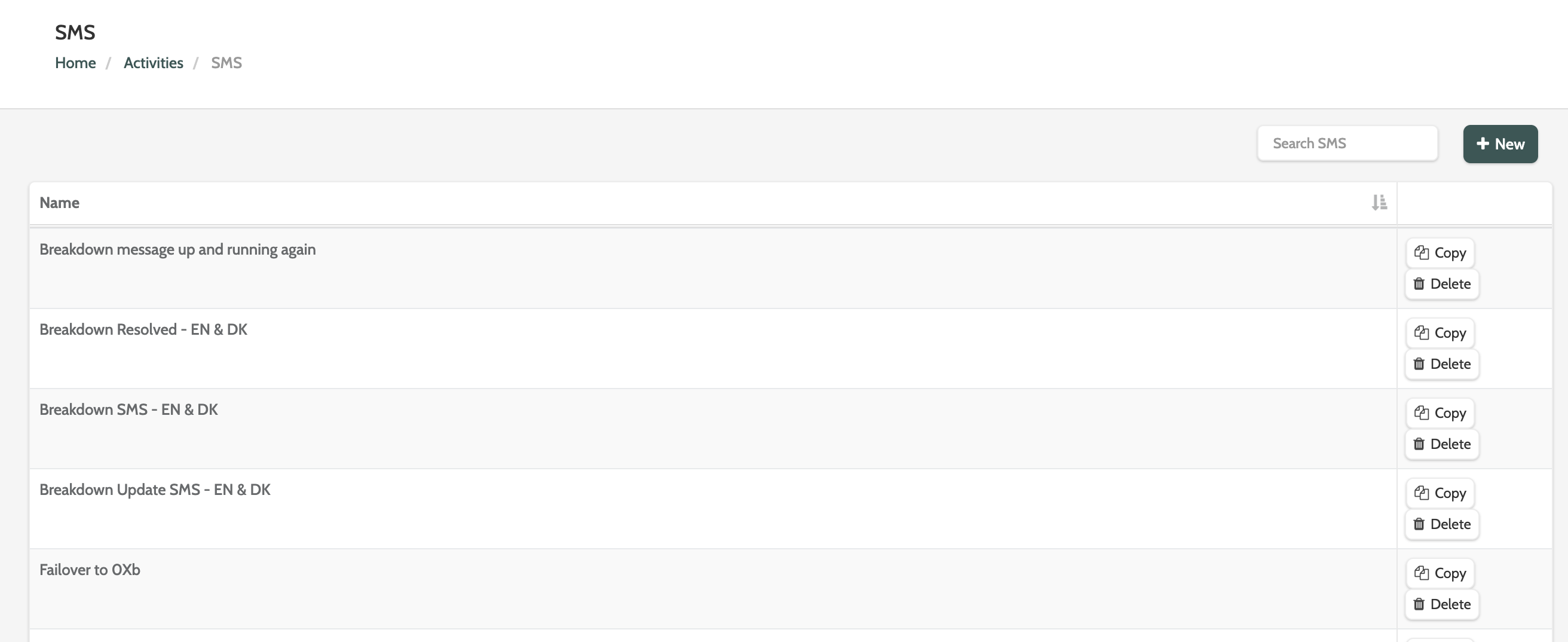
Use search to find a specific SMS, or click + New to create a new one.

To the right of each SMS message there are options to copy or delete the message.
Click Copy to make a copy of the SMS. You will be taken to the SMS editor, where you can make any changes, and save the copy as new.
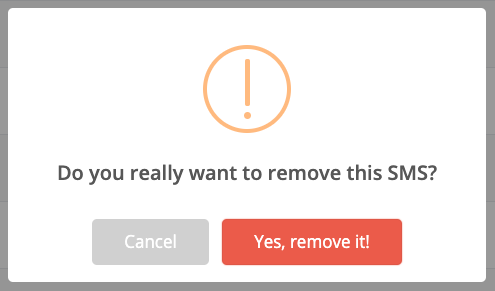
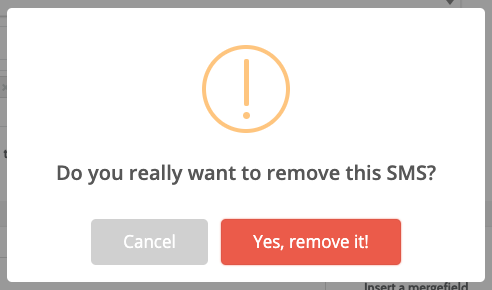
If you want to delete an SMS, you will be asked to confirm first, as deleted SMS cannot be recovered.
If you are sure, click Yes, remove it!
Create an SMS
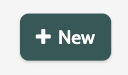
To create a new SMS, click + New in the top right of the navigation page.
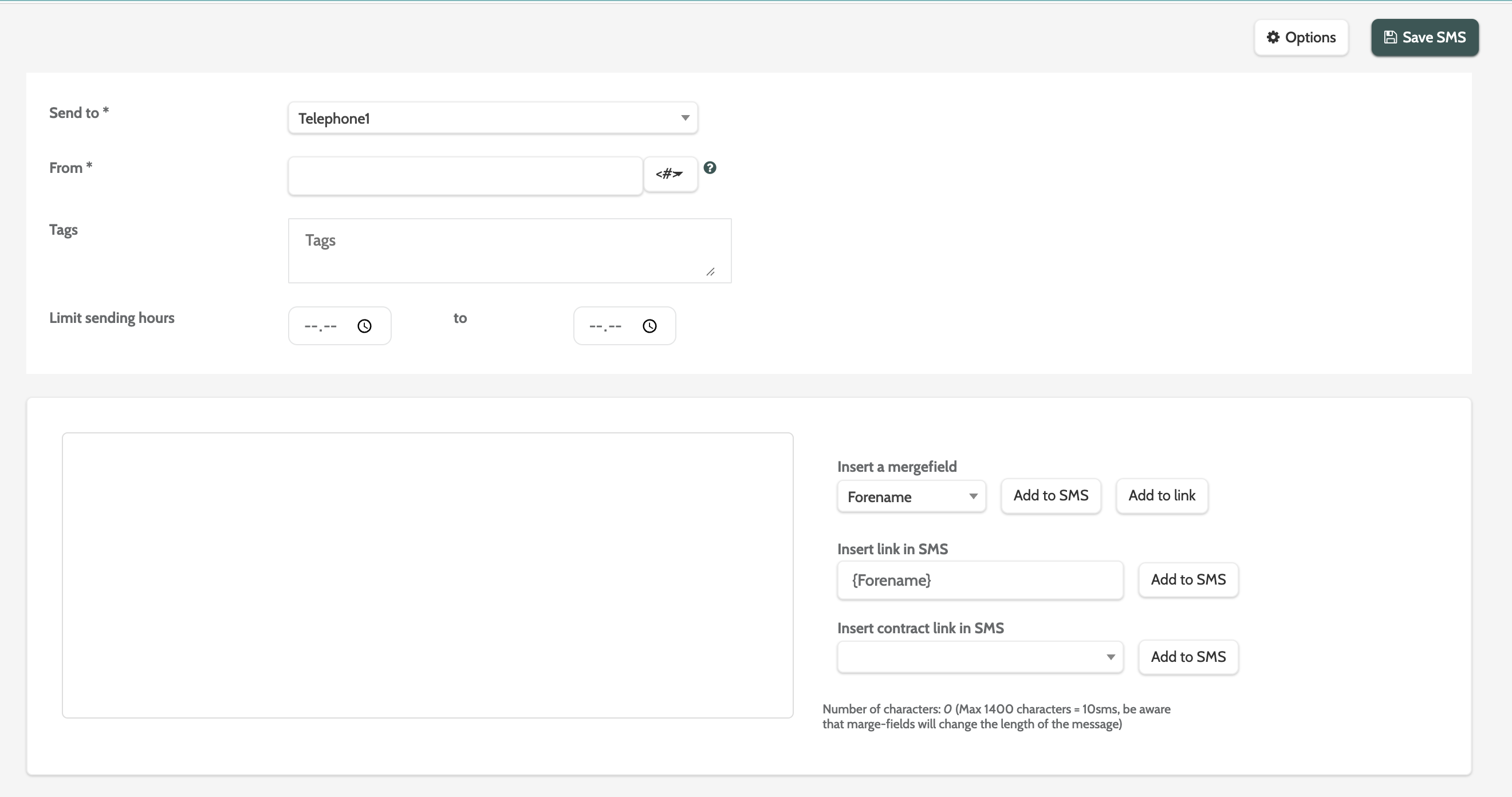
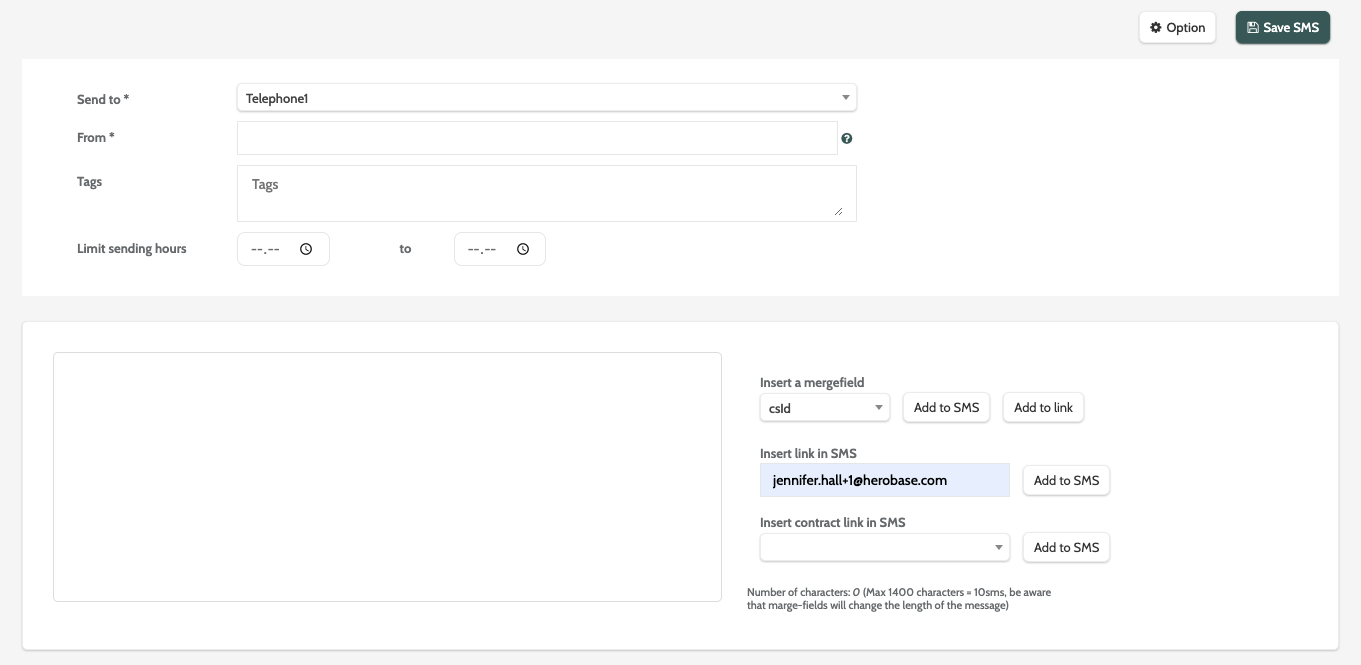
You will be taken to the SMS editor, where you can begin building your SMS.
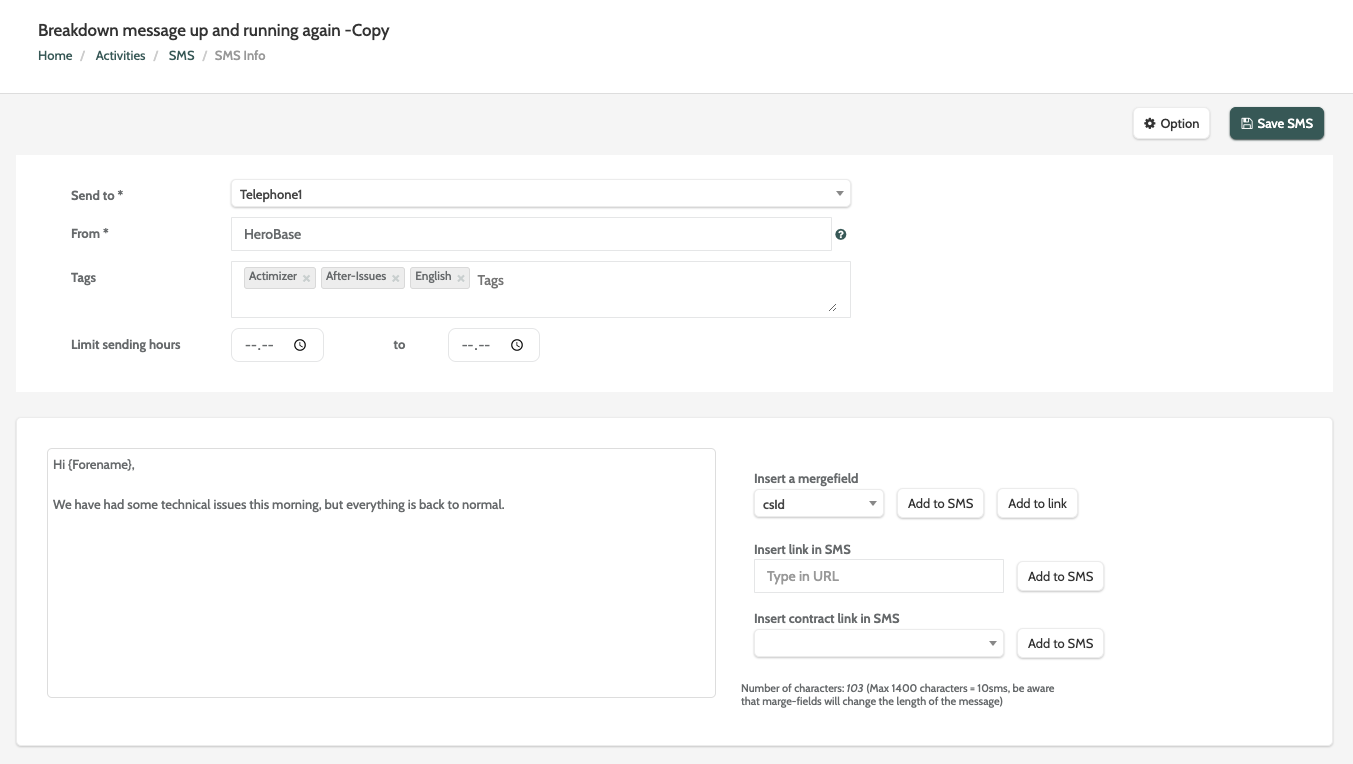
- Send to: select which telephone number you want to send the SMS to. Each option corresponds to a lead field in Flows: if the field Telephone1 corresponds to a mobile telephone number in your organisation, then this is the recommended option.
- From: the name that will appear in the 'From' field of the SMS
- Tags: enter any tags that can be used to filter the SMS
- Limit sending hours: set time parameters for sending the SMS. If used, the SMS will only be sent within the chosen hours
- Text box: The blue text box is where you build your SMS. Type in your message and populate it with links and mergefields
- Insert a mergefield: expand the menu to select a mergefield, and click Add to SMS. If you would like to add it to a link, first insert a link, then click Add to link. In the image below, a forename mergefield has been added. When the lead receives the SMS, the {Forename} mergefield will be replaced with their forename, as saved as a master data field
- Insert link in SMS: enter the link URL in the text field and click Add to SMS. Links added to an SMS are tracked, and are found under the Clicked heading in SMS reports. You can also create segments based on leads who have clicked an SMS link with the segment condition SMS Clickers
- Insert contract link in SMS: expand the menu to select a contract link, then click Add to SMS. You can check the status of the contract in Order Confirmation reports.
When you are finished, click Save SMS.
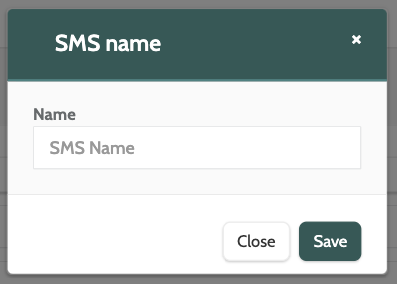
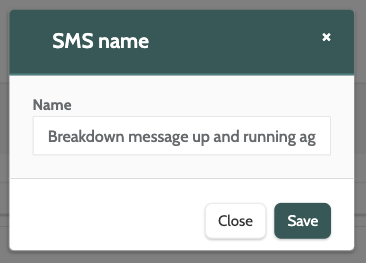
Enter a name for your SMS, and click Save.
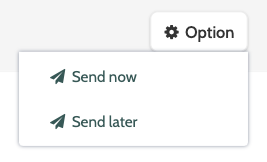
To send your SMS, click the Option menu and select whether you want to send the SMS now or later.
SMS options
Double click on an SMS to view and edit the details.
There are several options when working with SMS in Flows.
These options are the same when working with a new SMS that has been saved with a name, or working with an existing SMS.
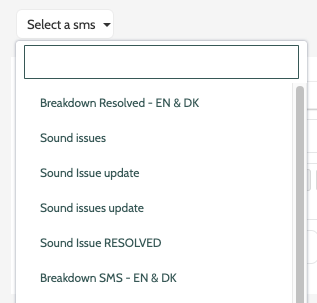
Expand the Select an SMS drop-down menu to switch the view between any existing SMS messages.
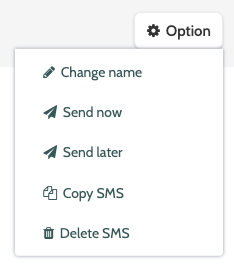
Click the Option menu and choose between Change name, Send now, Send later, Copy SMS, and Delete SMS.
Change name
Enter the new name of your SMS and click Save.
Send now
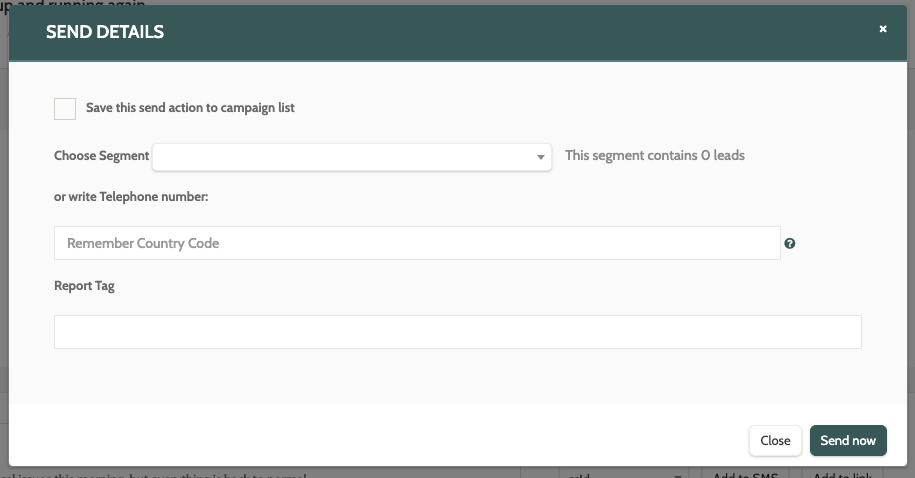
When sending an SMS, you can either send it to a segment by expanding the Choose Segment menu, or you can send it to an individual lead by entering their telephone number and country code in the text field.
Click Save this send action to campaign list to create a new campaign to send the SMS from. Enter the campaign name in the text box.
When you are done, click Send now.
Send later
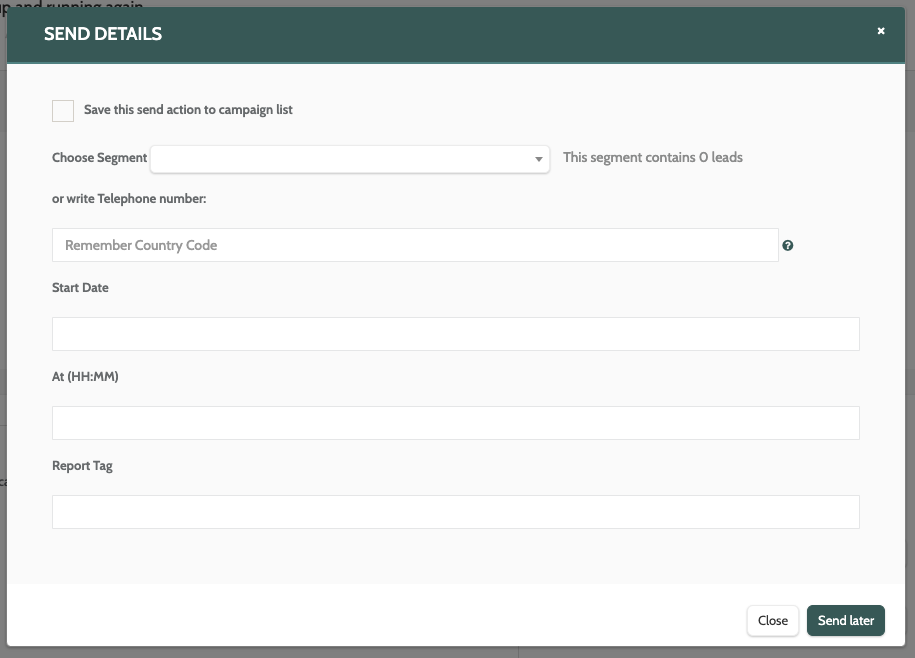
To send an SMS at a later time, fill in the details as described in the step above.
Click the Start Date text field expand the calendar, and choose the day you wish to schedule to sending for.
Next, enter the time in the At text field. The format must be HH:MM, or hours followed by minutes in the 24 hour clock format.
When you are done, click Send later.
Copy SMS
Click Copy to make a copy of the SMS. You will be taken to the SMS editor, where you can make any changes, and save the copy as new.
Delete SMS
If you want to delete an SMS, you will be asked to confirm first, as deleted SMS cannot be recovered.
If you are sure, click Yes, remove it!
SMS reports
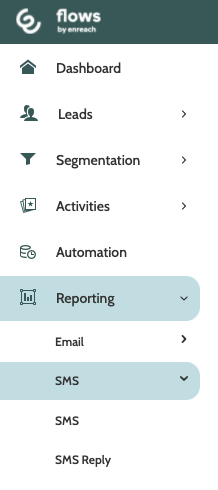
To view the reports for your SMS activity, expand the Reporting menu and select SMS.
Expand the SMS menu and select whether you want to view reports for an SMS or an SMS Reply.