Flows: Administration Permissions
With permissions you can create and maintain permission lists, ensuring that you are fully GDPR compliant.
Do I need permissions?
Since the introduction of the European GDPR (General Data Protection Regulation) in 2018, businesses across Europe have had to change the way they store and transfer data and personal information.
As a rule, you should only store data that you have a purpose to store - and that purpose is up to you to define. For example, you may decide to store data on successes for 60 days, and data on leads registered as not interested for 30 days.
Before gathering any personal data, and contacting private individuals through Outbound, you must have permission from the lead.
Leads, or Data Subjects (to use the GDPR definition) are granted a certain number of rights when it comes to how their personal data is stored.
In Flows we have a dedicated feature where you can create, edit, and maintain permission lists, all while remaining fully compliant.
If a lead requests to see their data or have it removed from the system, this can be done in permissions. You can also segment your leads on permissions to target leads with the relevant message at the right time.
Unsubscribe messages can be configured in Client Settings.
Navigation page
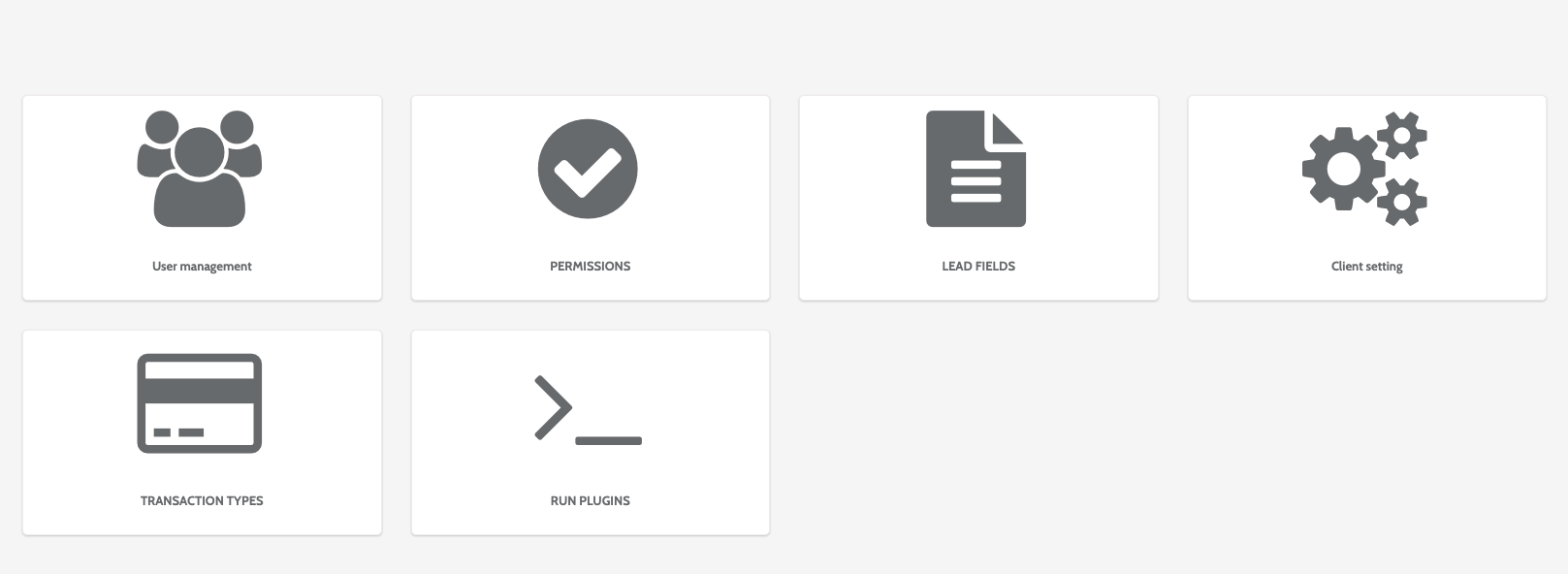
Permissions can be found under the Administration menu.

In the administration home page, click Permissions.
In the navigation page, you can view all permissions lists in Flows, including their description, category, and URL.
Double click a permission to be taken to the editing wizard.
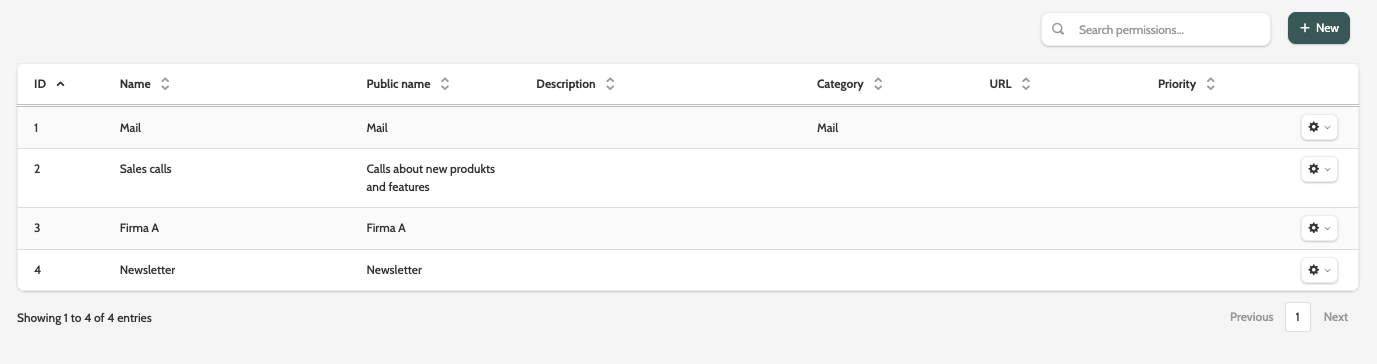
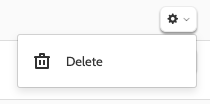
To delete an existing permission, click the cog to the right of the name, and click Delete.
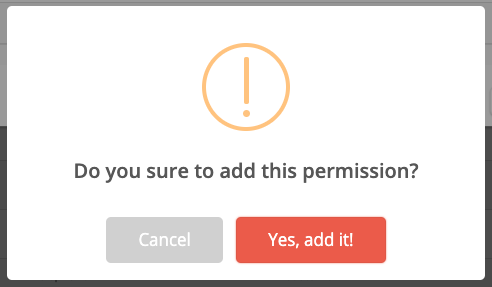
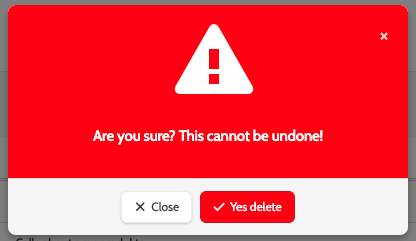
You will be asked to confirm first, as deleted permissions cannot be recovered.
Create a new permissions list
To create a new permissions list, click + New in the top of the navigation page.
In the pop-up wizard, enter the following information. All mandatory fields are marked with an asterisk:
- Permission name: add a name. Internal only
- Public name: add a public name for your permission
- Category: if you want to categorise your permissions, add a category name here
- URL: if your permission is accessed by the lead through a webpage, enter the URL here
- Priority: add a priority for your permission
- Tag: add a tag that can be used to filter the permissions
- Description: enter a description of your permission. This is internal only and is useful for when authorities need to check if you are GDPR compliant.
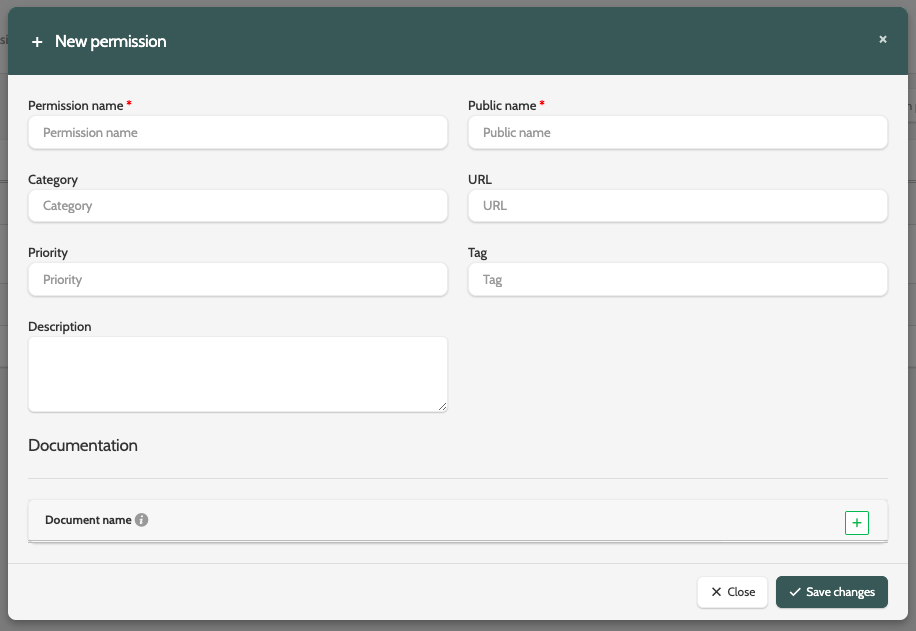
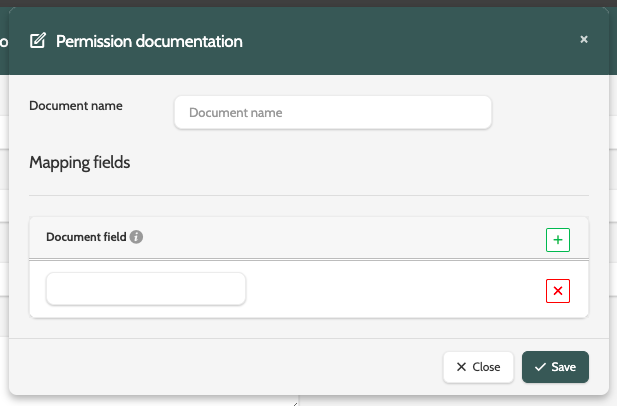
Under Documentation, click the green plus to add documentation to your permission.
What is Permission Documentation?
Although it varies from country to country, you will most likely be required to collect information on when, where, or how you obtained permission to contact leads.
This could be in the form of a timestamp, IP address, URL signup link, or other documentation.
With permission documentation, you can configure what information you need to collect, so that it can be exported in a PDF format, is deliverable through an API, and is stored individually in each lead's profile.
Add a Document name, which will correspond with the custom lead field in Flows, and enter a Document Field name in the text field.
Add as many documentation fields as needed, and click Save when done.
When you are done, click Save changes to create your new permissions list.
Manage permissions
It is also possible to manage permissions directly from the lead overview page.
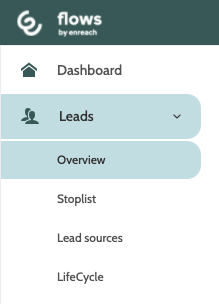
To access lead overview, expand the Leads menu, and click Overview.
In the navigation page, locate the lead and double click it. You will then be taken to the Lead overview.
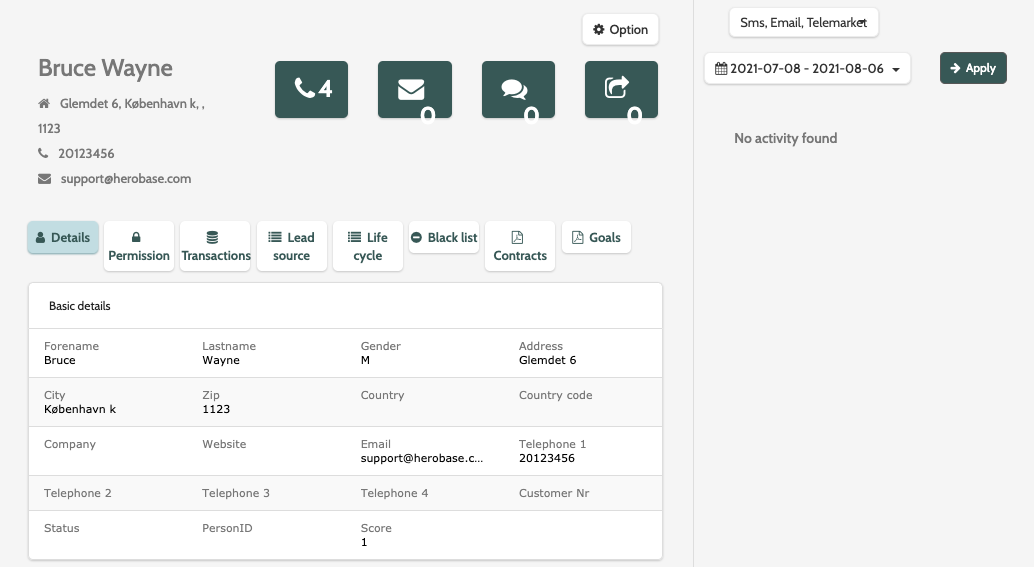
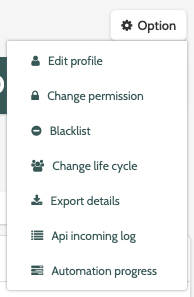
To edit a lead's permissions, expand the Options menu and click Change permission.
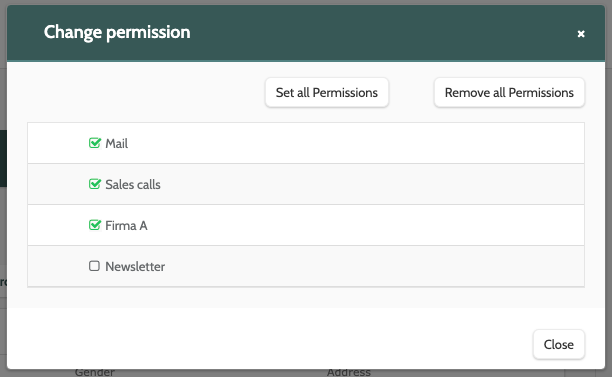
To assign new permissions, simply click the boxes, or select Set all Permissions or Remove all Permissions.
Please note that before adding or removing permissions for a lead, you must have received consent from the lead, in accordance to your organisation's policies, and in line with GDPR regulation.
Flows only provides the tools to be GDPR compliant, not the process. This is up to your organisation.
You'll be asked to confirm if you want to make the changes. Click Yes, add it! to change lead permission.